Find your way around a demo workspace: the dashboard, the sidebar navigation, and the workspace switcher for moving between demo workspaces or creating a new one.
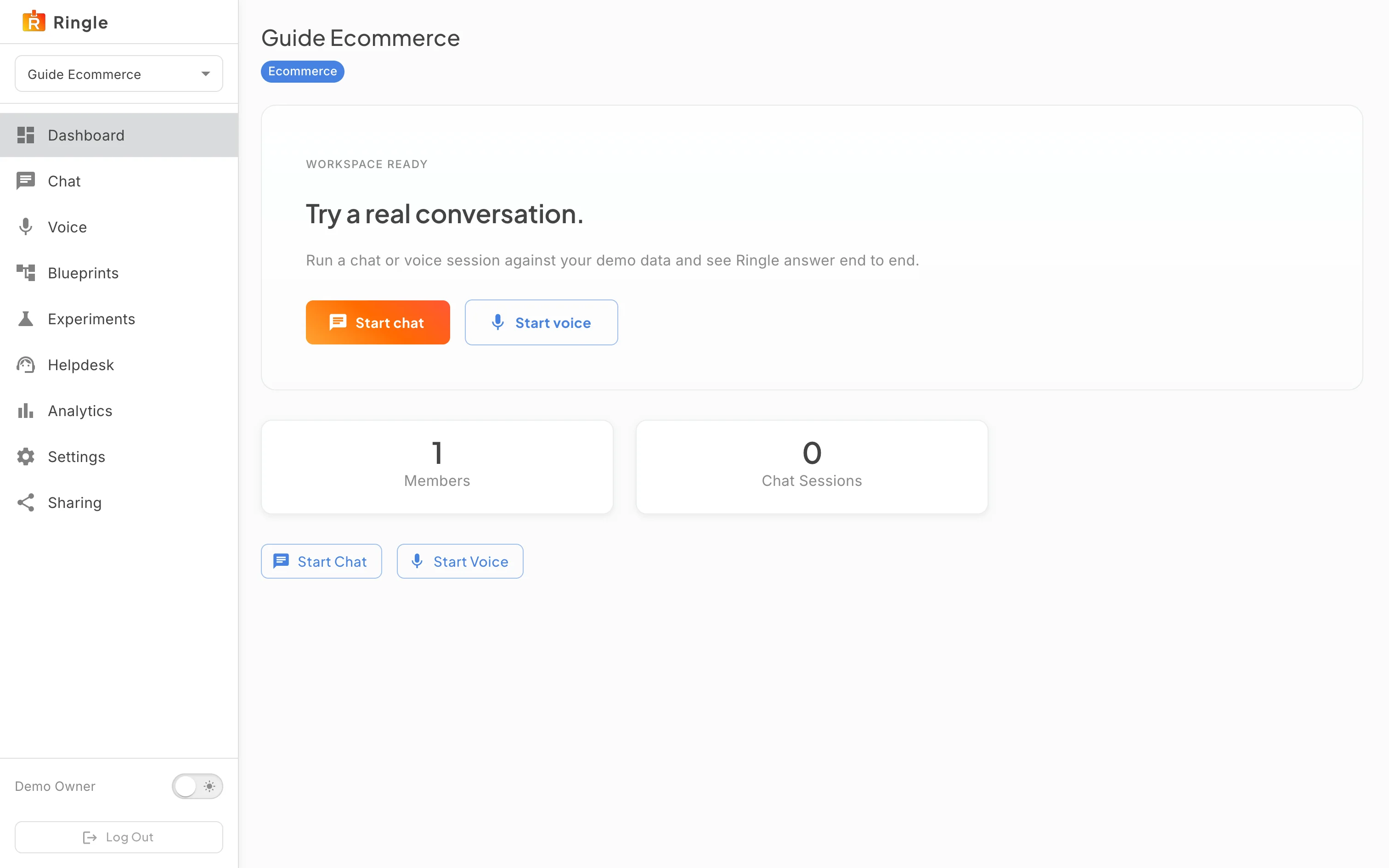
Action: Open your demo workspace. Its address is https://portal.getringle.com/demos/ followed by the workspace id. You land here automatically after creating the workspace.
What you should see: The dashboard shows the workspace name with a sector chip under it. A “Workspace ready” card invites you to try a real conversation, with Start chat and Start voice buttons. Two stat cards show Members and Chat Sessions. A second pair of Start Chat and Start Voice shortcuts sits below.
Action: Look over the sidebar on the left.
What you should see: Below the Ringle logo and the workspace switcher, the sidebar lists Dashboard, Chat, Voice, Blueprints, Experiments, Helpdesk, Analytics, Settings, and Sharing. A dark mode toggle sits at the bottom. Sharing only appears if your role in the workspace allows managing it.
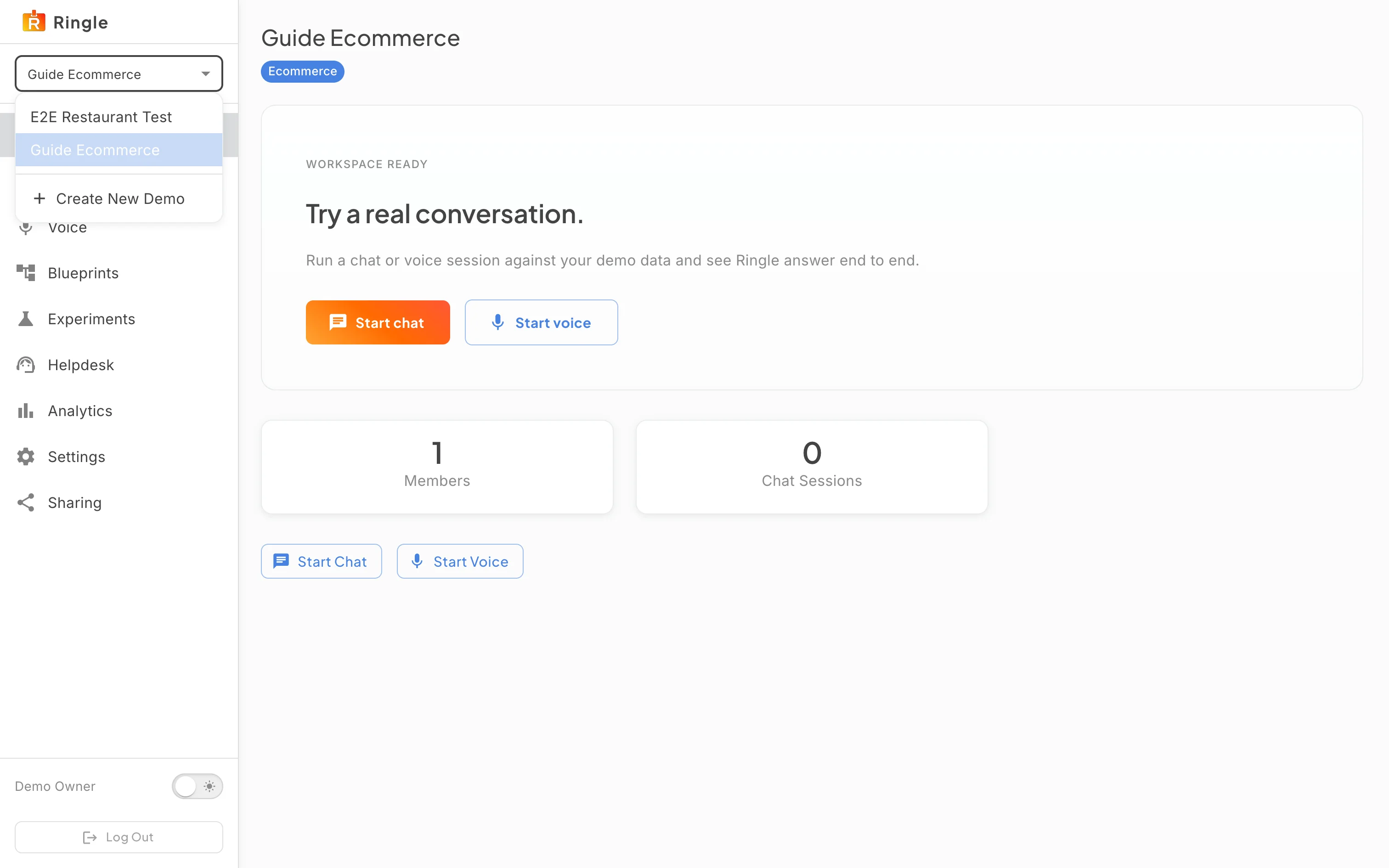
Action: Click the workspace switcher. It is the dropdown directly under the Ringle logo showing the current workspace name.
What you should see: The dropdown lists your demo workspaces with the current one highlighted. At the bottom is a “Create New Demo” entry with a plus icon. Picking another workspace takes you straight to its dashboard. Create New Demo opens the onboarding form only for guest sessions; on a signed-in account that already has a workspace it currently returns you to your dashboard instead.
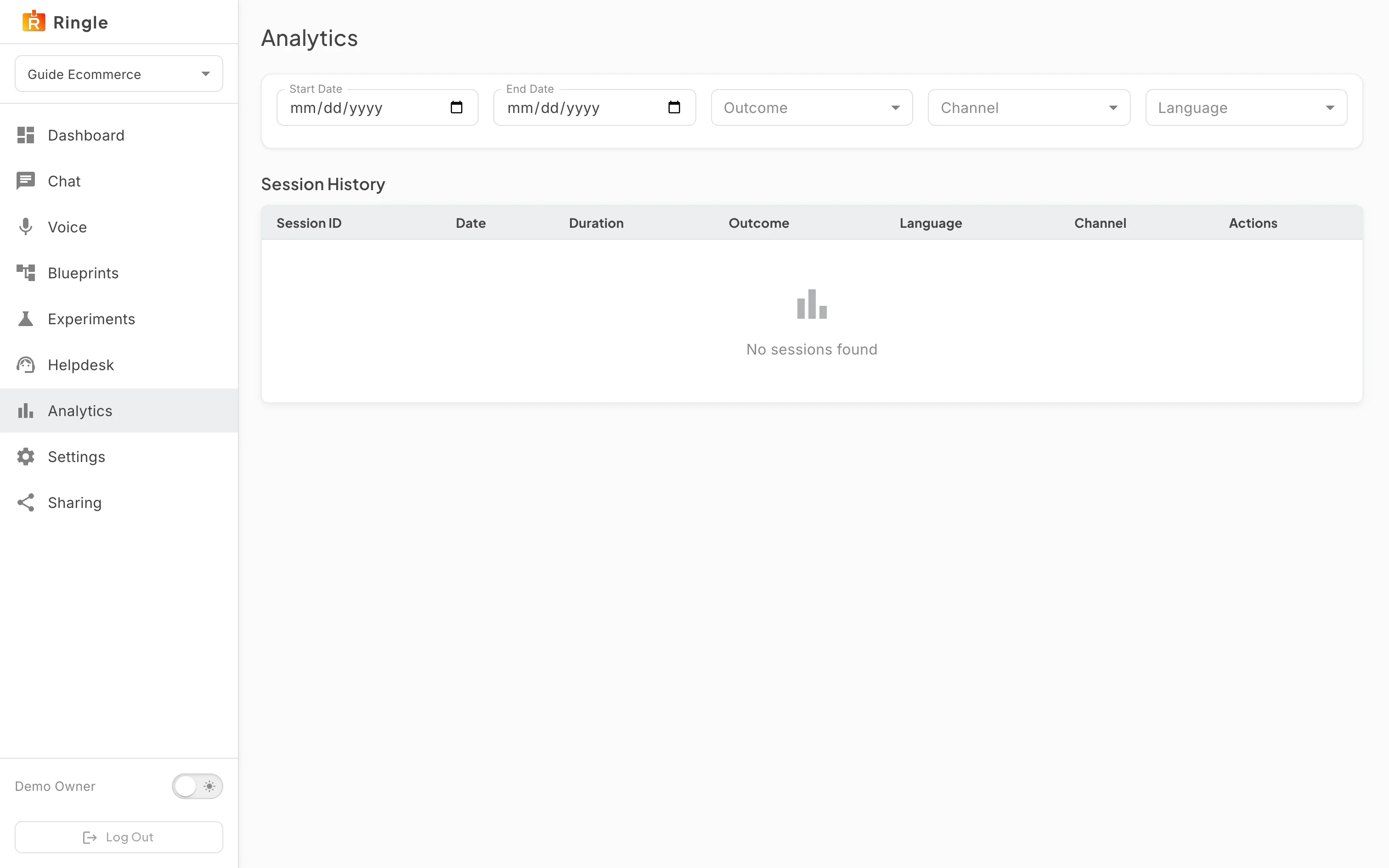
Action: Use the sidebar to move around the workspace. For example, click Analytics.
What you should see: The Analytics page opens at the
workspace address plus /analytics. It has date, outcome,
channel, and language filters over a Session History table. The table
fills in as you run chat and voice conversations. In a fresh workspace
it reads “No sessions found”.
/demos/:id (dashboard); sidebar items map to
/demos/:id/chat, /voice,
/blueprints, /experiments,
/helpdesk, /analytics, /settings,
/sharing.pages/demo-workspace/DemoWorkspaceDashboard.jsx (dashboard)
and components/demo-workspace/DemoWorkspaceLayout.jsx
(sidebar, workspace switcher, and page frame) in the portal app./demos/new. Signed-in accounts that already have a
workspace are redirected away from that route, so the entry is only
useful for guest sessions.