Run a live text conversation with your workspace’s AI assistant and follow along in the OMS panel. The panel shows the demo orders, subscriptions, and helpdesk tickets the assistant is working against.
Action: Click Chat in the workspace sidebar, or the Start chat button on the dashboard.
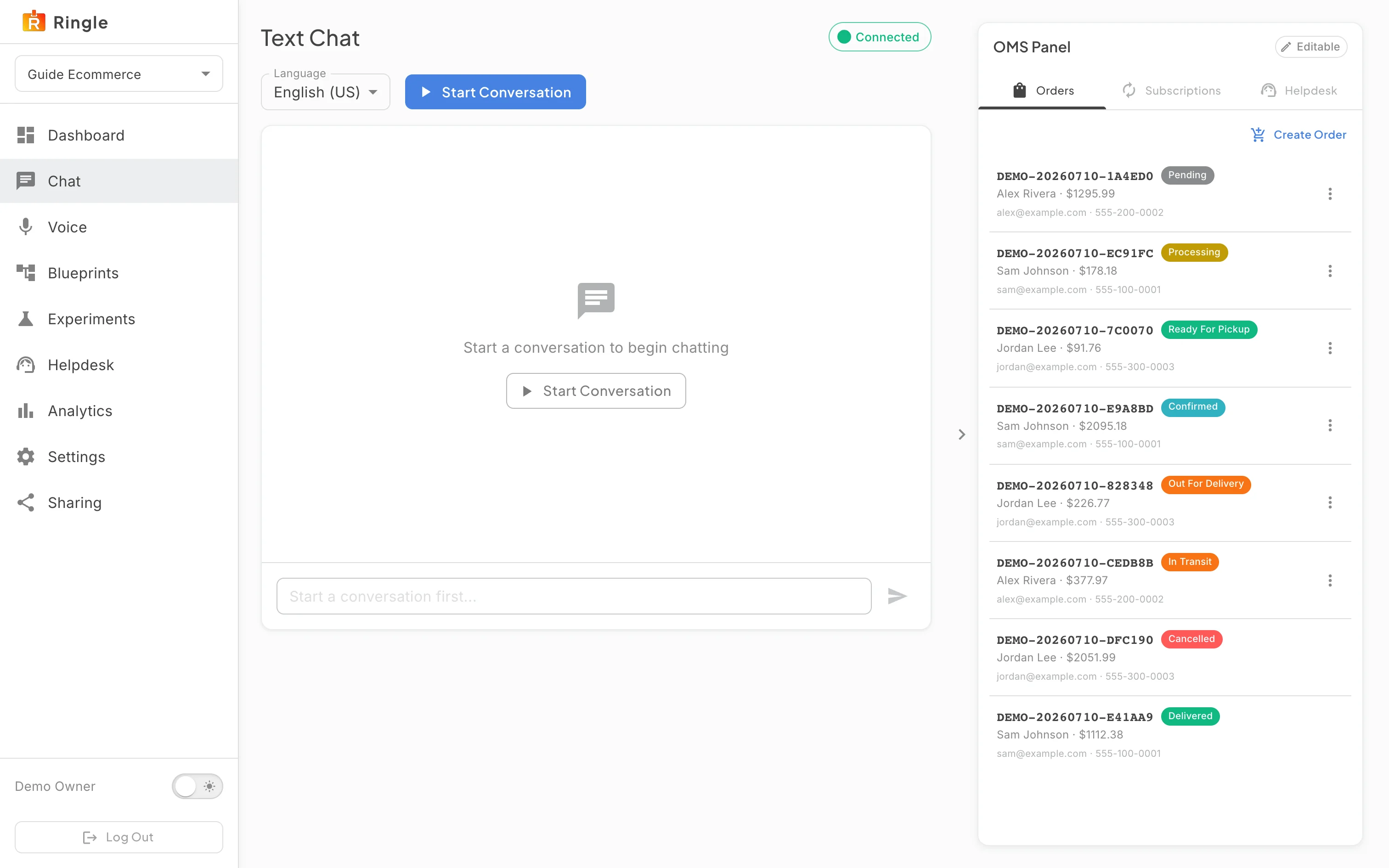
What you should see: The Text Chat page opens with a Connected status chip, a Language selector, and a Start Conversation button. The message box is disabled until a conversation starts. On the right, the OMS Panel shows an Editable chip and three tabs: Orders, Subscriptions, and Helpdesk. The Orders tab has a Create Order button and the seeded demo orders, each with a status chip like Processing or Delivered. A chevron between the two areas collapses or restores the panel.
Action: Pick a language if you want something other than the default. Click Start Conversation.
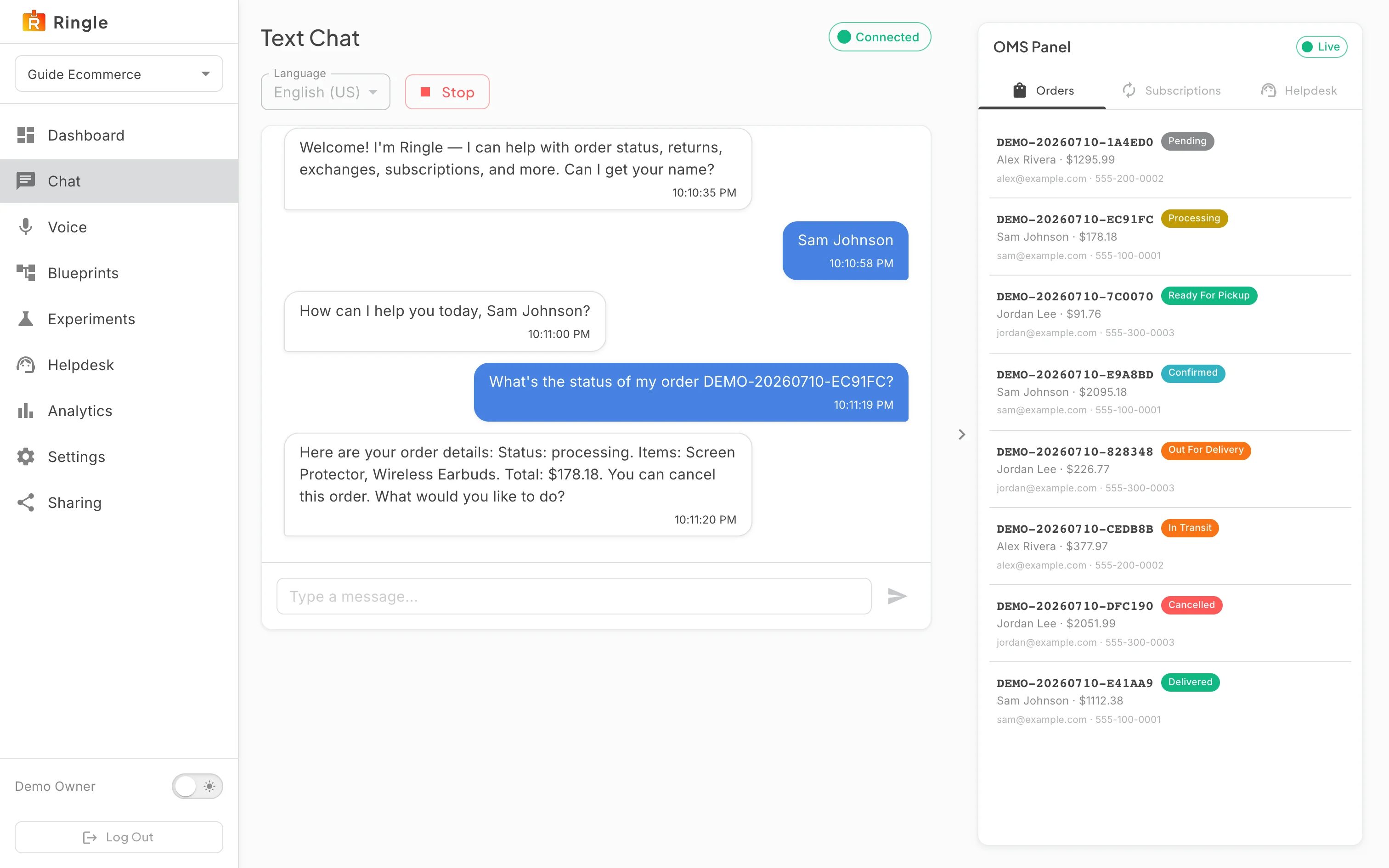
What you should see: The assistant greets you and asks for your name. The Start button becomes a red Stop button, and the language selector locks for the session. The message box activates, and the OMS Panel chip flips from Editable to Live.
Action: Chat with the assistant about the demo data. Give a name that appears on the orders in the panel (for example Sam Johnson). Ask about an order. Quote its number from the Orders tab if you want a precise answer.
What you should see: The assistant answers from the same data you see in the panel: order status, the items in it, and the total. It then offers relevant next actions such as cancelling. If it proposes an action you did not ask for, answer no. Nothing changes until you confirm.
Action: Click the Subscriptions tab in the OMS panel.
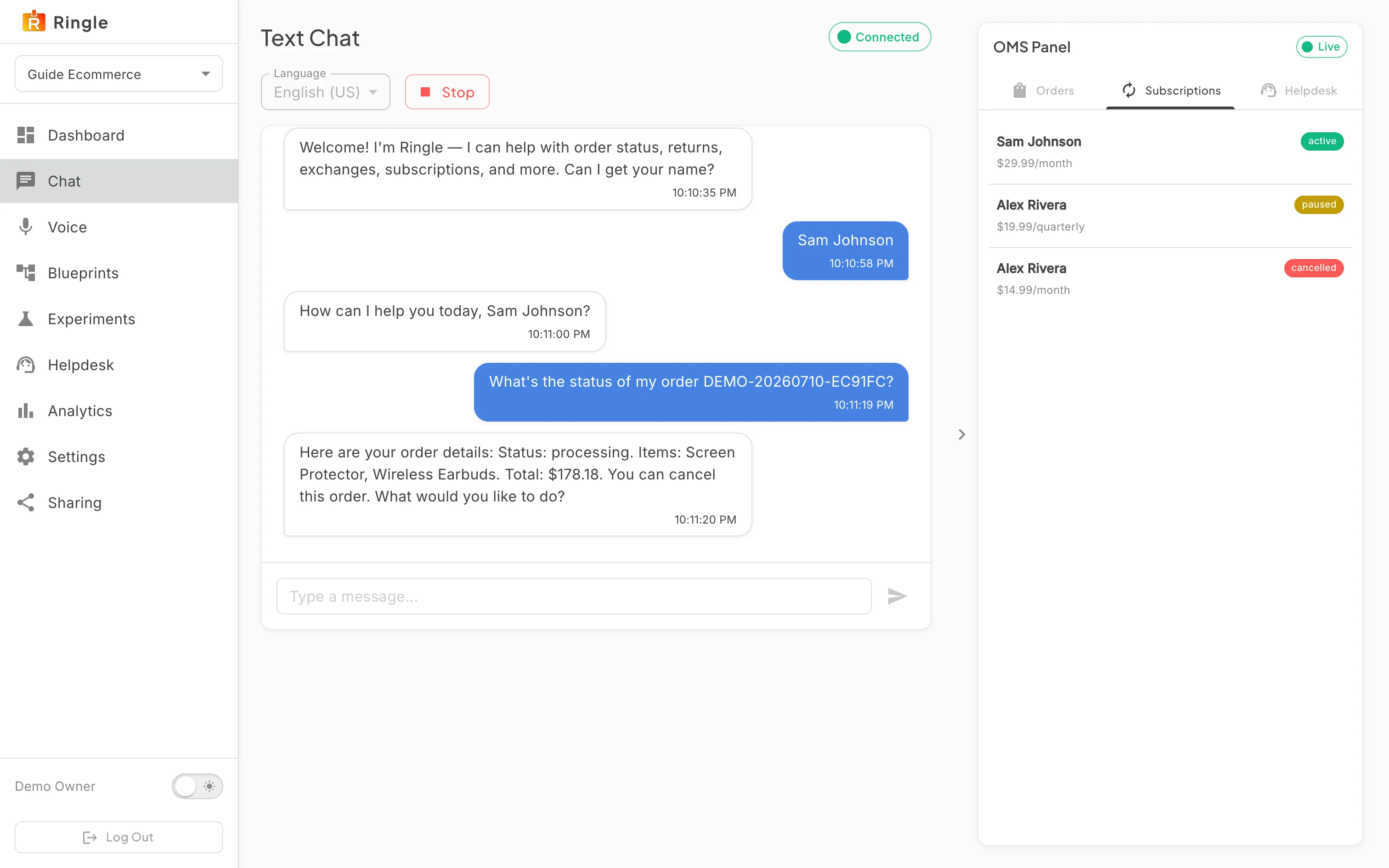
What you should see: The tab lists the demo subscriptions with their status (active, paused, cancelled) and billing amount. While a conversation is live, the panel is read only and refreshes on its own. Management actions return when the conversation ends.
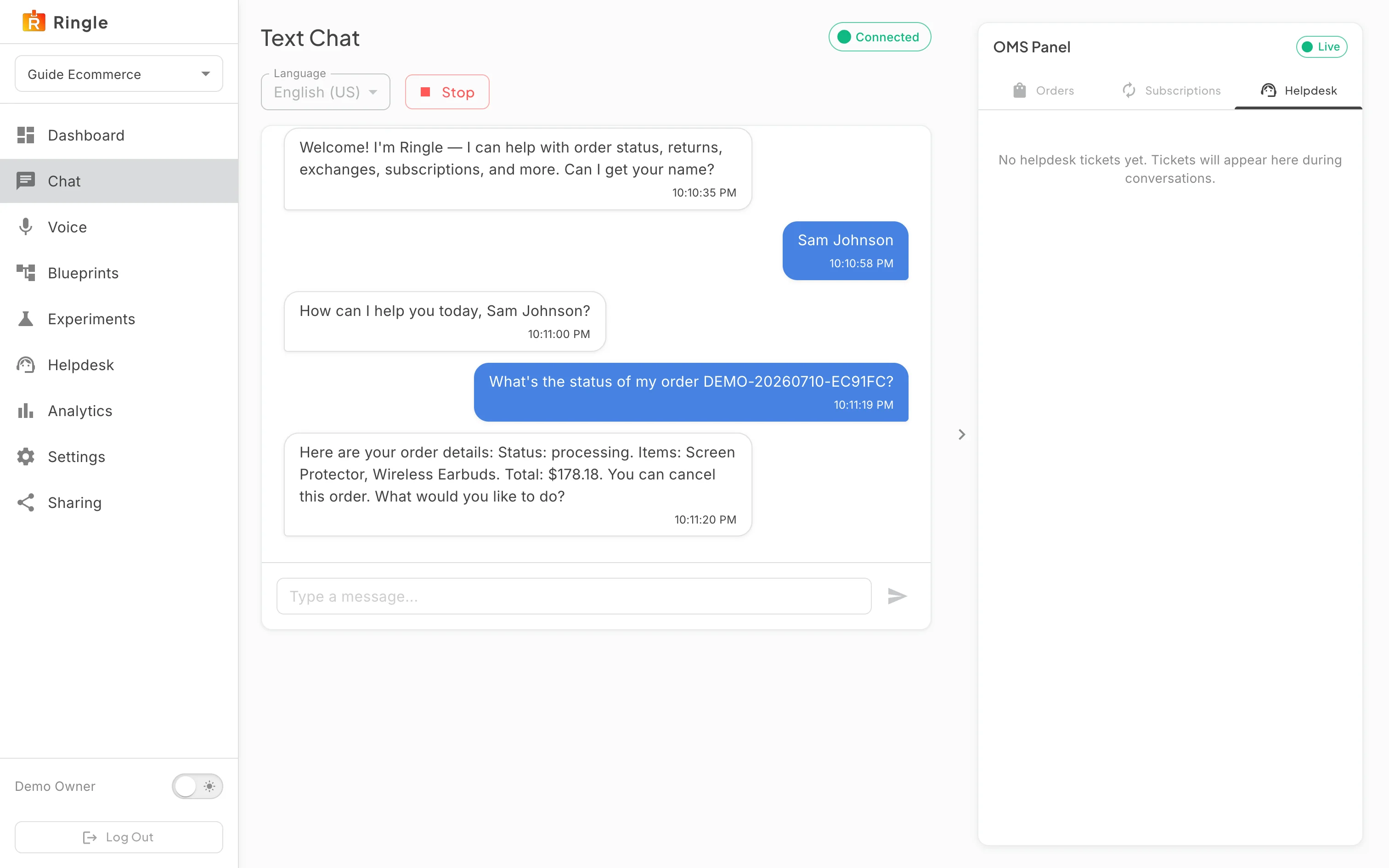
Action: Click the Helpdesk tab.
What you should see: The tab lists helpdesk tickets. In a fresh workspace it reads “No helpdesk tickets yet. Tickets will appear here during conversations.” Tickets show up here when a conversation escalates to support.
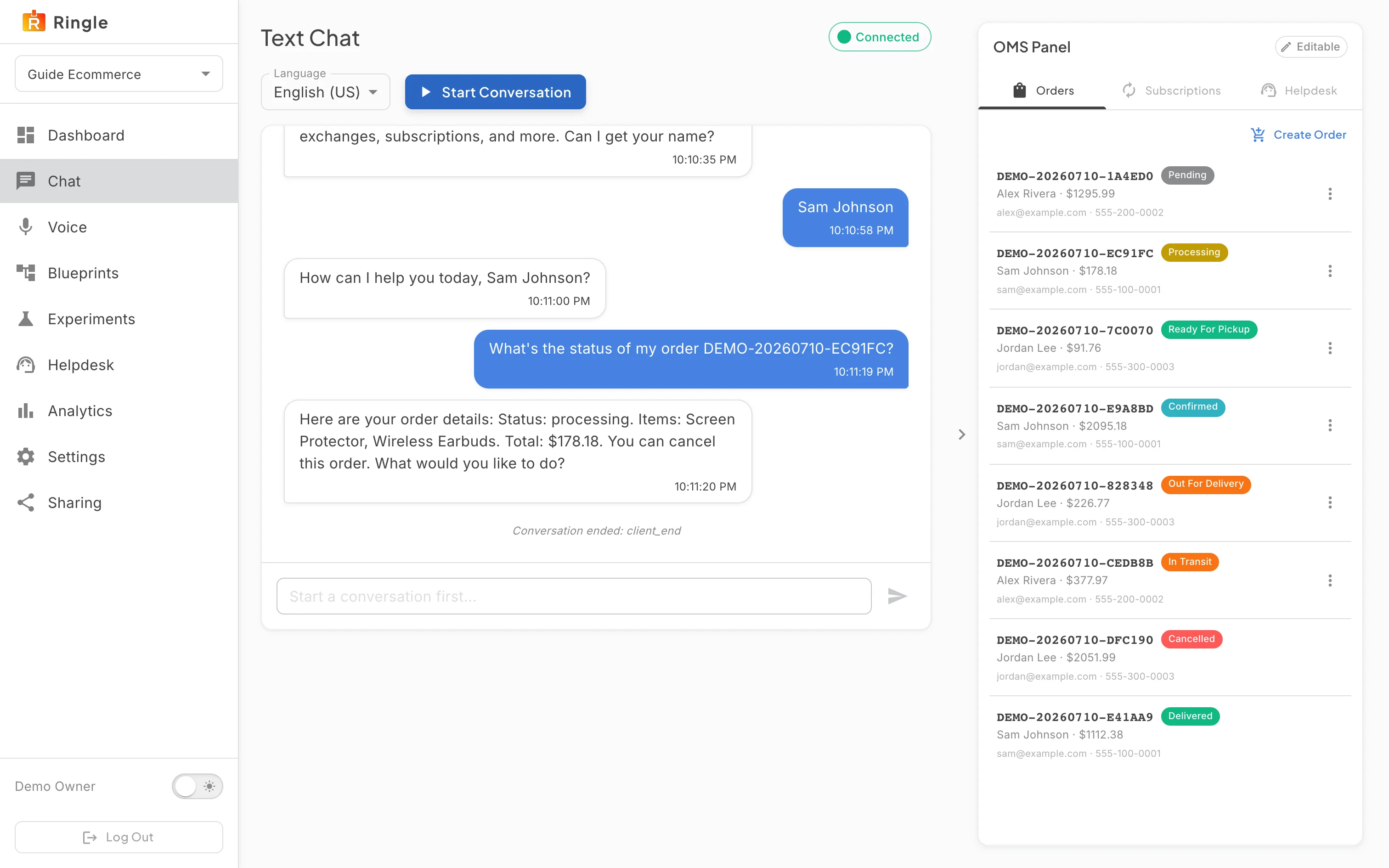
Action: Click Stop to end the session.
What you should see: The transcript stays on screen with a “Conversation ended” marker at the bottom. The marker notes the end reason, for example client_end after you click Stop. The message box disables, and the Start Conversation button returns. The OMS panel goes back to Editable, so you can add or edit demo orders before the next run.
/demos/:id/chat.pages/demo-workspace/DemoWorkspaceChat.jsx (chat page) and
components/demo-workspace/ConversationOmsPanel.jsx (the
panel) in the portal app.