The Voice Config page controls how the assistant sounds on phone calls: the text-to-speech provider, the specific voice, and delivery tuning such as speed. A second tab holds an optional pre-recorded welcome audio clip.
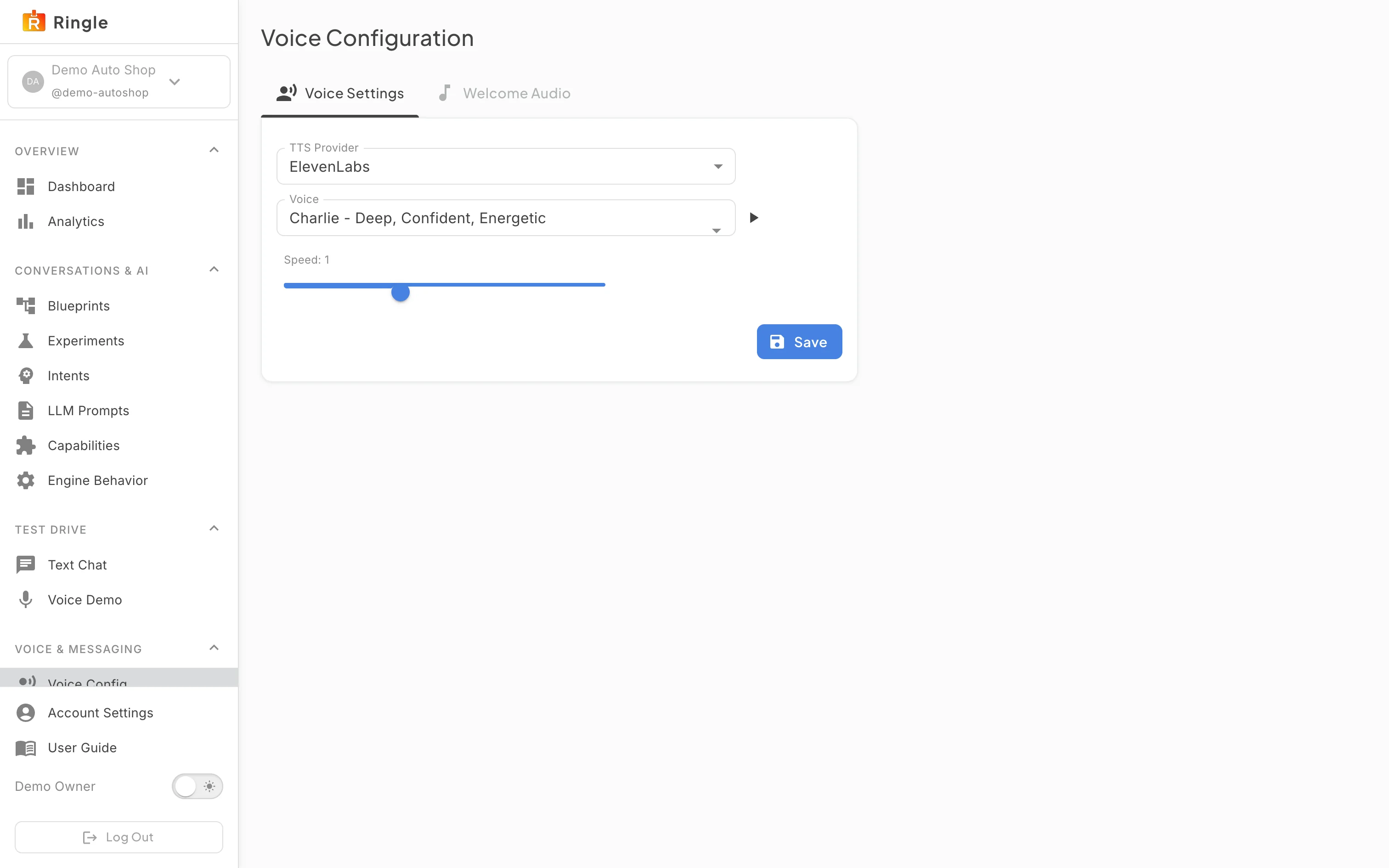
Action: Click Voice Config under Voice & Messaging in the sidebar.
What you should see: The Voice Configuration page opens on the Voice Settings tab. It shows the TTS Provider selector (ElevenLabs in the demo tenant), a Voice picker with a small preview play button beside it, and a Speed slider. The Save button stays disabled until a voice is chosen; when the tenant already has a voice set, it opens enabled. Platform admins see extra controls that regular members do not: a Model selector, Stability and Similarity Boost sliders (ElevenLabs only), and a Context Inbound (Asterisk) field above the provider. See Troubleshooting.
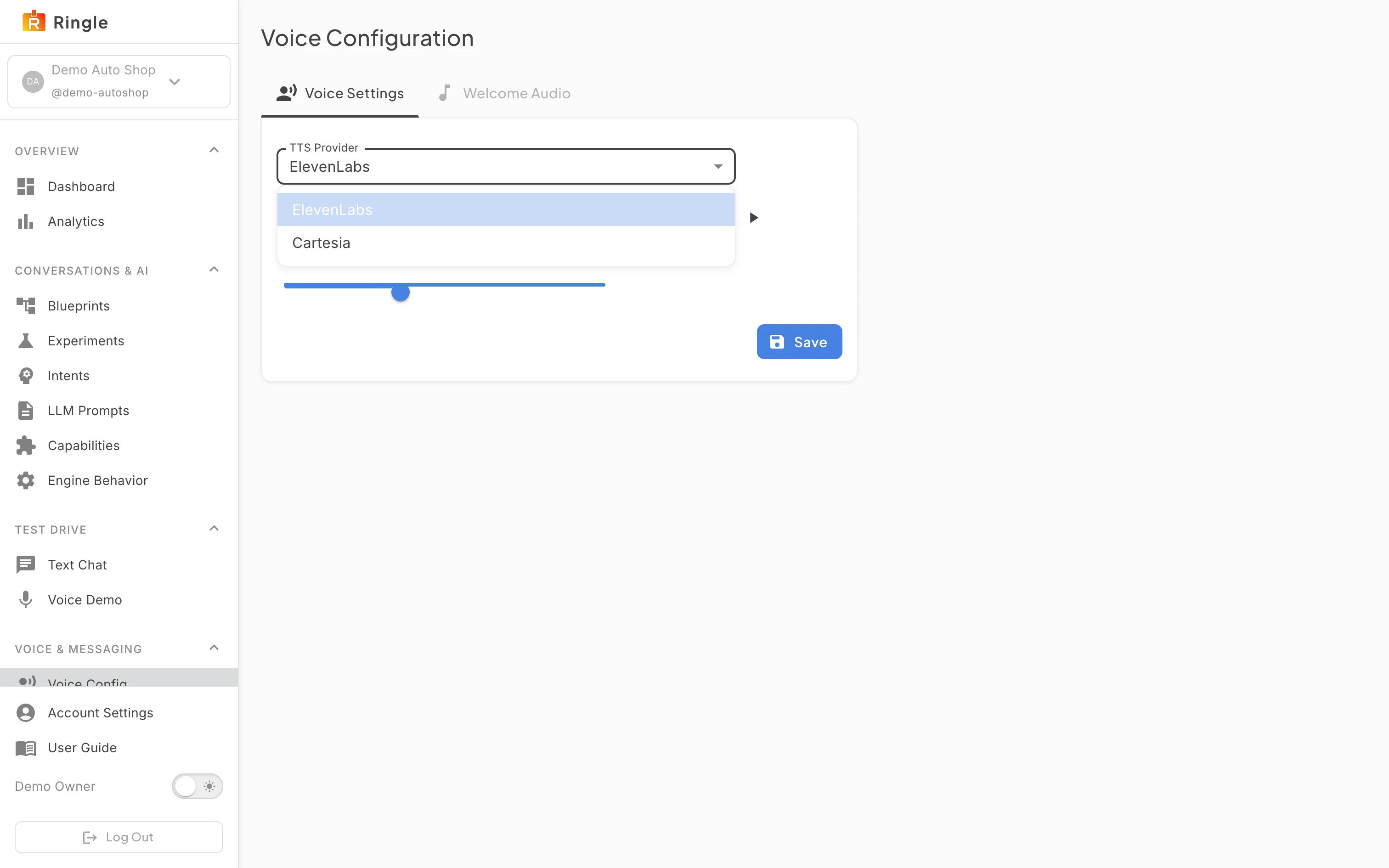
Action: Open the TTS Provider dropdown to see the available engines. Close it without changing the value.
What you should see: The dropdown lists the supported providers, ElevenLabs and Cartesia. Switching provider clears the current voice selection. For platform admins, the model selection also clears and the provider-specific sliders change (Stability and Similarity Boost apply to ElevenLabs only); regular members only ever see the Speed slider.
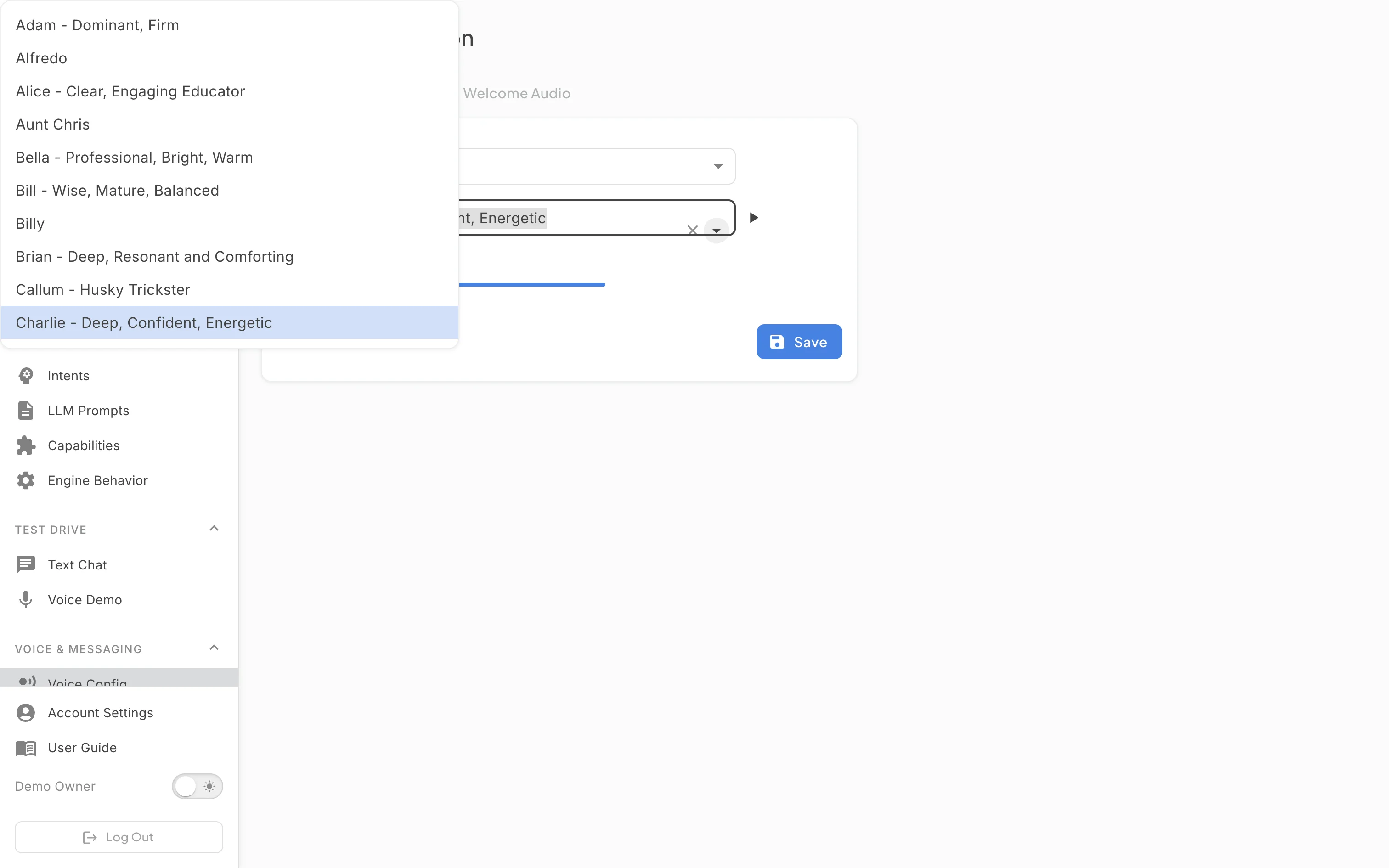
Action: Open the Voice picker.
What you should see: A searchable list of voices for the selected provider appears, each with a short character description such as “Bella - Professional, Bright, Warm”. The demo tenant’s ElevenLabs catalog offers 28 voices.
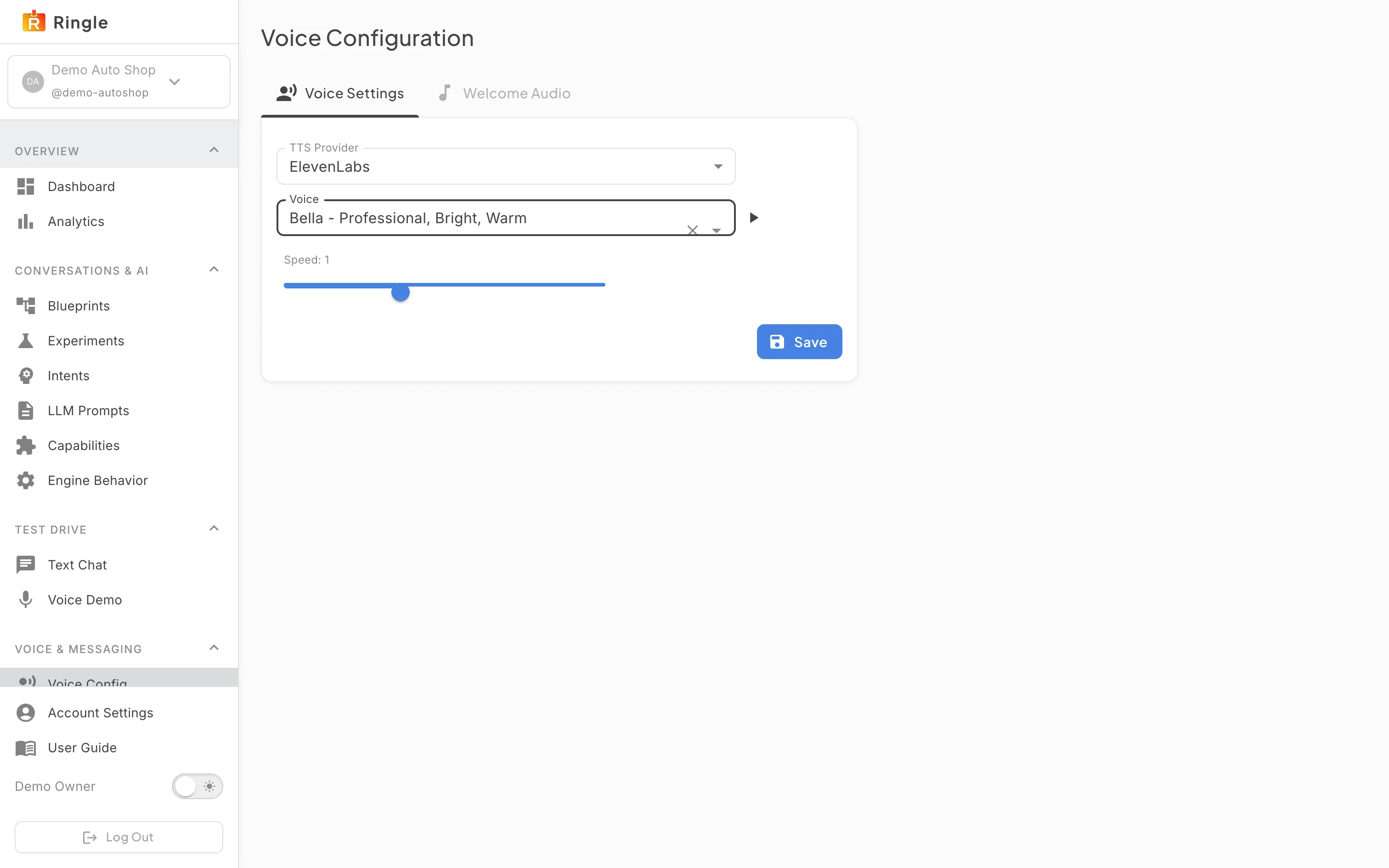
Action: Select a voice from the list. Do not click Save unless you intend to change the live assistant.
What you should see: The selected voice fills the picker with a clear (x) control. The preview play button next to it becomes active so you can hear a sample, and the Save button enables. Nothing is applied until you click Save. Leaving the page discards the selection.
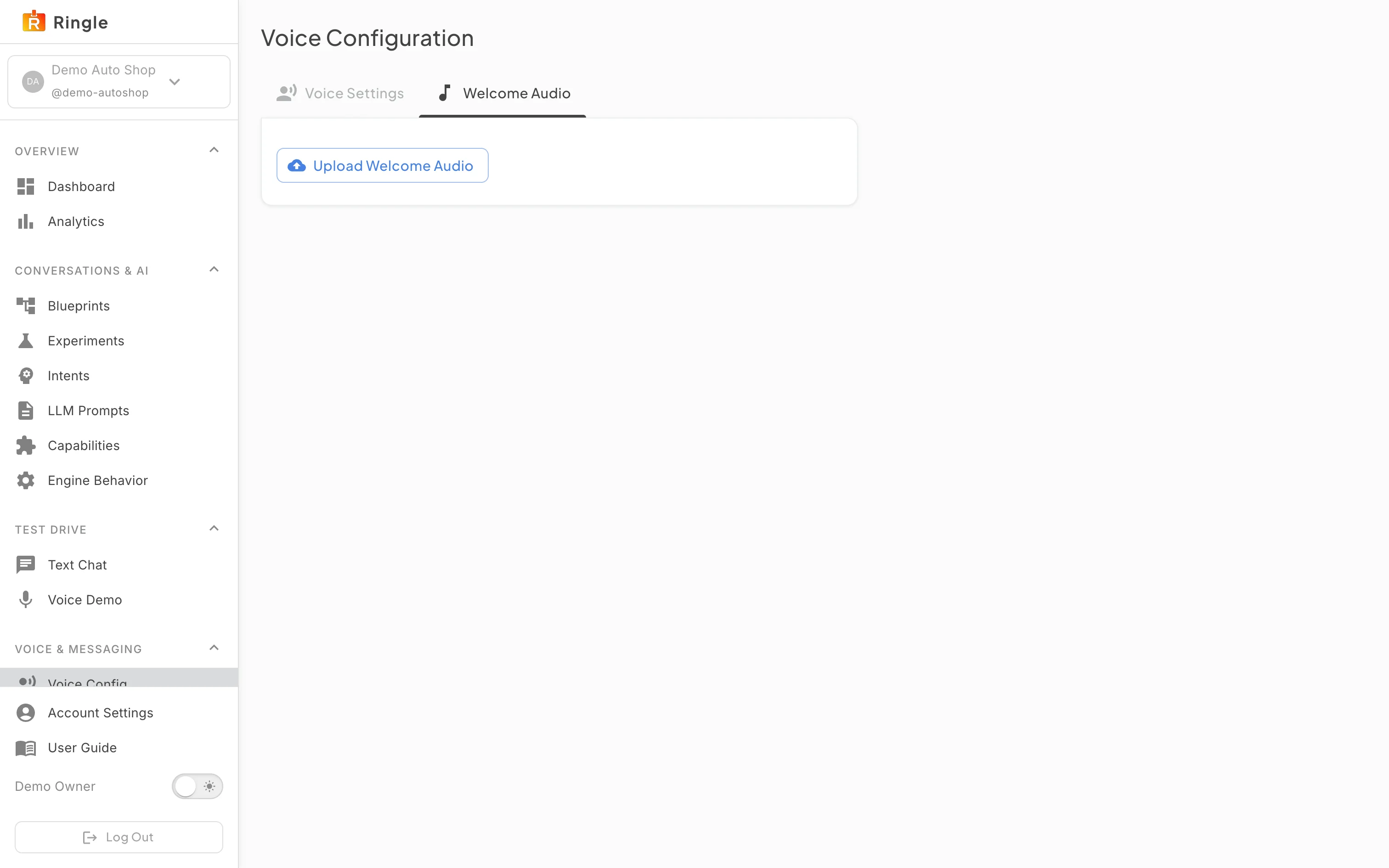
Action: Switch to the Welcome Audio tab.
What you should see: The tab contains a single Upload Welcome Audio button that accepts an audio file. When a clip is present, it plays at the start of inbound calls in place of synthesized speech for the greeting.
/settings/voice, sidebar item “Voice Config”
under Voice & Messaging. Source:
pages/settings/VoiceConfigPage.jsx, which renders the
shared components/common/VoiceConfigPanel.jsx.voice.manage
permission (platform admins always see it). This is a different gate
from the rest of the settings pages, which mostly use
tenants.settings.manage.en-US;
per-language voice overrides exist in the shared panel but are not
enabled on this page.