Four settings pages tune the conversation engine underneath the flows: Intents controls what the assistant recognizes, LLM Prompts customizes the classifier prompts, Capabilities switches whole behaviors on or off, and Engine Behavior sets timing and clarification defaults.
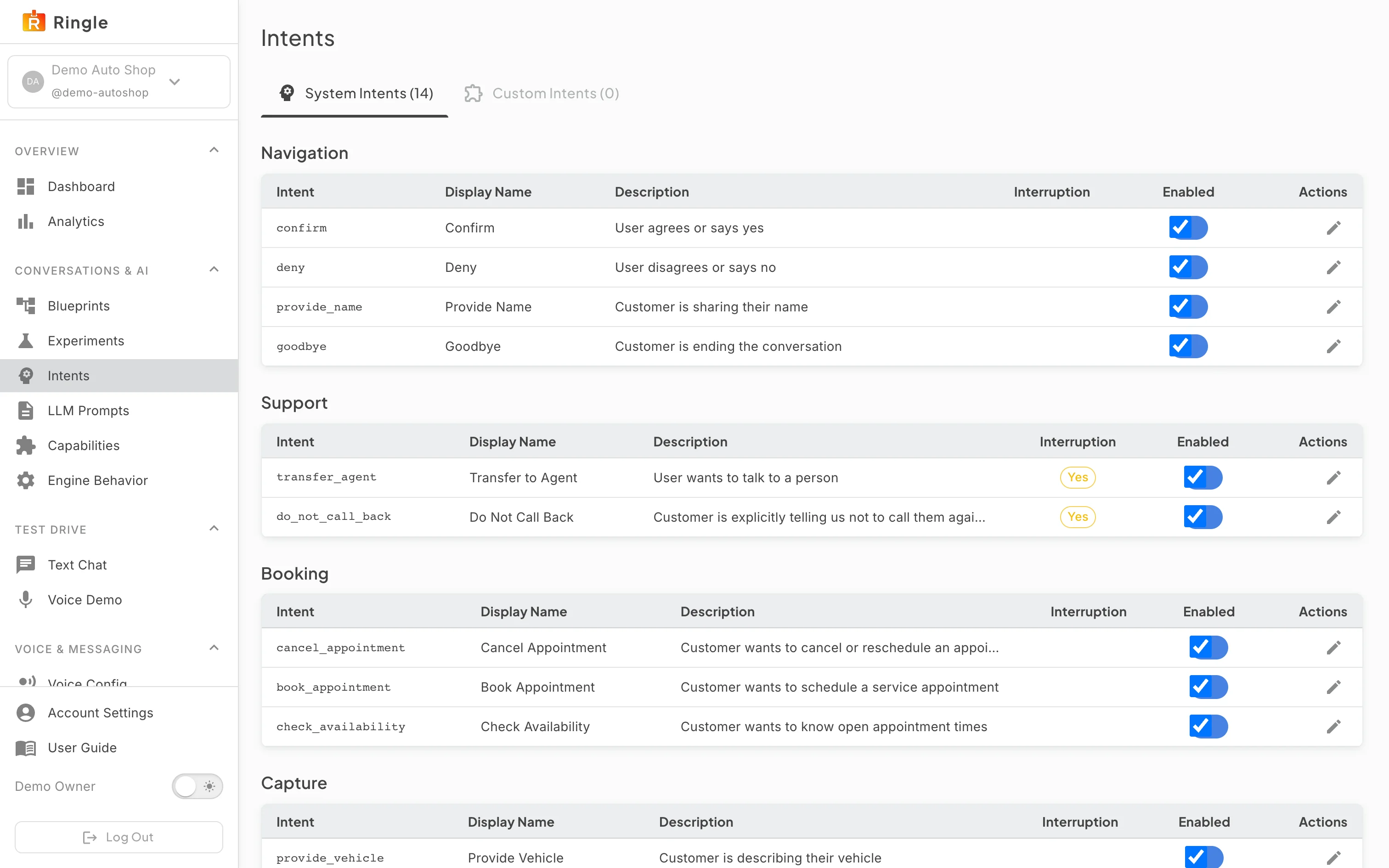
Action: Click Intents under Conversations & AI in the sidebar.
What you should see: Two tabs appear: System Intents (the built-in catalog, count shown in the tab label, 14 in the Demo Auto Shop tenant) and Custom Intents. System intents are grouped by category; the demo tenant shows Navigation, Support, Booking, Capture, and Fallback. Each table shows the intent name, display name, description, a yellow “Yes” chip when the intent can interrupt the current flow, an Enabled switch, and a pencil to customize. The catalog is tenant specific, so the exact intents and categories vary by tenant. The Custom Intents tab lists tenant-defined intents with a Create Intent button.
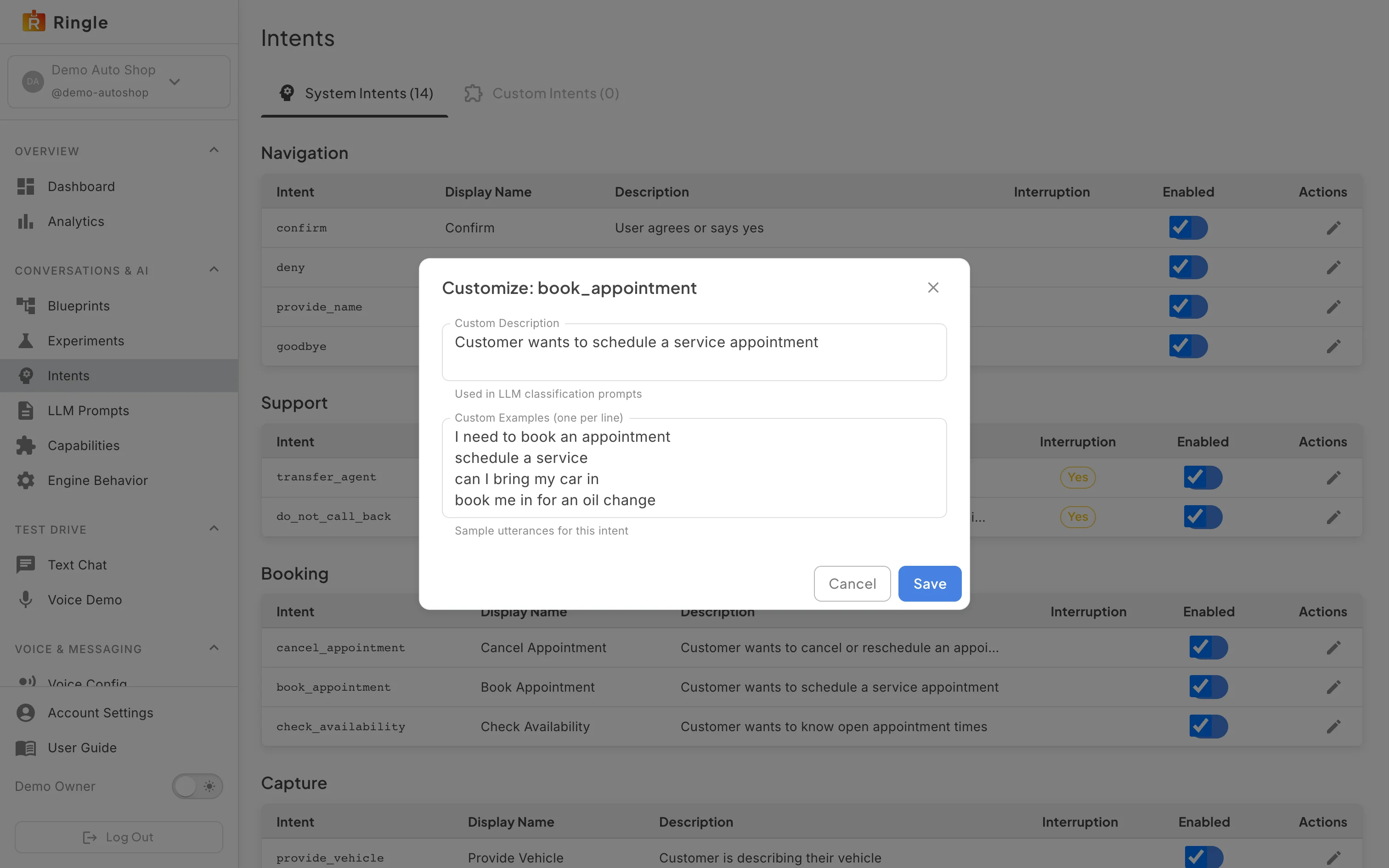
Action: Click the pencil on a system intent, for example book_appointment. Review the dialog. Then click Cancel.
What you should see: The “Customize: book_appointment” dialog (the title names whichever intent you opened) has a Custom Description field (“Used in LLM classification prompts”) and a Custom Examples field with one utterance per line (“Sample utterances for this intent”). Saving stores a tenant override, and a Reset to default action then appears on the row. Cancel leaves the catalog untouched.
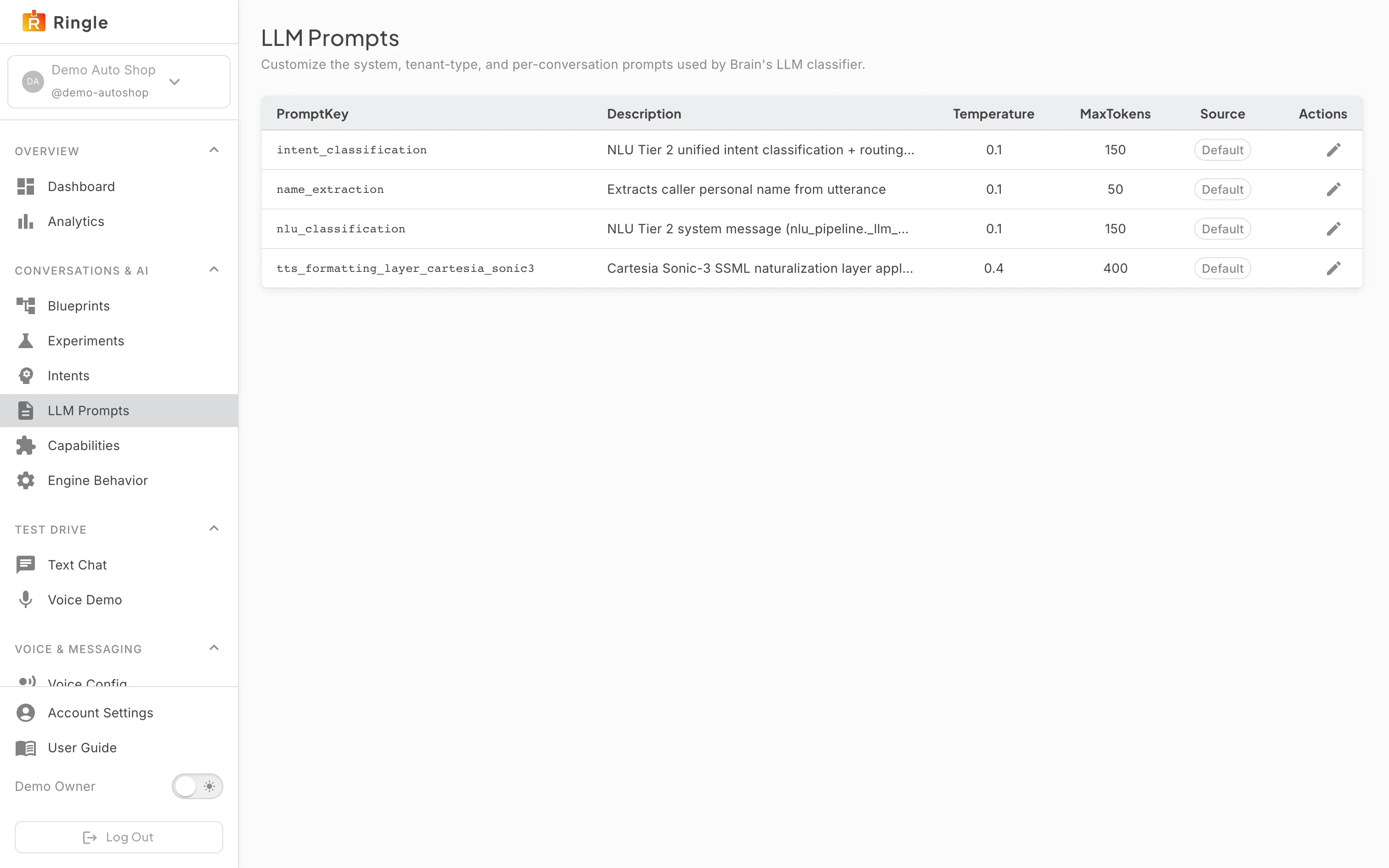
Action: Click LLM Prompts in the sidebar.
What you should see: A table lists each prompt used
by the assistant’s language-model classifier. Each row shows the prompt
key (such as intent_classification), a description, its
temperature and max tokens, a Source chip (Default, or a warning chip
once overridden), and an edit pencil. Prompts cannot be created or
deleted, only overridden and reset.
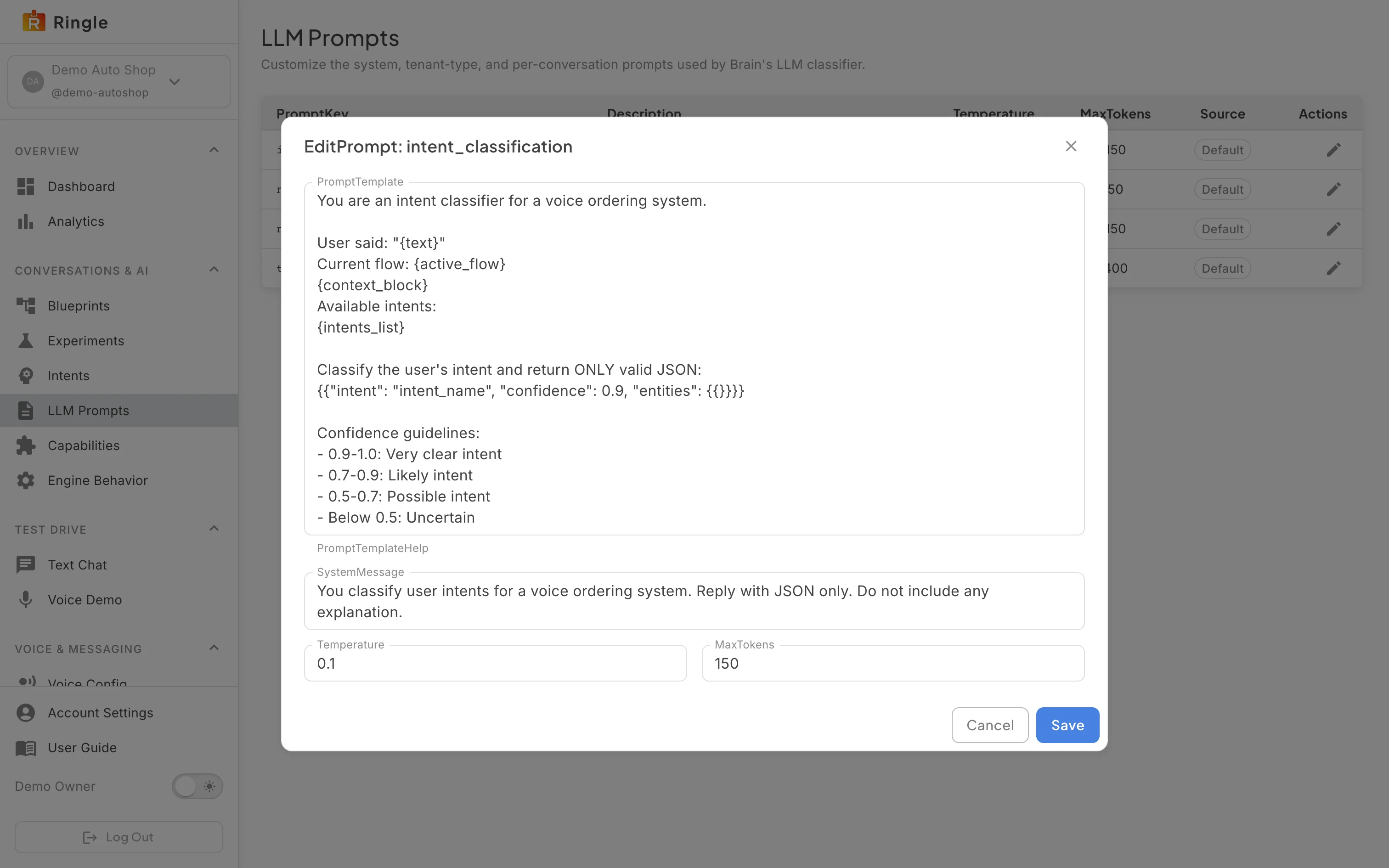
Action: Click the pencil on a prompt. Review the dialog. Then click Cancel.
What you should see: The edit dialog shows the full prompt template with its placeholders (like {text} and {intents_list}), the system message, and number fields for Temperature and MaxTokens. Saving stores only the fields you changed as a tenant override. Cancel changes nothing.
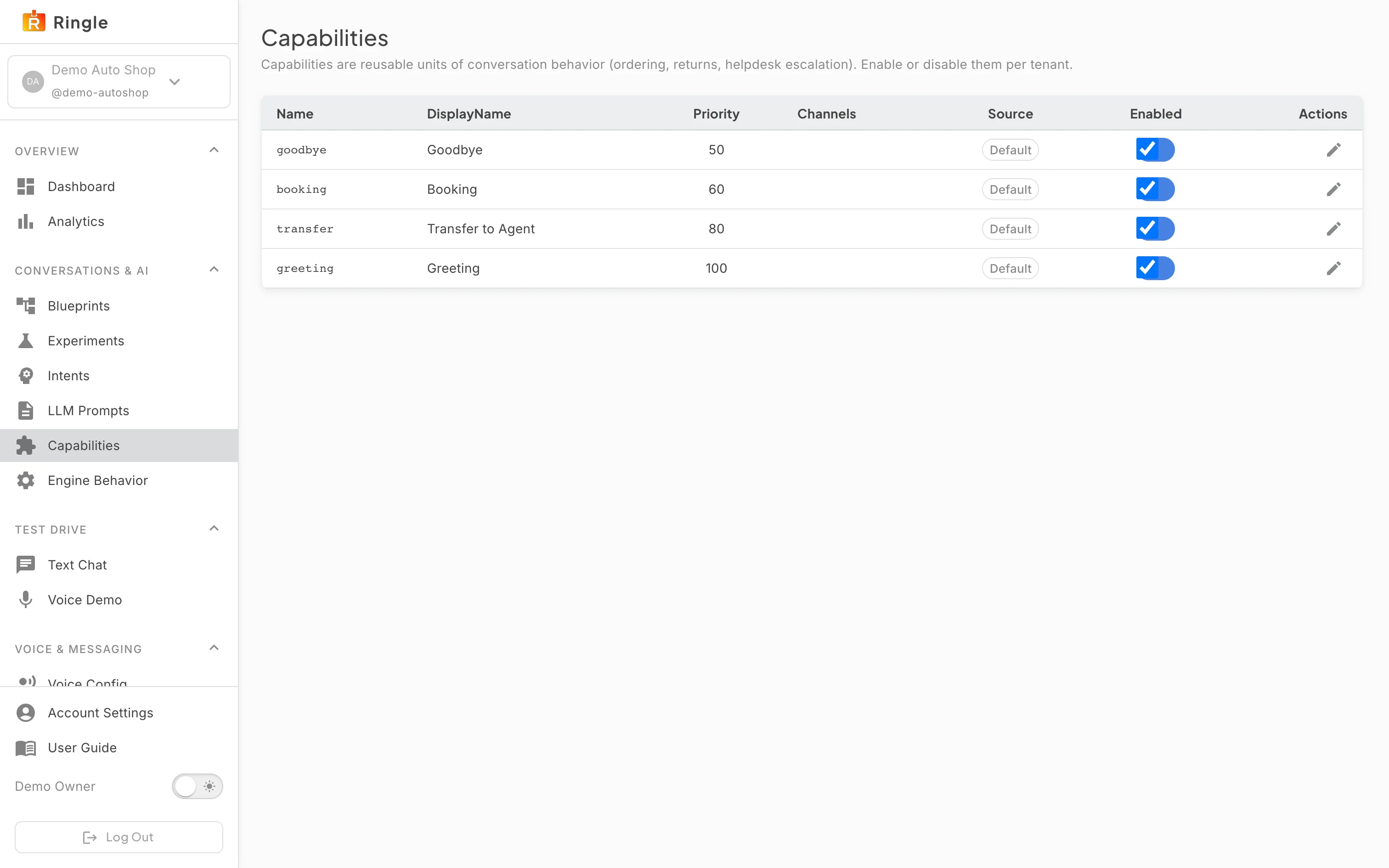
Action: Click Capabilities in the sidebar.
What you should see: A table lists every conversation capability for the tenant. The Demo Auto Shop tenant shows goodbye, booking, transfer, and greeting; the set is tenant specific, so an ecommerce tenant lists different capabilities such as wismo, return, and subscription. Each row shows its display name, priority, channel chips where the capability is restricted to specific channels (blank when it runs on all), a Source chip, an Enabled switch, and an edit pencil. The edit dialog holds the capability’s entry, exit, and resume prompts plus a JSON config block. Like prompts, capabilities can be overridden and reset but not created or deleted.
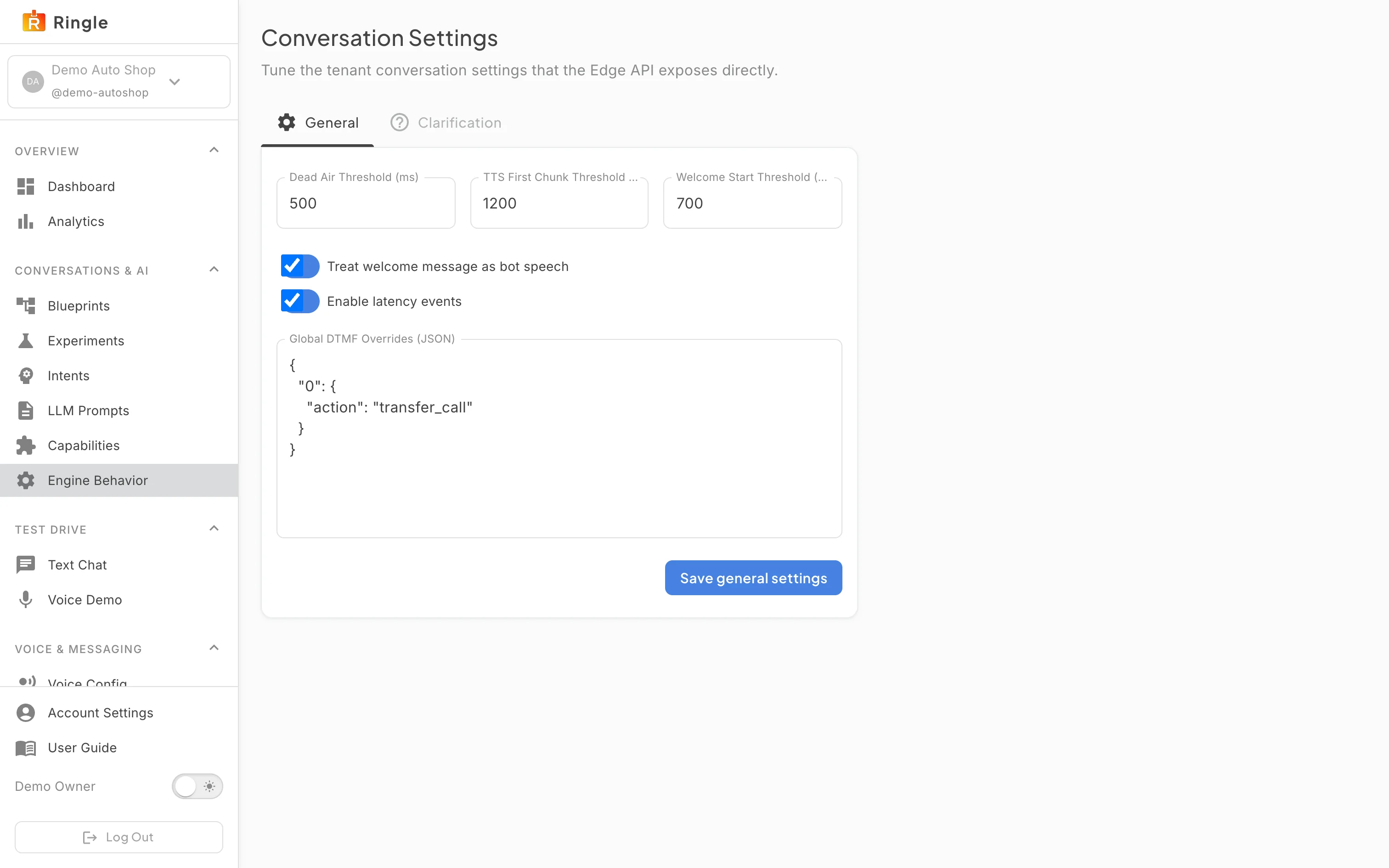
Action: Click Engine Behavior in the sidebar.
What you should see: The page (headed “Conversation Settings”) opens on the General tab. It has three timing fields in milliseconds: Dead Air Threshold, TTS First Chunk Threshold, and Welcome Start Threshold. It also has switches for “Treat welcome message as bot speech” and “Enable latency events”, a Global DTMF Overrides JSON block (for example mapping key 0 to a transfer), and a “Save general settings” button.
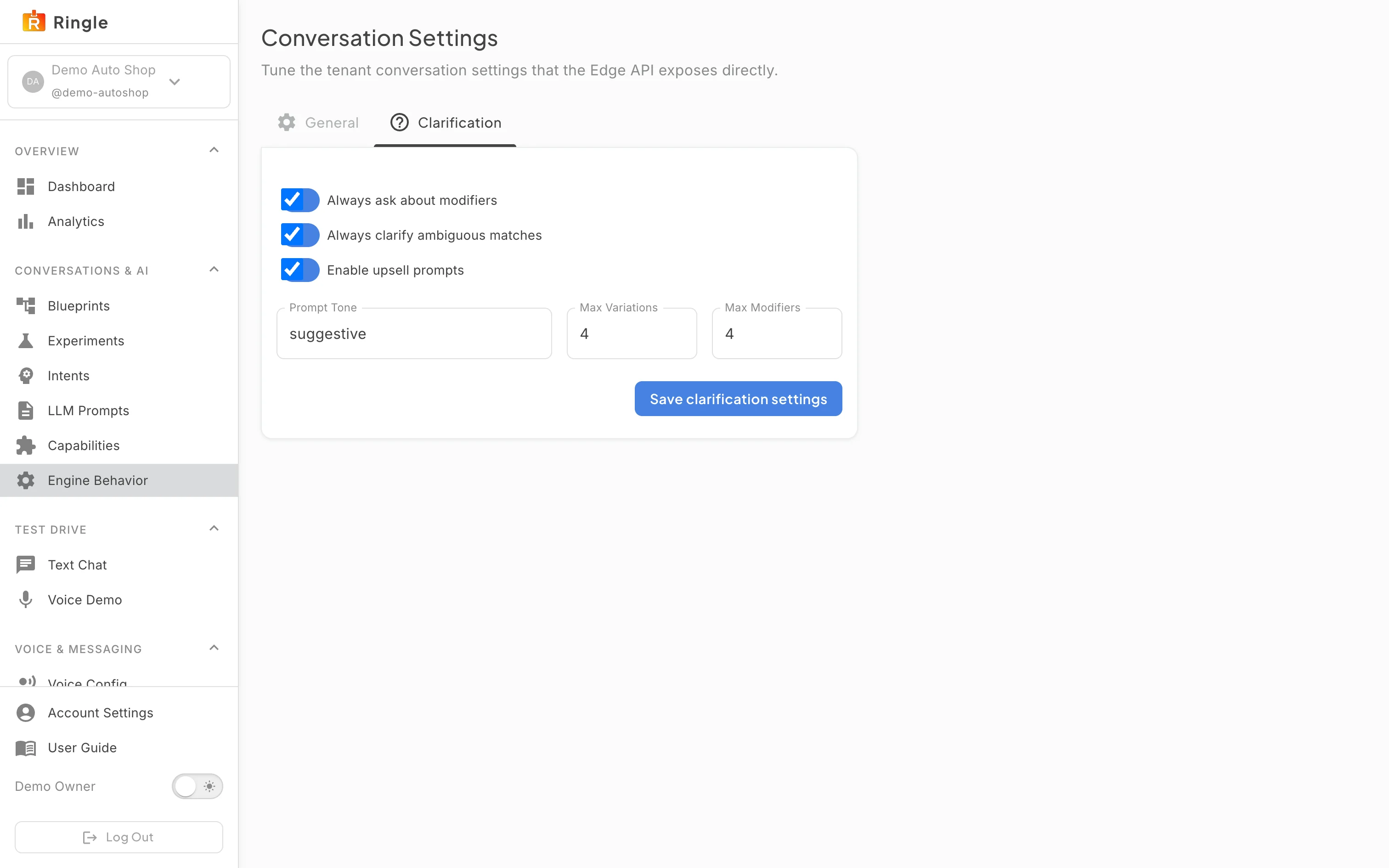
Action: Switch to the Clarification tab.
What you should see: The tab holds the clarification behavior for ordering conversations. It has switches for “Always ask about modifiers”, “Always clarify ambiguous matches”, and “Enable upsell prompts”, a Prompt Tone text field, Max Variations and Max Modifiers number fields, and a “Save clarification settings” button.
/settings/intents,
/settings/llm-prompts, /settings/capabilities,
and /settings/engine-behavior, under the Conversations
& AI sidebar group. Source components:
pages/settings/IntentsManagementPage.jsx,
pages/settings/LlmPromptsManagementPage.jsx,
pages/settings/CapabilitiesManagementPage.jsx, and
pages/settings/ConversationSettingsPage.jsx in the portal
app.conversations.manage permission; platform admins always see
the items. Nothing on the pages themselves is platform-admin-only, so
every member who can open them gets the same controls.