The Experiments page splits live conversation traffic across variants so you can compare two or more versions of a conversation. You define variants and their traffic weights, start the experiment, watch assignment counts, and conclude with a winner.
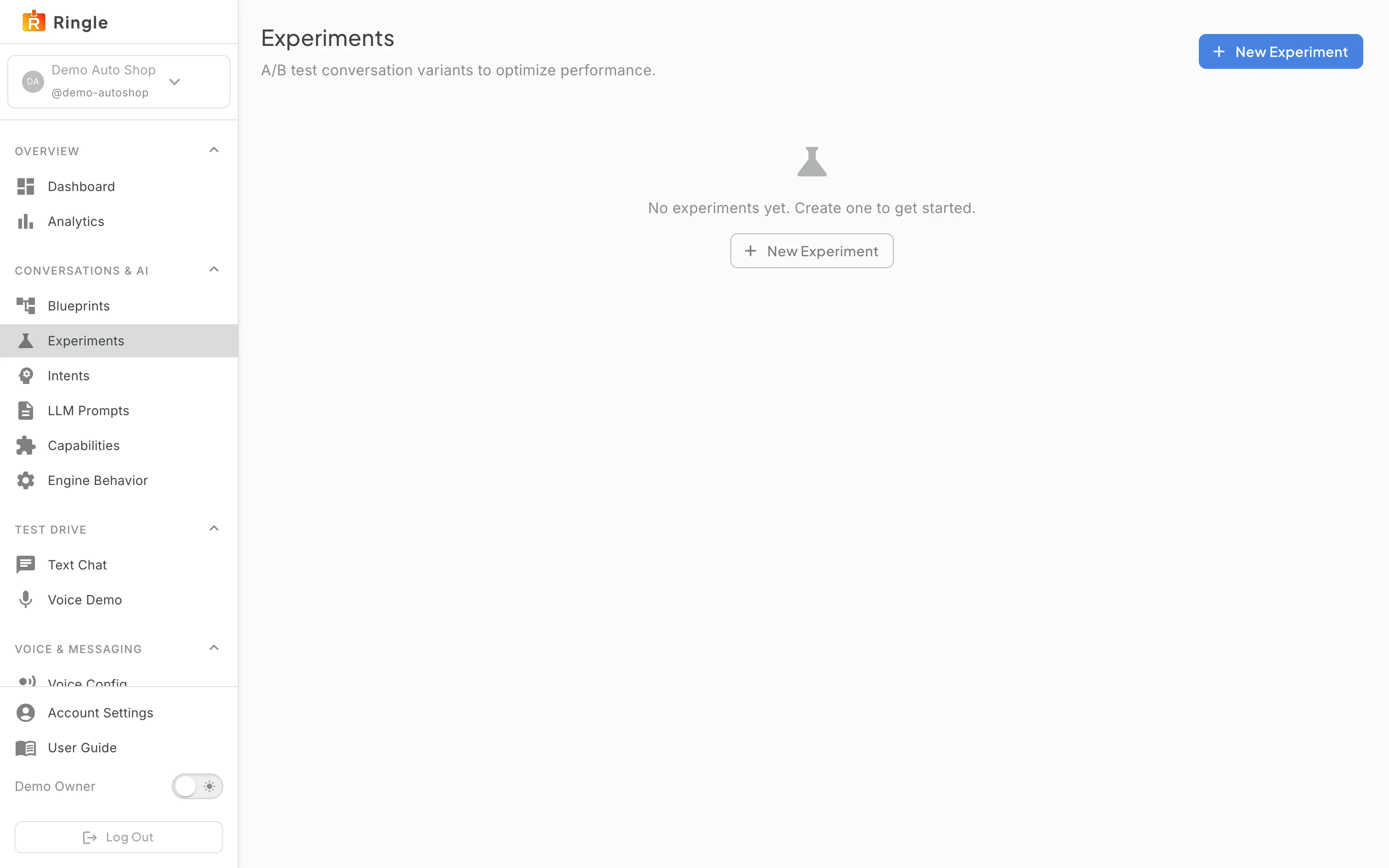
Action: Click Experiments under Conversations & AI in the sidebar (or the Experiments button on the Blueprints page).
What you should see: The page header reads “Experiments” with the subtitle “A/B test conversation variants to optimize performance.” and a New Experiment button. Existing experiments appear as cards with a status chip (Draft, Running, Paused, or Concluded) and the variant count. Each card’s buttons match its status: Edit/Start/delete for drafts, Pause and Results while running, Resume and Conclude when paused, Results when concluded. If no experiments exist, the page shows “No experiments yet. Create one to get started.”
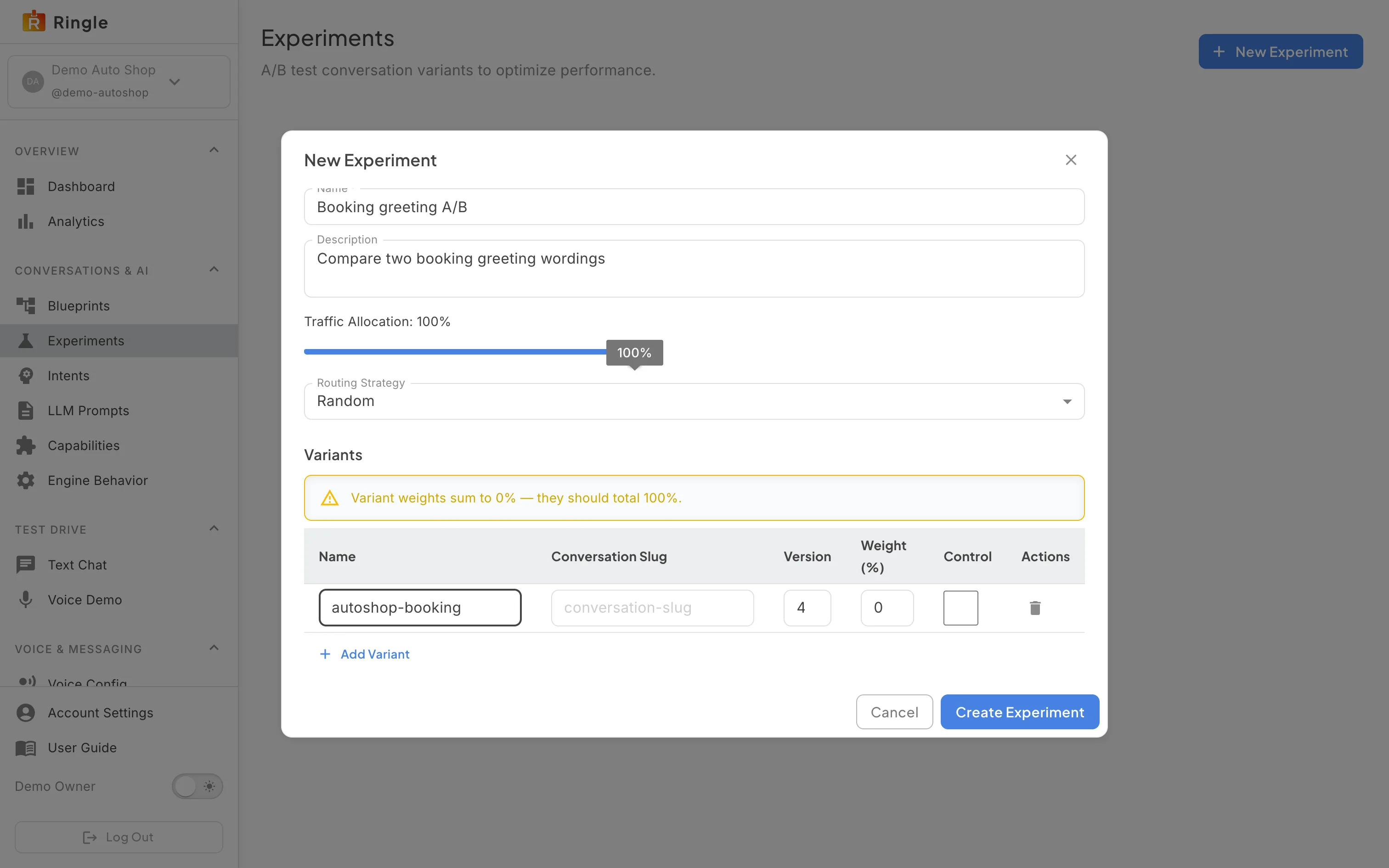
Action: Click New Experiment. Fill in a Name and, if you want, a Description. Add variants with Add Variant. Give each variant a name, the conversation slug and version it should serve, and a traffic weight. Tick Control on your baseline variant. Then click Cancel. Click Create Experiment only when you actually want the experiment saved as a draft.
What you should see: The dialog has Name (required), Description, a Traffic Allocation slider (how much of overall traffic enters the experiment), and a Routing Strategy select (Random or Deterministic). The variants table has Name, Conversation Slug, Version, Weight (%), Control, and a remove action per row. While the weights do not add up, a yellow banner reports the current total (“Variant weights sum to 80%”) and reminds you they should total 100%. The banner is a warning here; the hard check happens when you start the experiment. Cancel discards everything.
Screenshot not available (the demo tenant had no experiments at capture time, and creating one in the live environment is not part of a documentation pass)
Action: Click an experiment card to open its detail page.
What you should see: The detail page shows breadcrumbs back to Experiments, the status chip, Traffic and Routing values, and the variants table. On a draft you can edit weights inline, add variants, configure a per-variant voice, and open each variant’s conversation in the editor. Start Experiment stays disabled until the weights total exactly 100% and there are at least two variants. Once running or concluded, the table gains a Sessions column. A Results section charts each variant’s share of assignments, with a trophy on the winner.
Screenshot not available (concluding requires a running experiment, and concluding is irreversible)
Action: On a running or paused experiment, click Conclude.
What you should see: The Conclude Experiment dialog warns “Select the winning variant. This action cannot be undone.” It lists the variants with their session counts as radio options and has a “Promote winner to active conversation assignment” checkbox (ticked by default). Cancel closes it safely. Conclude ends the experiment and, if promotion is ticked, makes the winner the live conversation.
/settings/experiments and
/settings/experiments/:experimentId. Source components:
pages/settings/ExperimentsPage.jsx,
pages/settings/ExperimentDetailPage.jsx,
components/experiments/ExperimentEditor.jsx, and
components/experiments/ExperimentResultsPanel.jsx (plus
ConcludeDialog.jsx, AddVariantDialog.jsx, and
VariantVoiceDialog.jsx) in the portal app.