Use the Playbook to read and edit one conversation skill from top to bottom. Each expandable step keeps its message and outcomes together, while the optional Expert Map keeps the full node-based editor available for complex routing.
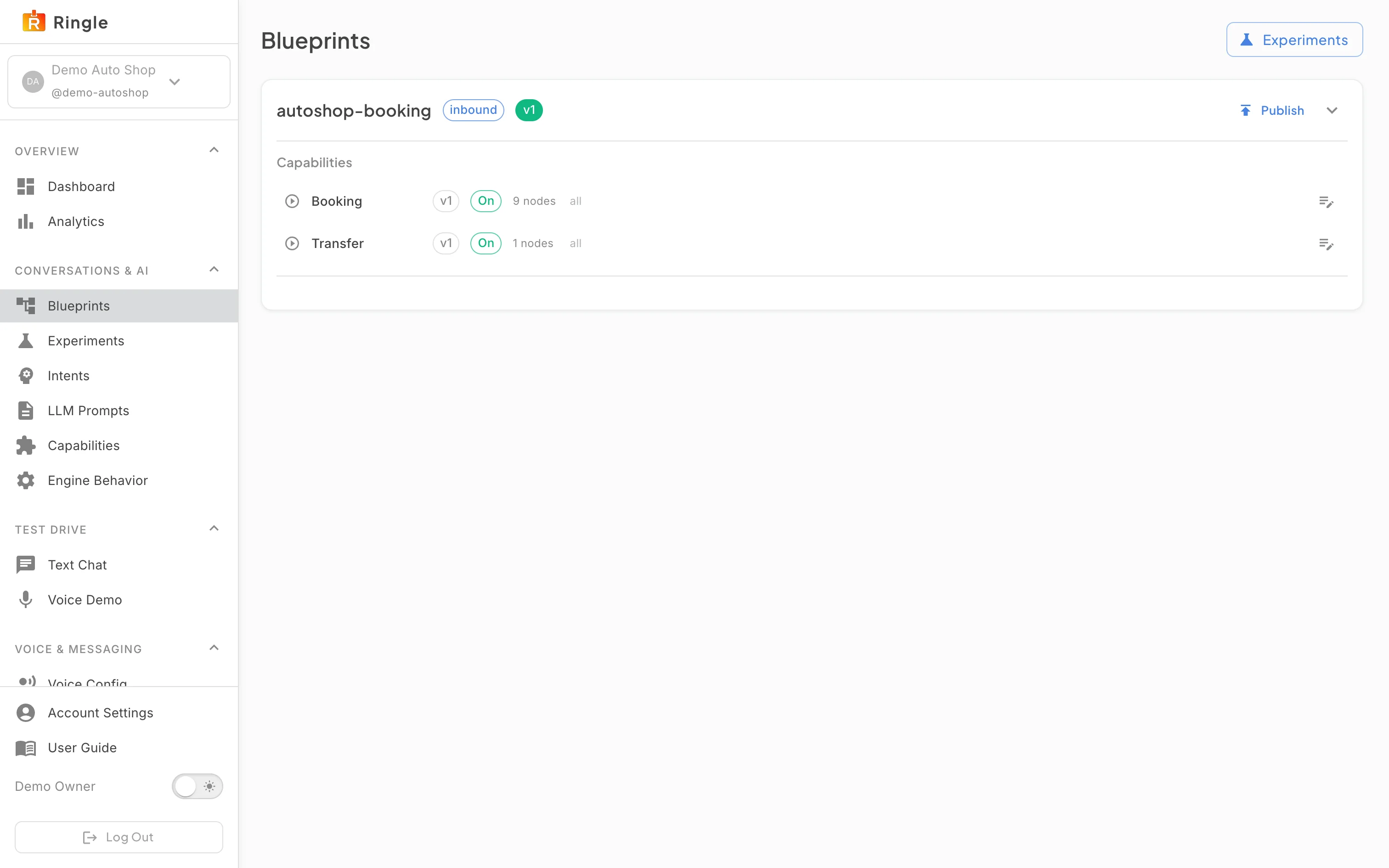
Action: On the Blueprints page, find the skill you want to edit. Click its Edit flow button, or use Edit Scaffold for the shared welcome and routing steps.
What you should see: The editor opens with the skill set and skill in the URL. The full-width editor replaces the normal content area. Playbook is selected unless this browser remembers a different surface.
Screenshot not available (the Playbook surface has not reached the production portal used for guide captures)
Action: Look over the Playbook before opening a step. Use the Channel and Language controls to choose the customer experience you want to review. On a wide screen, use the Conversation skills rail to move between skills. On a narrower screen, click Skills to open the same list in a drawer.
What you should see: The playbook is centered in the available space and reads from top to bottom. Numbered cards show the reachable steps in conversation order. A More steps below cue appears while more content is available, and End of playbook confirms the bottom. Any step that cannot be reached from the start stays visible under Unconnected steps with repair guidance.
Screenshot not available (the Playbook surface has not reached the production portal used for guide captures)
Action: Open a step card. Review its Name, Purpose, What Ringle says, and What happens next sections. Change the message or an outcome only if you intend to update the draft. Turn on Customize for this channel when the selected channel needs different wording.
What you should see: The card expands in place. The message follows the Channel and Language choices at the top of the page. Without a channel override, the editor says it is using the default language message. Outcomes describe what the customer does and where the conversation goes next. Conditions and channel rules, plus the full type-specific controls, stay collapsed until you open them. Draft edits save automatically after a short pause; the Save button remains available for an immediate save.
Screenshot not available (the Playbook preview has not reached the production portal used for guide captures)
Action: Click Preview, then click Start preview. Reply as the customer to walk through the selected channel and language. Close the drawer when you finish.
What you should see: A drawer opens from the right and runs the current draft, including edits that have not finished saving. External actions use sample responses, so the preview does not send a message, place an order, create a booking, or change another system. Voice preview uses a text transcript and does not start a phone call or produce audio. The active Playbook step opens as the preview moves through the conversation.
Screenshot not available (the Playbook and Expert Map selector has not reached the production portal used for guide captures)
Action: Click Expert Map when a branch is easier to understand spatially. Select a node to open its detail panel. Use Playbook to return to the step-by-step document. If you need technical configuration, turn on Advanced Mode.
What you should see: Expert Map shows the same steps and outcomes as a connected node graph, with a palette, search, zoom, fit-view, and minimap. Selecting a node opens the type-specific panel on the right. Advanced Mode adds JSON and lower-level graph, channel, and settings controls. Switching surfaces does not create a copy or lose fields; both views edit the same draft.
/conversation-editor/:blueprintSlug/:slug.
/conversation-editor/:slug remains as a compatibility
route, but it may not have enough context for skill navigation or
preview.features/flow-editor/components/ConversationEditorShell.jsx,
PlaybookEditor.jsx, PlaybookStepCard.jsx,
SkillRail.jsx, ConversationPreviewPanel.jsx,
FlowEditor.jsx, and NodeDetailPanel.jsx in the
portal app.