The Blueprints page is the home of your tenant’s conversation design. It lists each conversation blueprint, the capabilities it is assembled from, the channels it serves, and the Publish action that turns your latest edits into the live version.
autoshop-booking).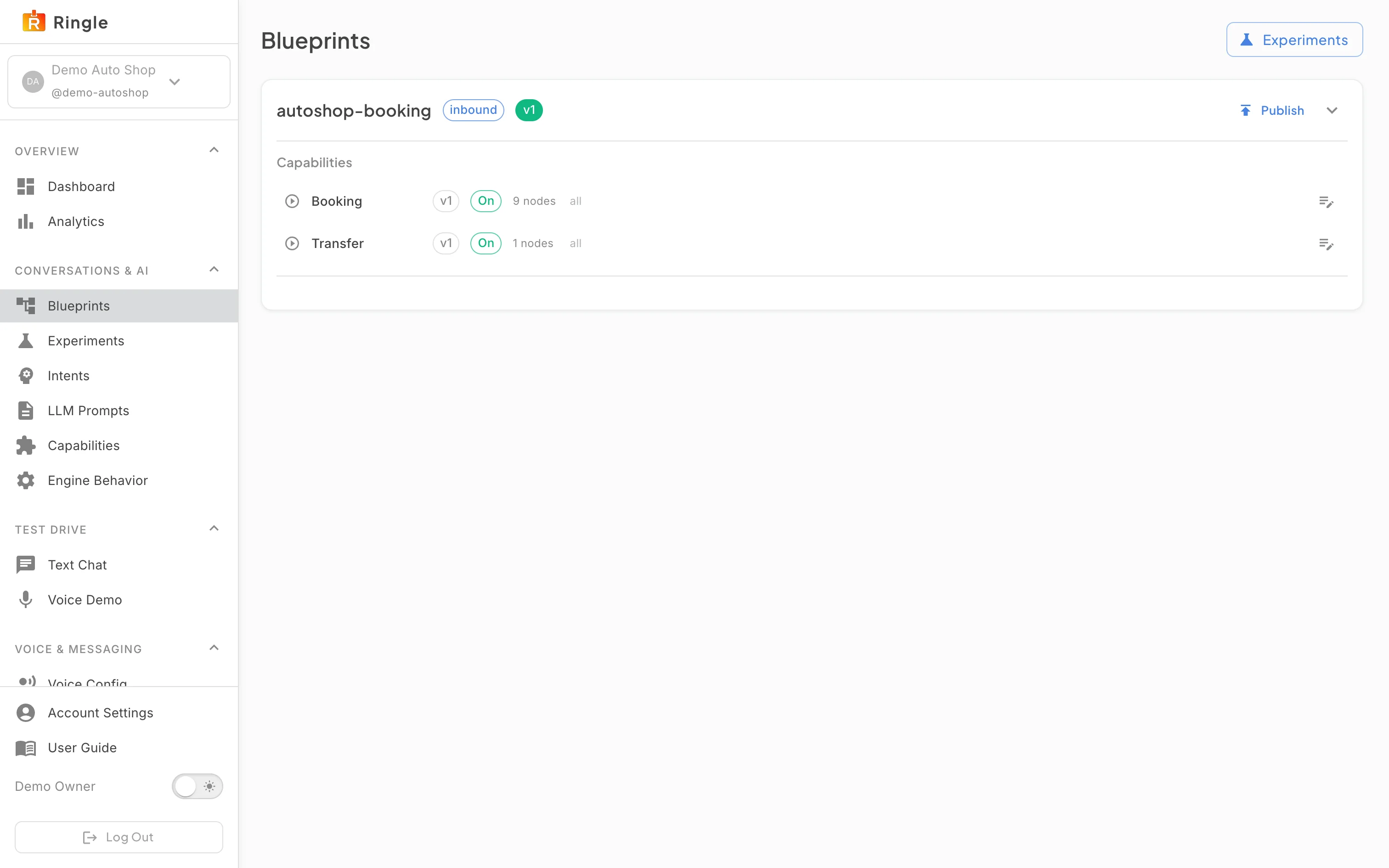
Action: Click Blueprints under Conversations & AI in the sidebar.
What you should see: A card appears for each blueprint. The card header shows the blueprint name, a direction chip (inbound or outbound), and a green version chip such as “v2”. While unpublished changes exist, a grey “Draft” chip appears instead. Under Capabilities, each row lists one capability with its version chip, an On or Off chip, the step count (“6 steps”), and the channels it serves (“all” or specific channel chips). Each row also has an Edit flow button that opens that capability in the Playbook-first conversation editor. The card header also carries a Publish button and an expand chevron. An Experiments button sits at the top right of the page.
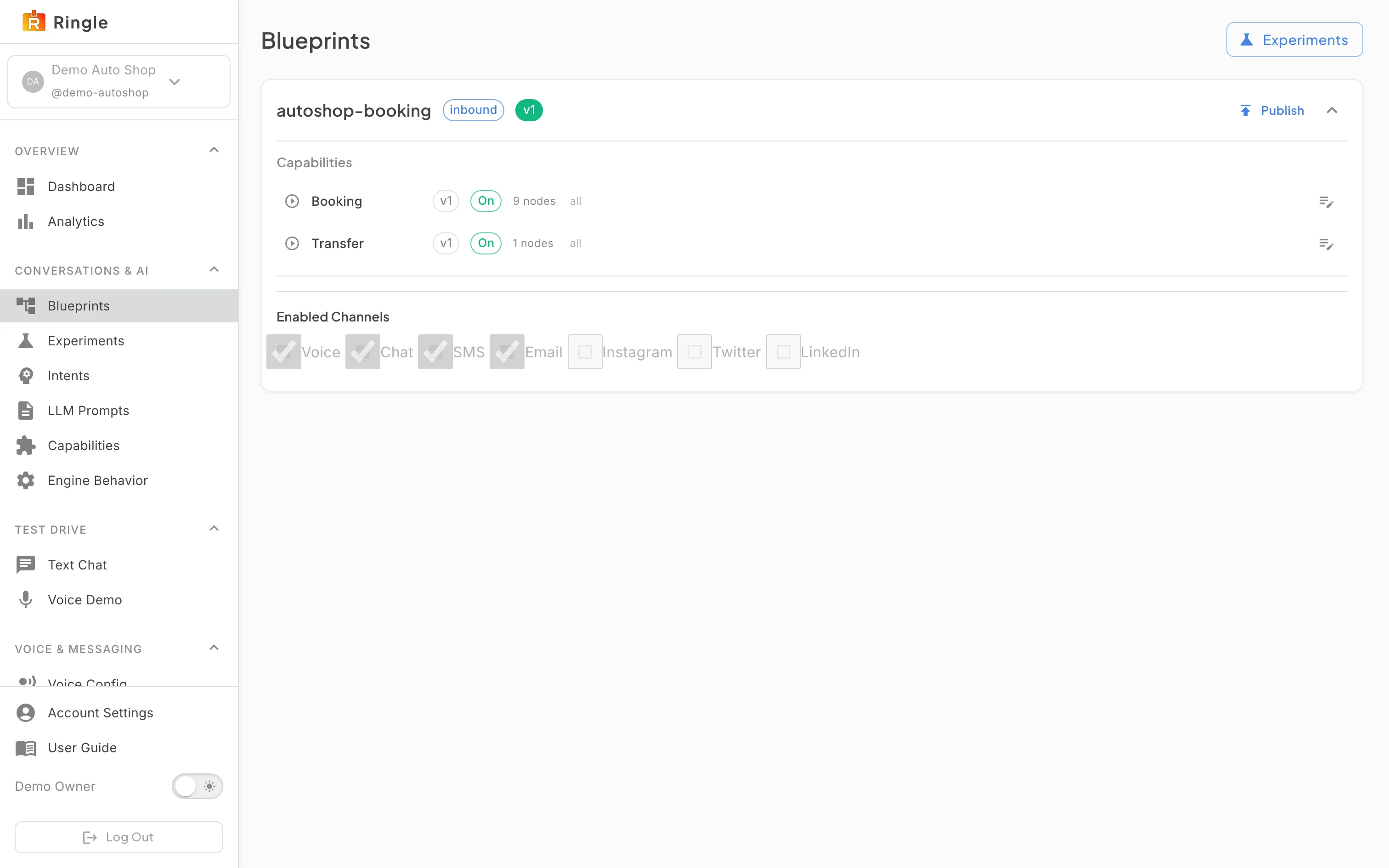
Action: Click the chevron at the right edge of the blueprint card to expand it.
What you should see: An Enabled Channels section appears below the capabilities with a checkbox per channel (Voice, Chat, SMS, Email, Instagram, Twitter, LinkedIn). The checkboxes are display only. They show which channels the blueprint answers on; you cannot edit them here.
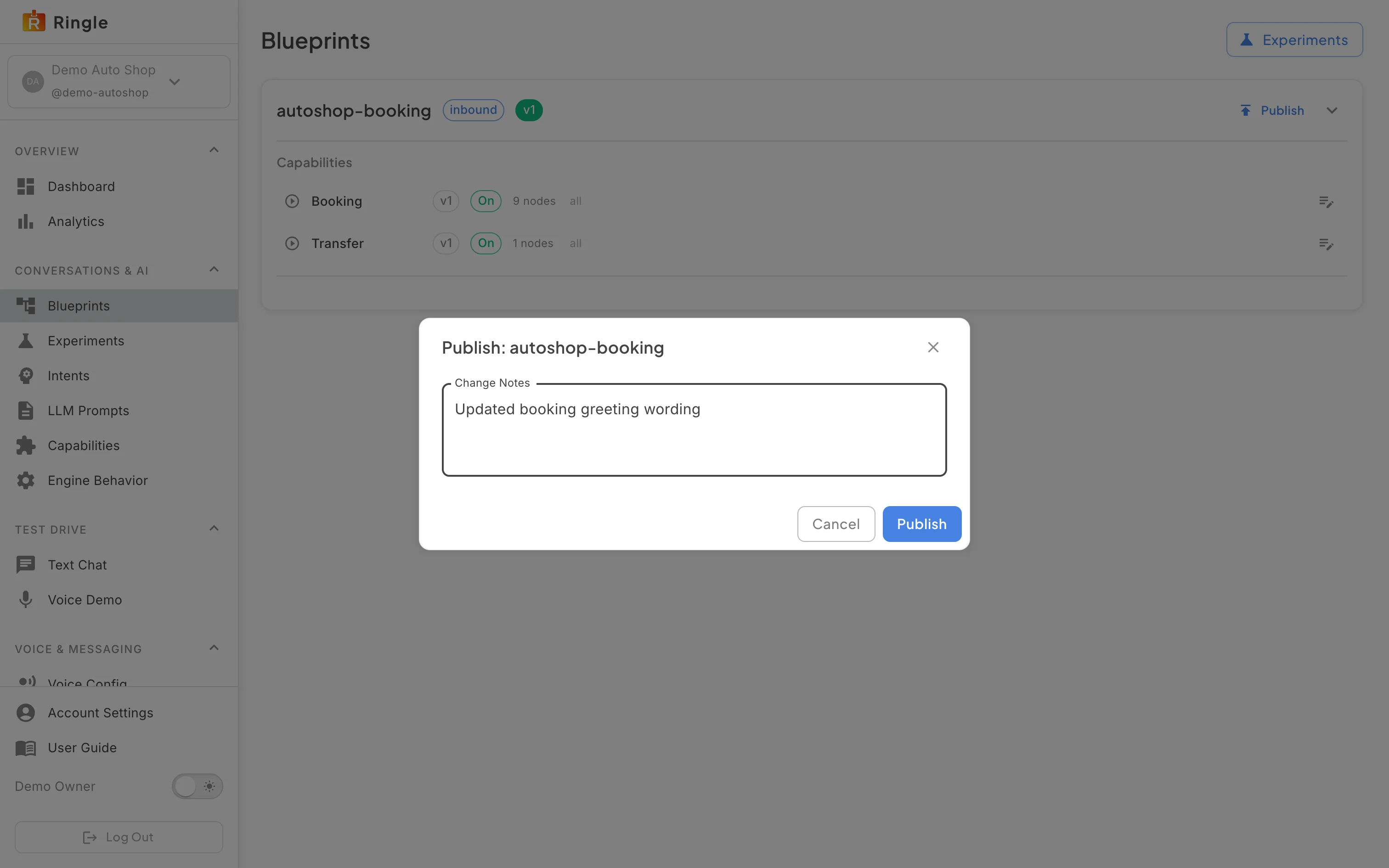
Action: Click Publish on the blueprint card. Review the publish dialog. Type a short note in Change Notes describing what changed. Then click Cancel. Click Publish only when you actually want to release a new version.
What you should see: A dialog opens titled “Publish:” followed by the blueprint’s identifier (for example “Publish: autoshop-booking”). It has one optional Change Notes field (“Describe what changed in this version…”) and Cancel and Publish buttons. Confirming records a new version with your note and recomposes the conversation from its capabilities. When it succeeds, it shows “Blueprint published and composed”. Cancel closes the dialog with nothing changed.
/settings/conversations (the bare
/settings path redirects here). The sidebar label is
Blueprints, under Conversations & AI. Source components:
pages/settings/ConversationManagementPage.jsx and
components/conversation-versioning/PublishDialog.jsx in the
portal app./settings/conversation-flows is a compatibility
redirect to /settings/conversations.autoshop-booking;
another demo tenant ships a different blueprint.