The Test Drive pages let you talk to your tenant’s assistant exactly as a customer would, in text or by voice. No phone number setup or embedded chat is needed. Every run is recorded as a session you can review in Analytics.
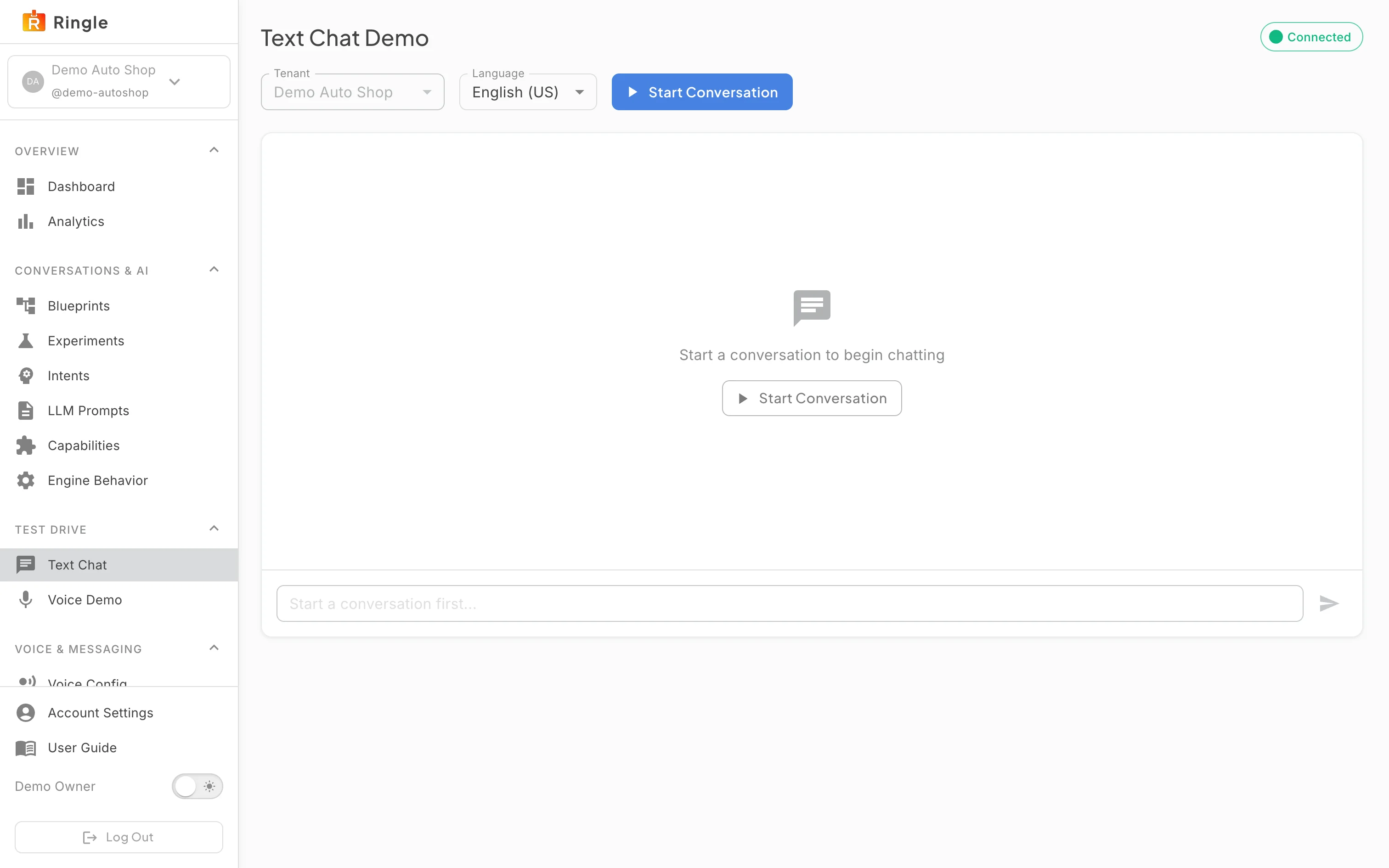
Action: Click Text Chat under Test Drive in the sidebar.
What you should see: The Text Chat Demo page connects automatically. The chip in the corner reads Connected. A Tenant selector shows your active business, a Language selector defaults to English (US), and a Start Conversation button sits beside them. The chat area shows “Start a conversation to begin chatting”. The message box is disabled until a conversation starts.
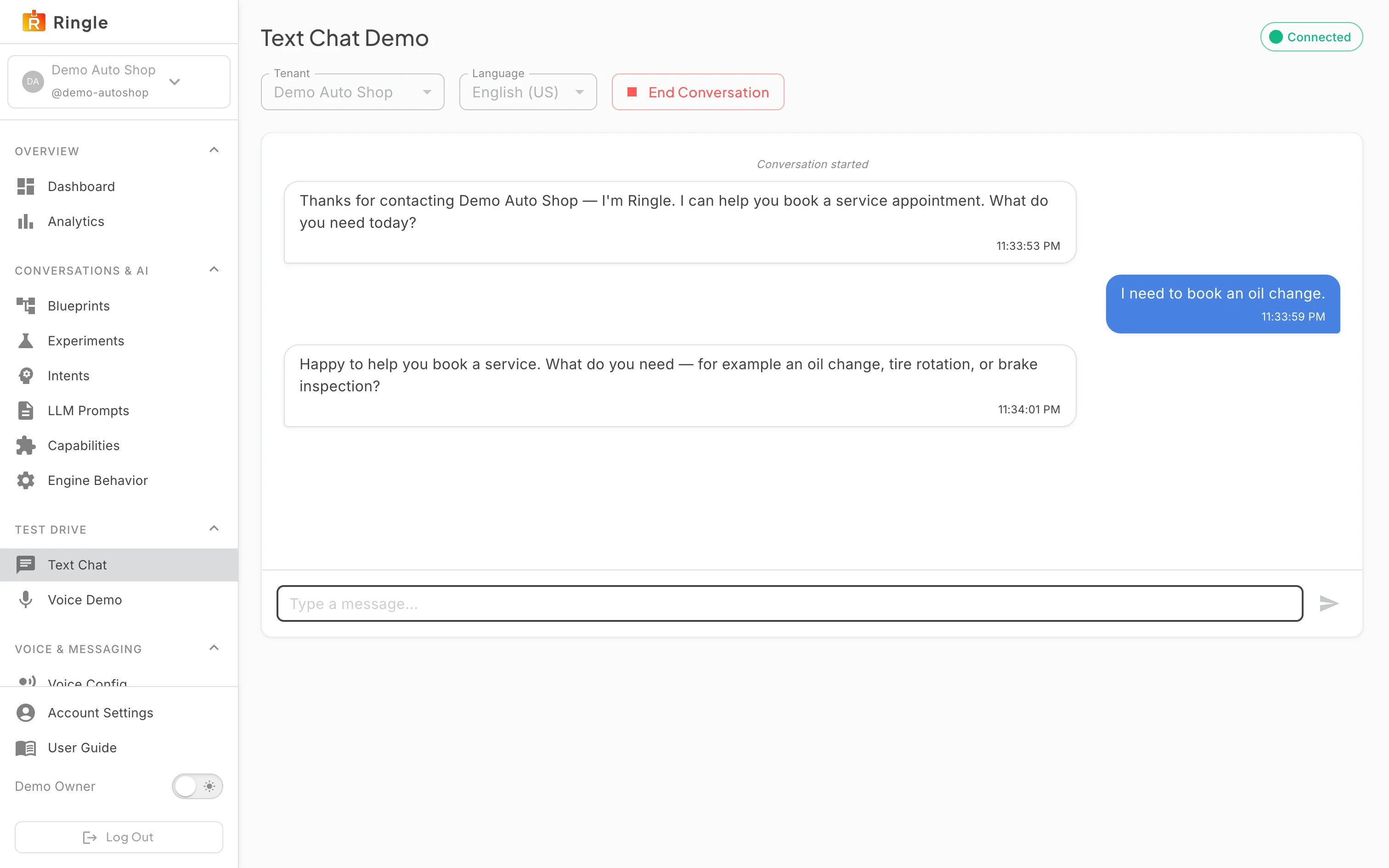
Action: Click Start Conversation. Chat with the assistant from the message box. When you are done, click End Conversation.
What you should see: The assistant greets you once in character for the tenant, then answers as it would on a live channel. Your messages appear on the right, the bot’s on the left, each timestamped. While a conversation is active, the tenant and language selectors lock. In the demo auto shop shown here, the assistant runs the service-booking flow: ask to book a service and it offers the available service types. A restaurant tenant would instead answer from its menu catalog. Ending the conversation posts a “Conversation ended” marker and re-enables the controls.
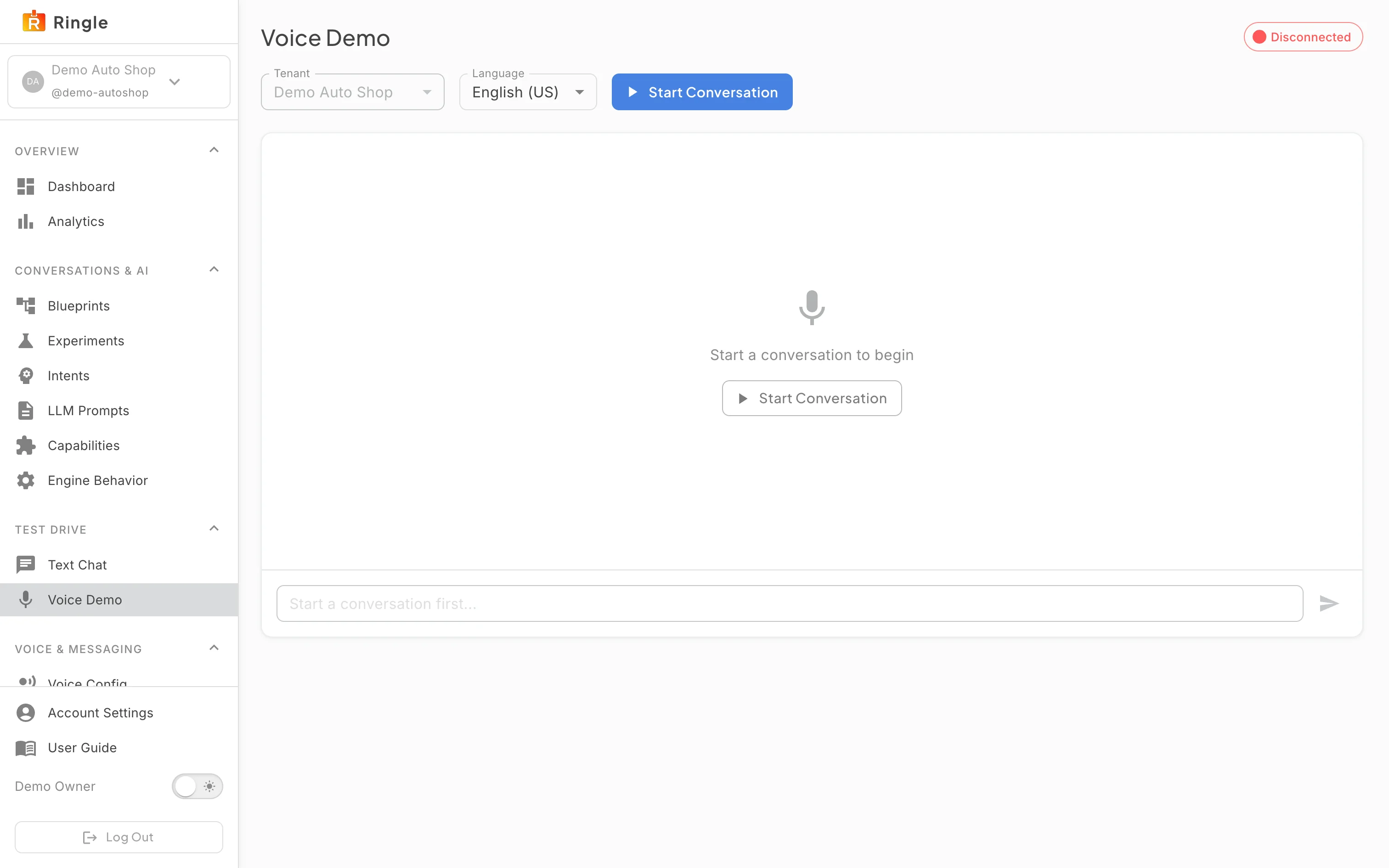
Action: Click Voice Demo under Test Drive in the sidebar.
What you should see: The Voice Demo page has the same tenant and language controls and its own status chip. The chip reads Disconnected until you start. The empty state says “Start a conversation to begin”.
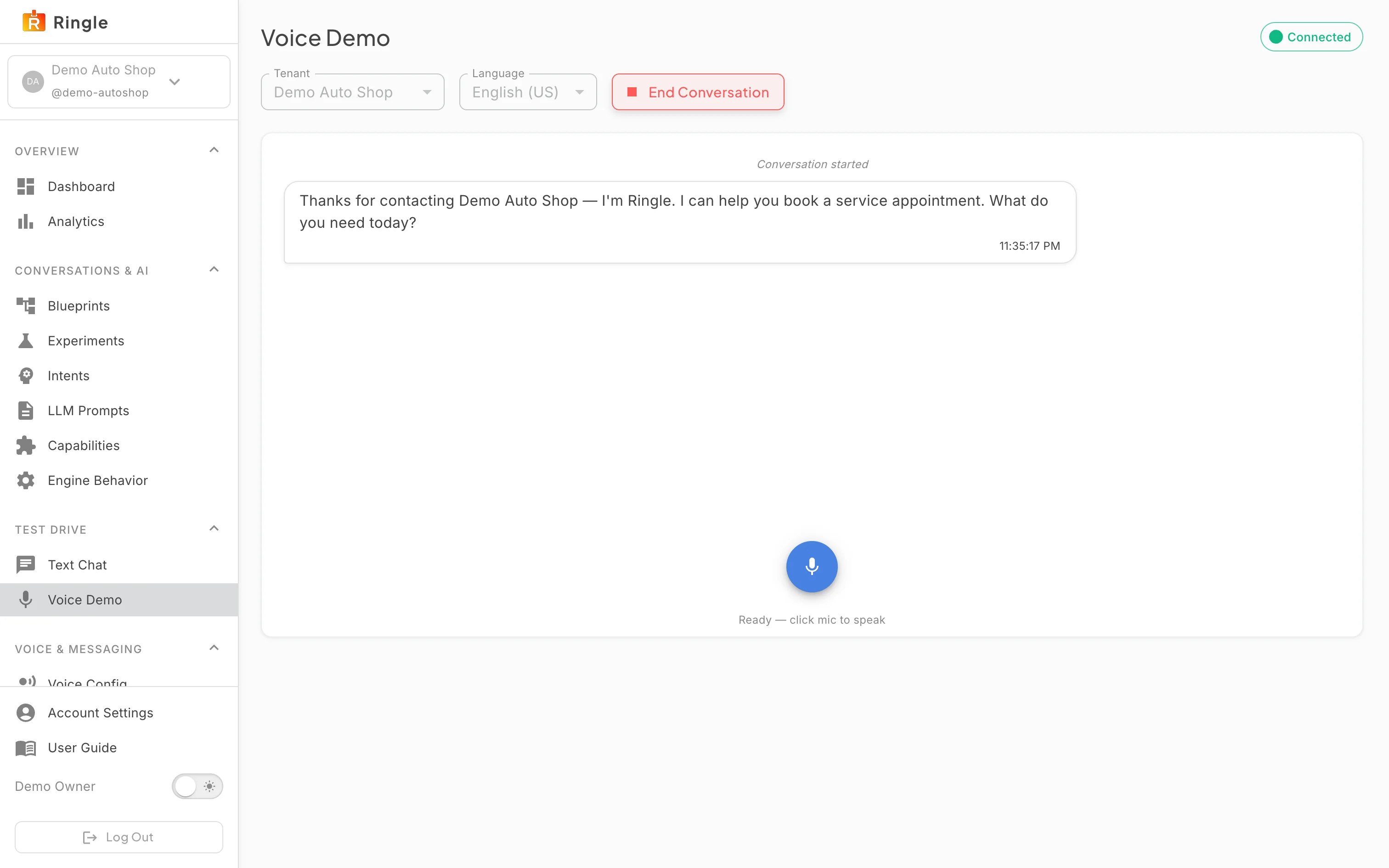
Action: Click Start Conversation on the voice page.
What you should see: The assistant’s greeting appears in the chat area. A round microphone button appears at the bottom, with a status caption inviting you to click the mic and speak. Bot replies are read aloud in the tenant’s configured voice. The mic is disabled while the bot is speaking.
Screenshot not available (needs a microphone)
Action: Click the microphone button. Then speak.
What you should see: The caption switches to listening. Your words appear as an interim transcript while you talk, and the finished sentence is sent to the assistant automatically. Clicking the mic while the bot is reading a reply stops the playback first. If your browser has no speech recognition, a warning appears and a regular text input replaces the mic.
/test-drive/text and
/test-drive/voice. Source components:
pages/voice-portal/TextChatDemoPage.jsx and
pages/voice-portal/VoiceDemoPage.jsx in the portal
app.