The dashboard is the landing page for a business tenant: a quick read on the tenant, its POS provider, and call volume, plus shortcuts into conversations and the test drive pages.
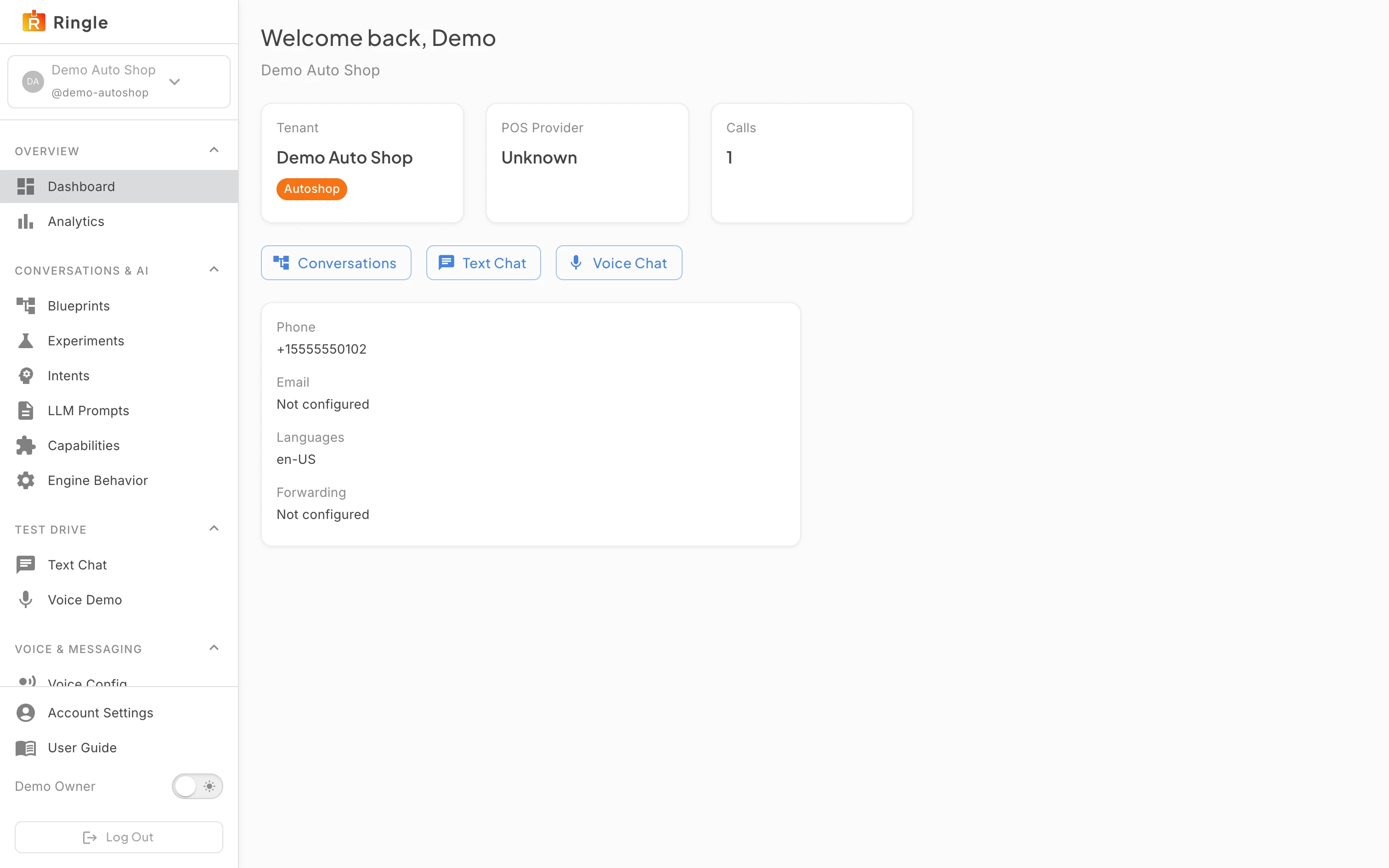
Action: Sign in, or click Dashboard under Overview in the sidebar.
What you should see: The page greets you by name with the tenant name underneath. A tenant with no calls and no conversation designs yet shows the “Welcome aboard” setup card, with three starting points: “Create your first conversation”, “Connect Shopify”, and “Try the demo tenant”. A tenant that already has activity skips that card and opens straight to the stat cards, as the demo tenant here does. Either way you get three stat cards (Tenant, POS Provider, Calls), a row of quick actions, and a details card. The cards show loading placeholders for a moment while the tenant data arrives, then fill in.
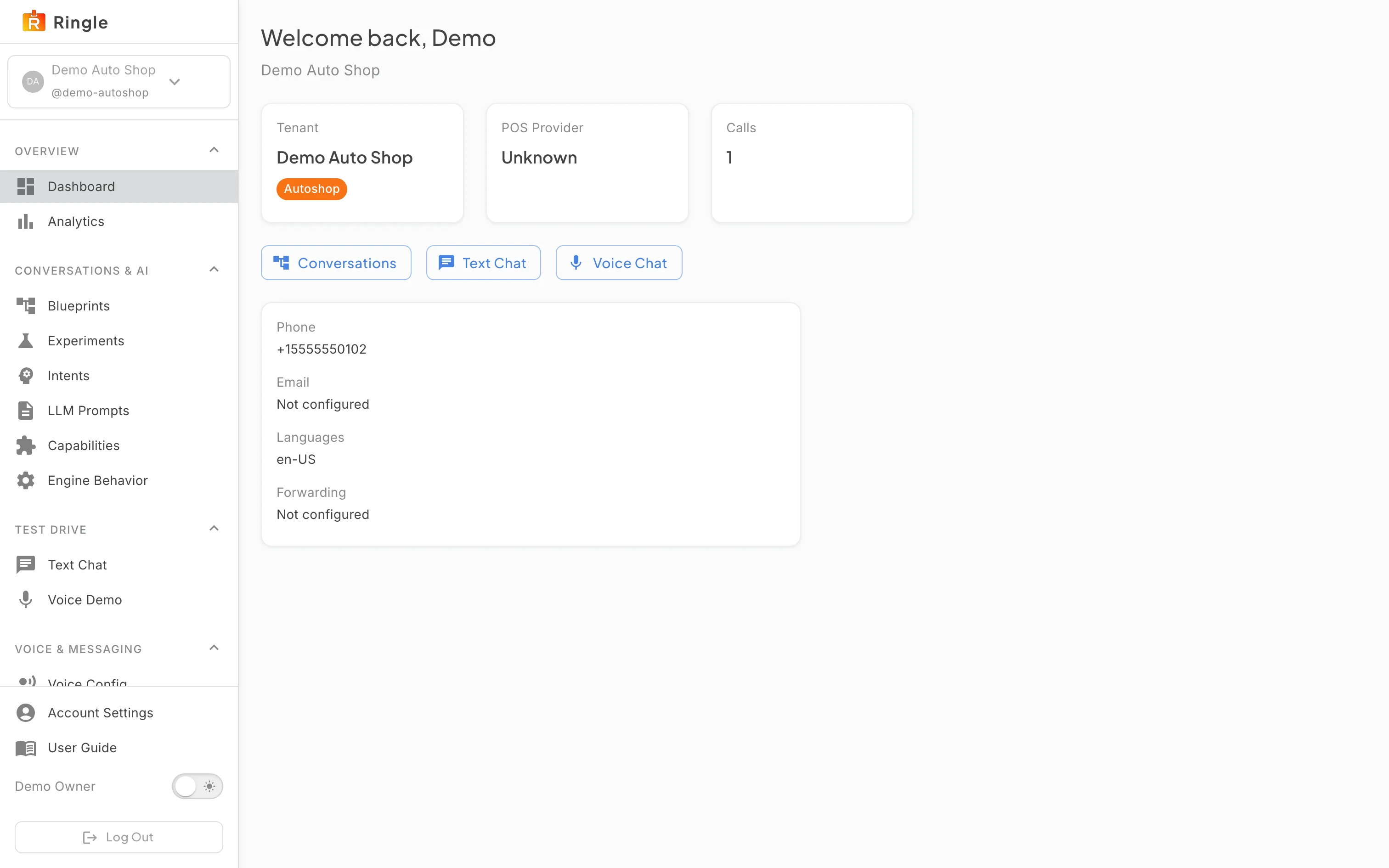
Action: Read the stat cards and the details card once they have settled.
What you should see: The Tenant card shows the business name with a sector chip. The POS Provider card names the connected provider, or reads “Unknown” when no POS is connected yet, as it does on the demo tenant here. Calls counts the tenant’s sessions. The details card lists Phone, Email, Languages, and Forwarding; anything not yet set up reads “Not configured”. Once the tenant has calls or conversation designs, the “Welcome aboard” card disappears.
Action: Use the quick action buttons under the stat cards.
What you should see: Conversations opens the tenant’s conversation designs. Text Chat opens the text test drive. Voice Chat opens the voice test drive. These are the same destinations as the sidebar’s Conversations & AI and Test Drive sections; the dashboard keeps them one click away.
/dashboard. Source component:
pages/DashboardPage.jsx in the portal app.