If your account belongs to more than one business, the switcher at the top of the sidebar moves the whole portal from one tenant to another: dashboard, analytics, conversations, and settings. This doc also explains where demo workspaces live; they are not part of this switcher.
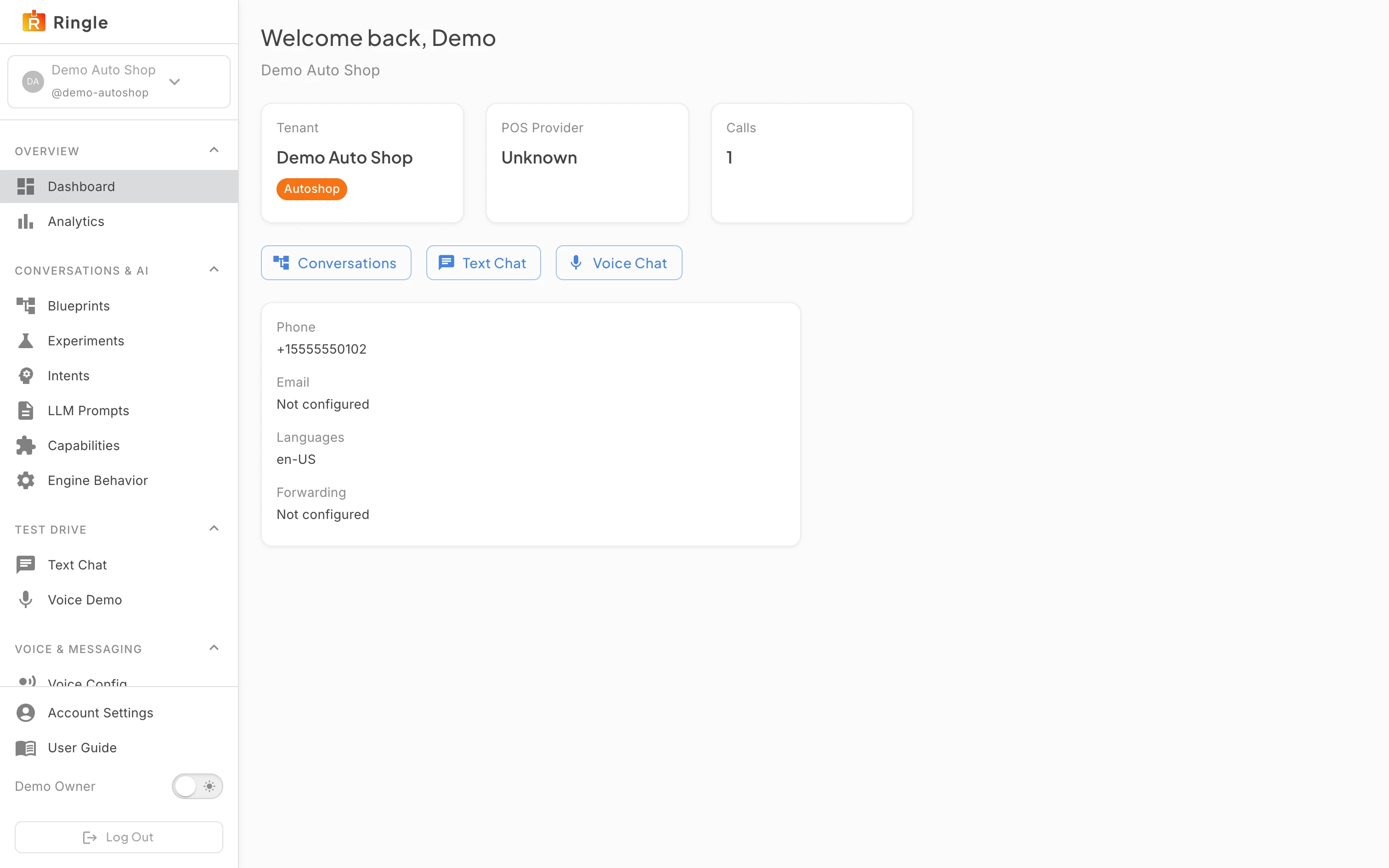
Action: Sign in. Look at the top of the left sidebar, directly under the Ringle logo.
What you should see: A button shows the active
business: its avatar (initials or logo), its name, and its
@slug (here “Demo Auto Shop” with
@demo-autoshop). Every page you open is scoped to this
tenant until you switch.
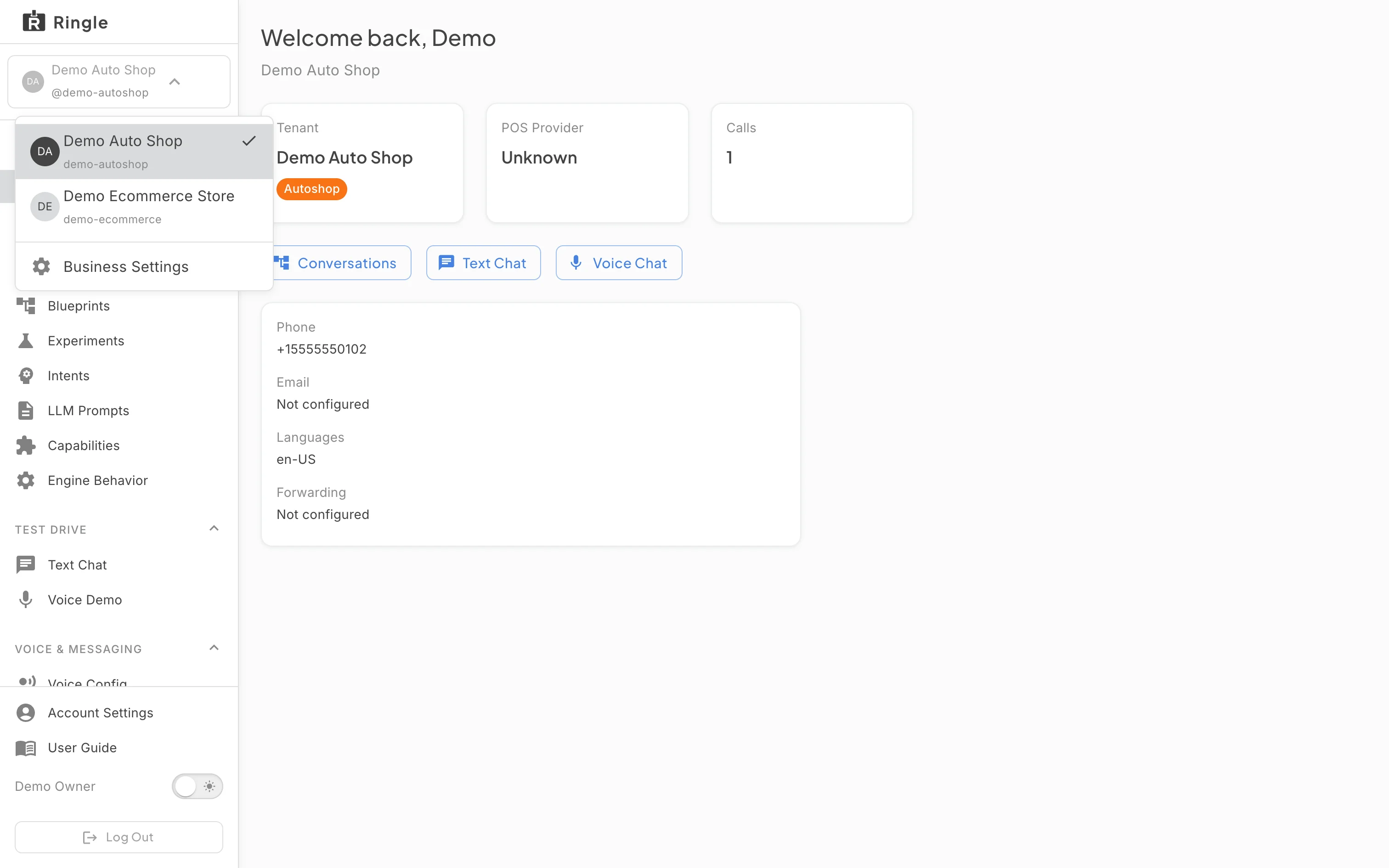
Action: Click the business button to open the switcher.
What you should see: A menu opens. It lists every business your account can access, each with its avatar, name, and slug. The active one is highlighted with a check mark. Below a divider, a Business Settings entry opens workspace access management for the current tenant.
Screenshot not available (switching to the second business currently fails on prod, see Troubleshooting)
Action: Click another business in the list (here Demo Ecommerce Store).
What you should see: The switcher button and the page header should update to the selected business, and everything in the portal should then belong to it: dashboard cards, analytics sessions, conversation designs, and settings. If you were editing a conversation flow when you switched, the portal returns you to the conversations list. That stops you from editing under a stale tenant. On prod today the switch does not complete for this account: the switcher drops to “Select Business” and the selected business never loads.
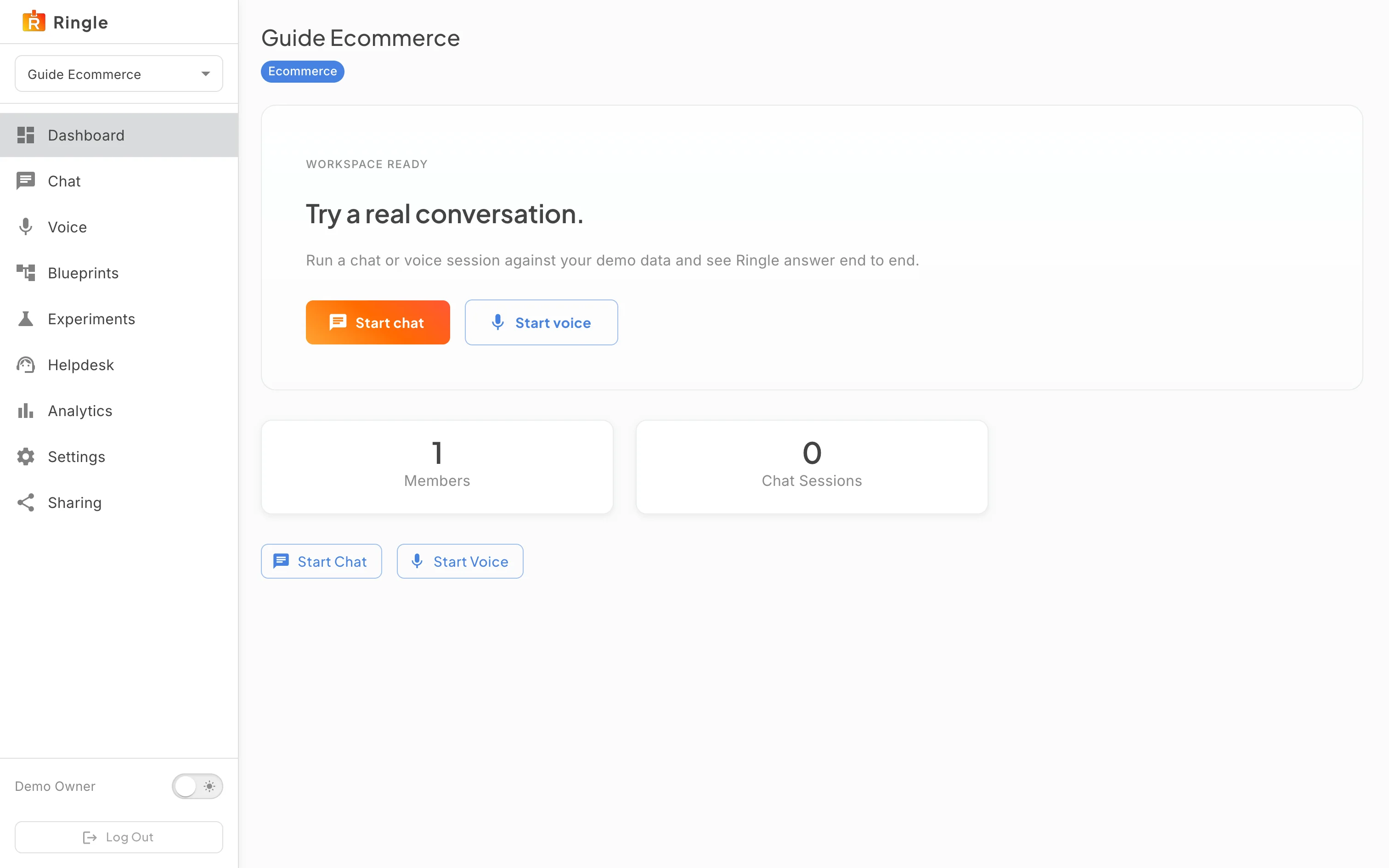
Action: Open one of your demo workspaces (from the Demos area or a workspace link you were given).
What you should see: Demo workspaces do not appear
in the tenant switcher. They have their own home under
/demos/... with a separate sidebar. At the top of that
sidebar is their own workspace selector (the “Guide Evidence Shop”
dropdown in the screenshot) for hopping between the demo workspaces you
can access. Tenant pages and demo workspace pages are two separate
worlds, scoped by two separate selectors.
components/tenant-management/TenantContextSwitcher.jsx in
the portal app. It renders in the portal chrome on every tenant page
rather than at its own route.