The Analytics page lists every conversation session your tenant’s assistant has handled. You can filter by date, outcome, channel, and language. Each session opens into a detail page with its metadata and the full turn-by-turn transcript.
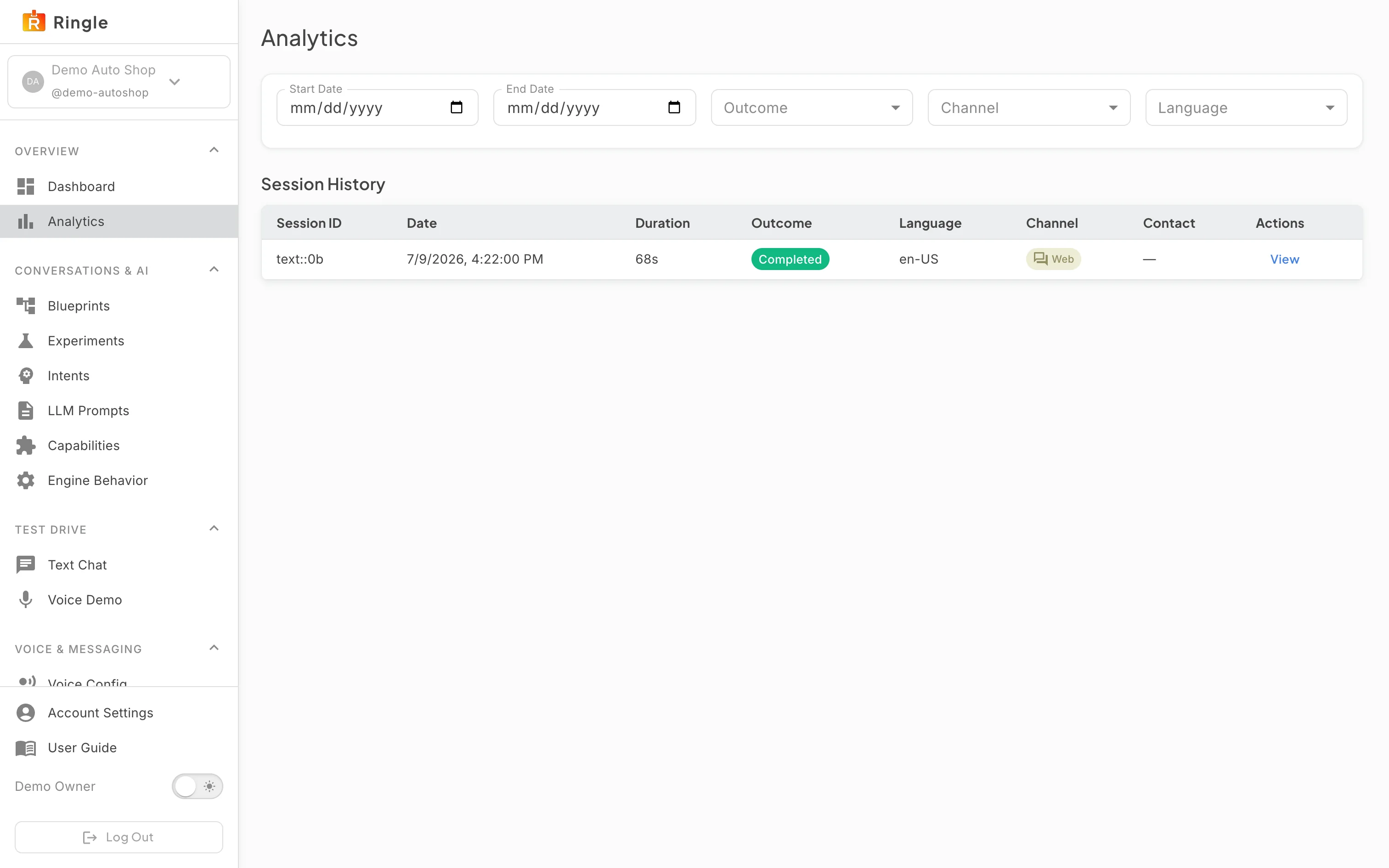
Action: Click Analytics under Overview in the sidebar.
What you should see: A filter bar offers Start Date, End Date, Outcome, Channel, and Language. Below it, the Session History table lists sessions. Each row has Session ID (first 8 characters), Date, Duration, an Outcome chip, Language, a Channel chip, Contact (the caller number or customer email when known), and a View action.
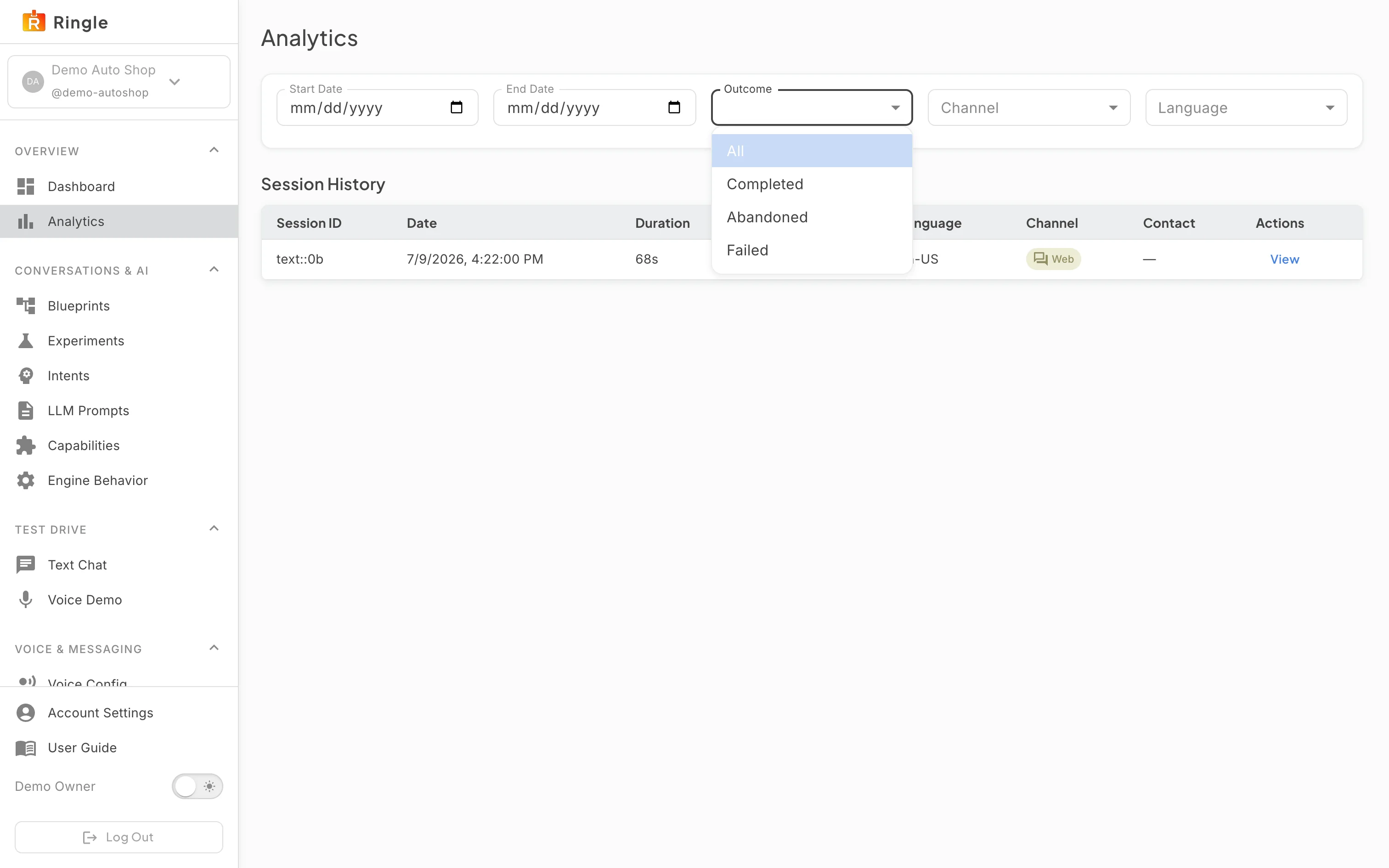
Action: Narrow the list with the filters. Open the Outcome dropdown to pick a result, set a date range, or pick a channel or language.
What you should see: Outcome offers All, Completed, Abandoned, and Failed. Channel offers All, Voice, Chat, and Email. Language offers All, English, and Spanish. The table refreshes as you change filters. An empty result shows “No sessions found”.
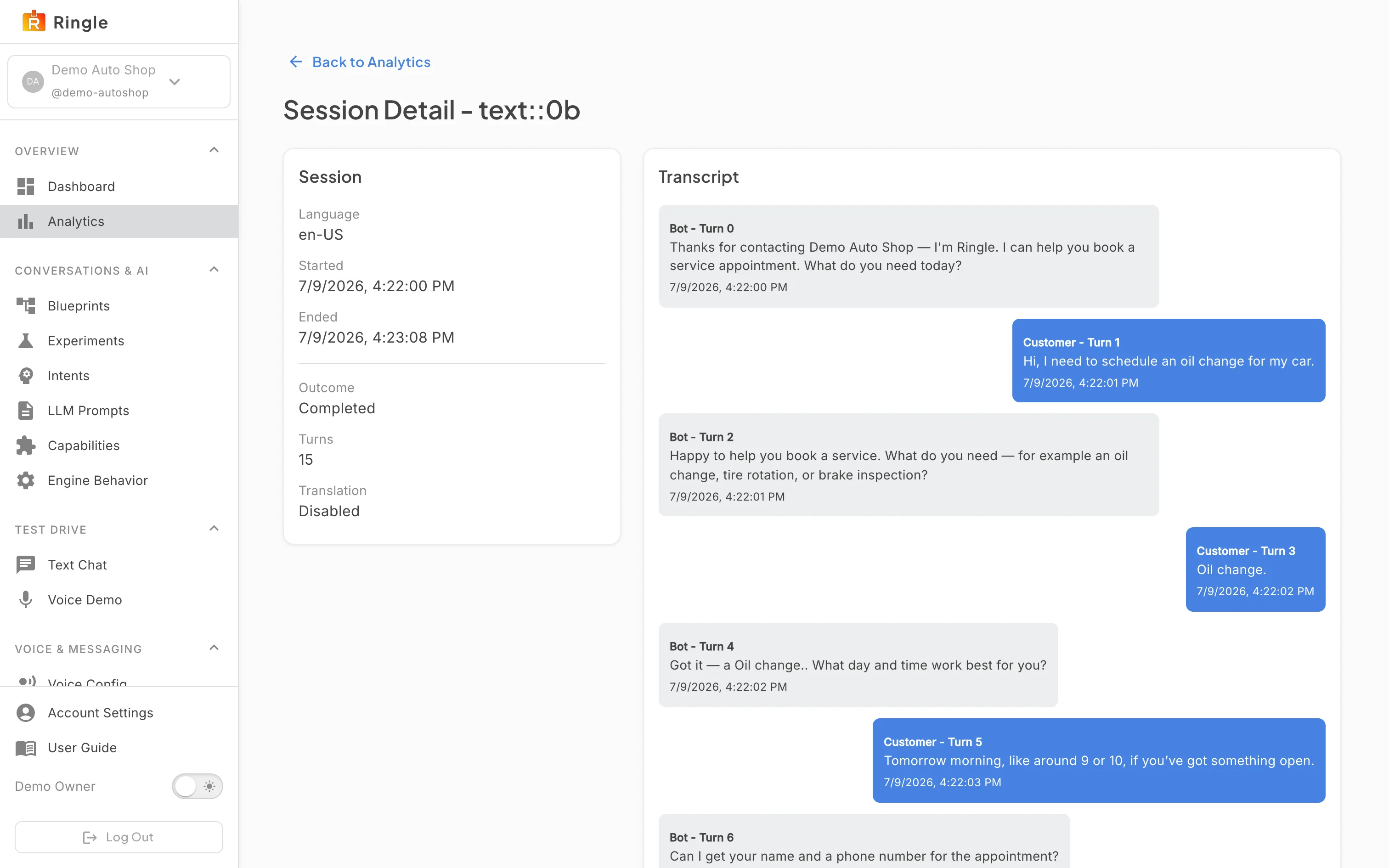
Action: Click View on a session.
What you should see: The session detail page opens with a “Back to Analytics” link and the session id in the title. The Session card on the left shows Language, Started, Ended, Outcome, Turns, and whether Translation was enabled. The Transcript card on the right shows the whole conversation as chat bubbles: bot turns on the left, customer turns on the right. Each bubble is labeled with its turn number and timestamp.
/analytics and
/analytics/sessions/:callId. Source components:
pages/analytics/AnalyticsPage.jsx and
pages/analytics/SessionDetailPage.jsx in the portal
app.