Recover access to an account with the forgot-password flow, and change your password while signed in.
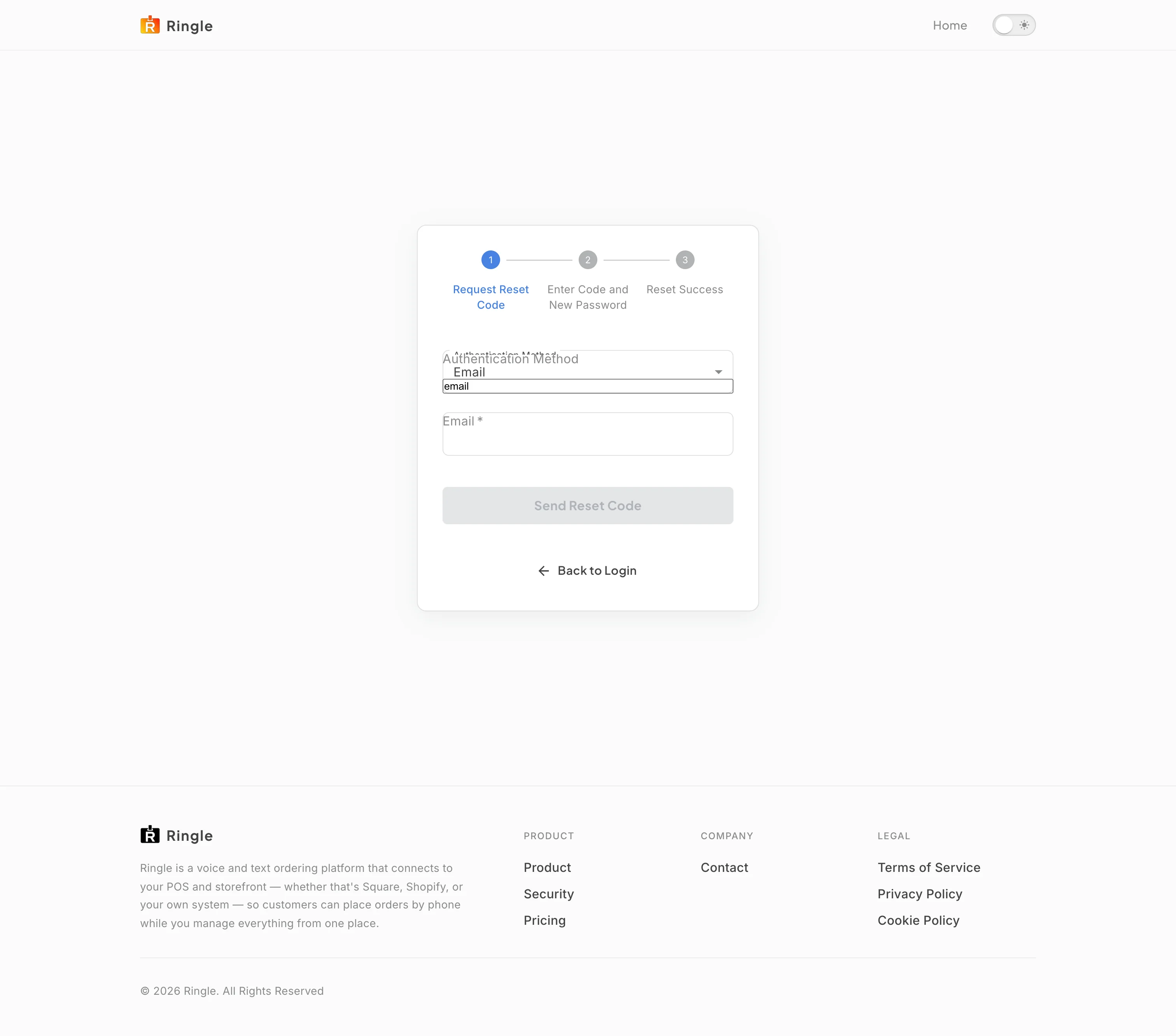
Action: Go to https://portal.getringle.com/forgot-password, or click “Forgot your password?” on the login page.
What you should see: The reset wizard opens on step 1 of 3 (Request Reset Code, Enter Code and New Password, Reset Success). It shows an Authentication Method selector set to Email, an Email field, a Send Reset Code button, and a Back to Login button. Send Reset Code stays disabled until the field is filled.
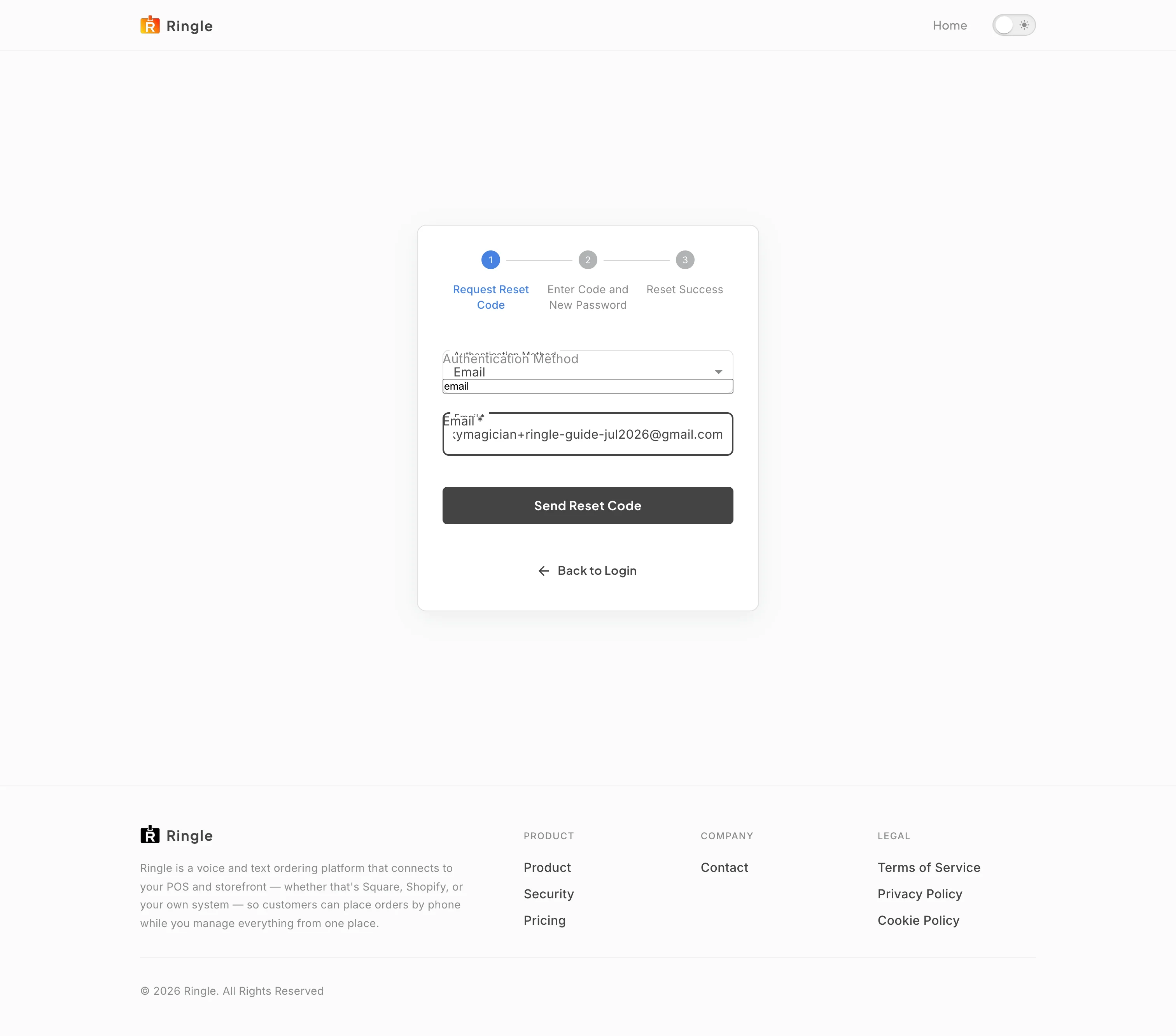
Action: Keep Email as the method, or switch to phone if your account uses one. Type the email address on your account. Click Send Reset Code.
What you should see: The wizard advances to step 2, Enter Code and New Password. A reset code is emailed to the address you entered.
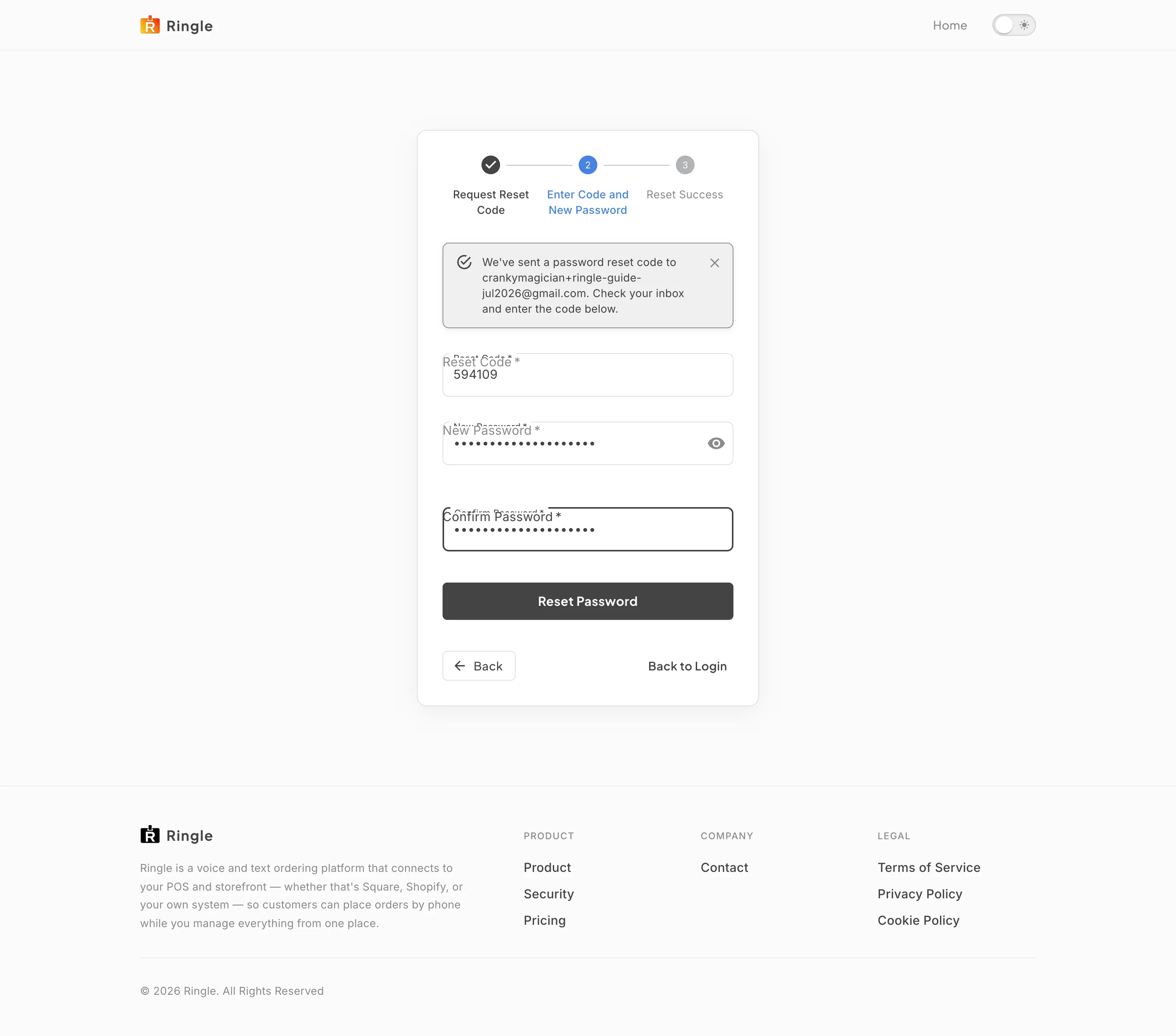
Action: On the Enter Code and New Password step, type the code from the email into the Reset Code field. Then type your new password into the New Password and Confirm Password fields.
What you should see: A banner confirms the code was sent to your address. The code and both password fields show your input, and the Reset Password button is ready to click.
Screenshot not available (the reset could not be completed in this session)
Action: Click Reset Password to finish the wizard, then return to the login page.
What you should see: The Reset Success step confirms the change. Sign in with the new password.
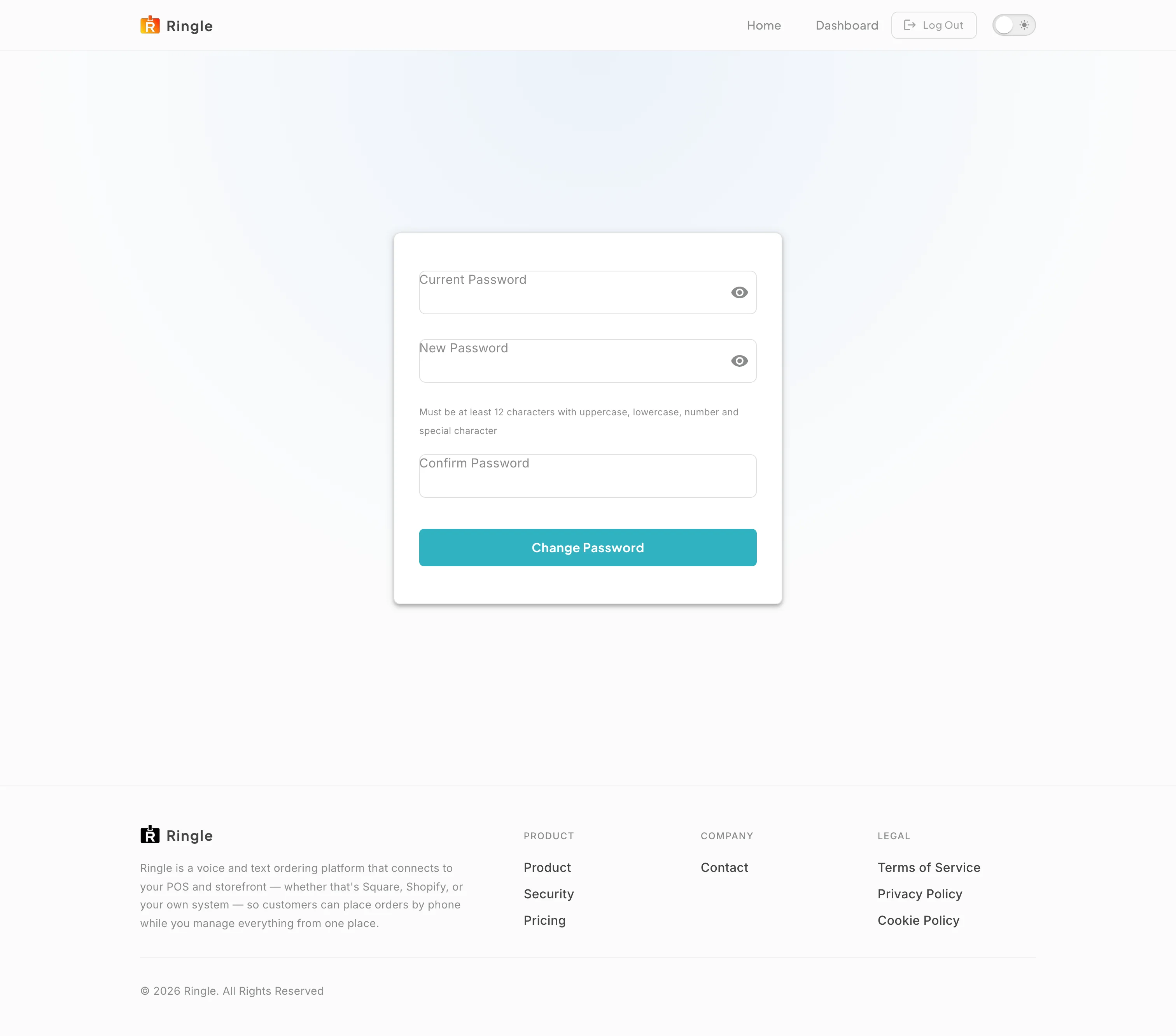
Action: To change your password while signed in, go to https://portal.getringle.com/change-password. Fill in Current Password, New Password, and Confirm Password. Click Change Password. The same form is also available on the Security tab of Account Settings.
What you should see: The form notes the policy under the New Password field: at least 12 characters with uppercase, lowercase, a number, and a special character. On success, your password is updated and future sign-ins require it.
/forgot-password (reset wizard) and
/change-password (signed-in change form).components/auth/ForgotPassword.jsx
and components/auth/ChangePassword.jsx in the portal
app.