Review and edit your account profile (name, contact details, and workspace memberships) and set your personal language and theme preferences.
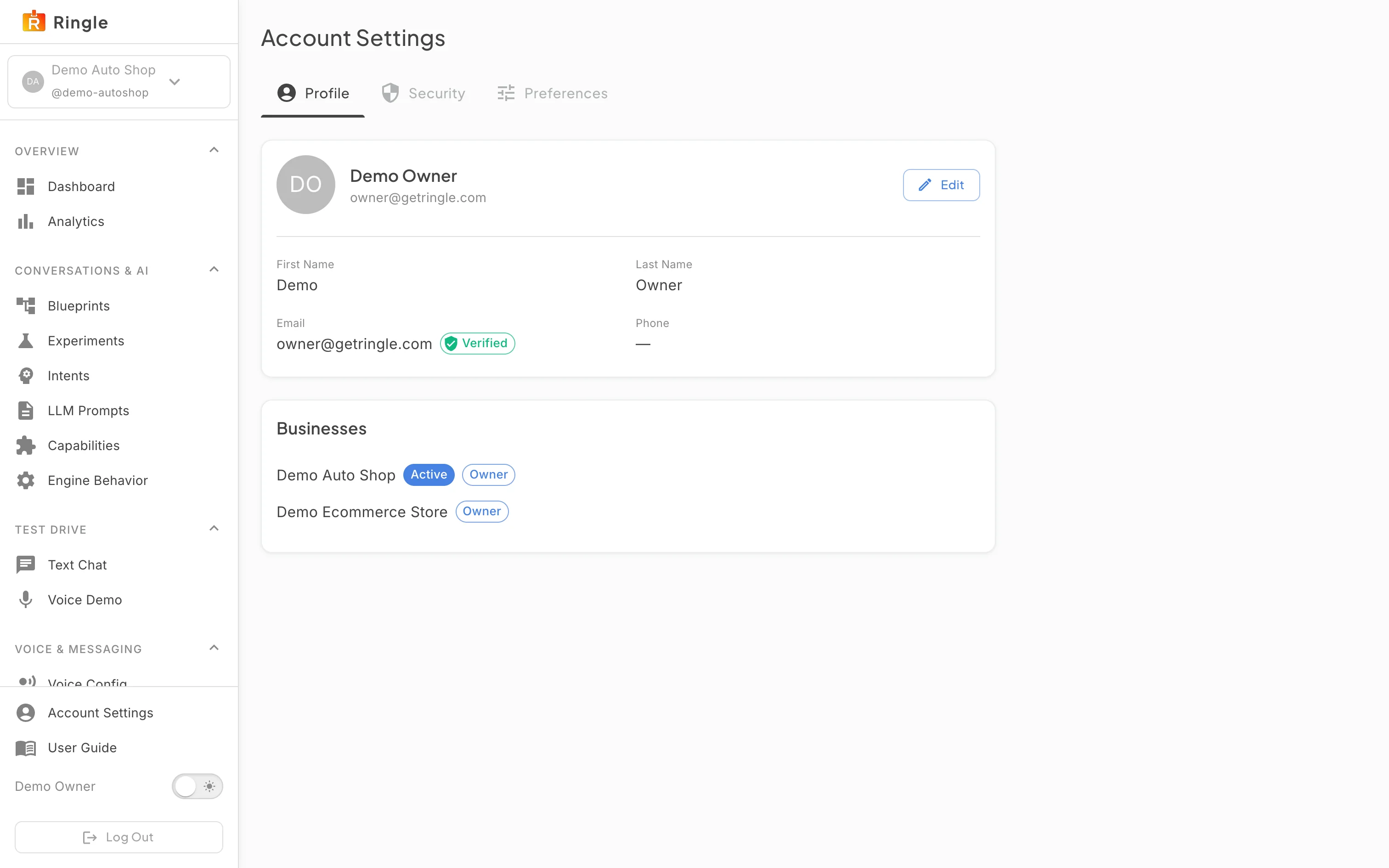
Action: From any portal page, click Account Settings near the bottom of the sidebar. It sits directly above your name and the Log Out button.
What you should see: The Account Settings page opens on the Profile tab. Three tabs are available at the top: Profile, Security, and Preferences.
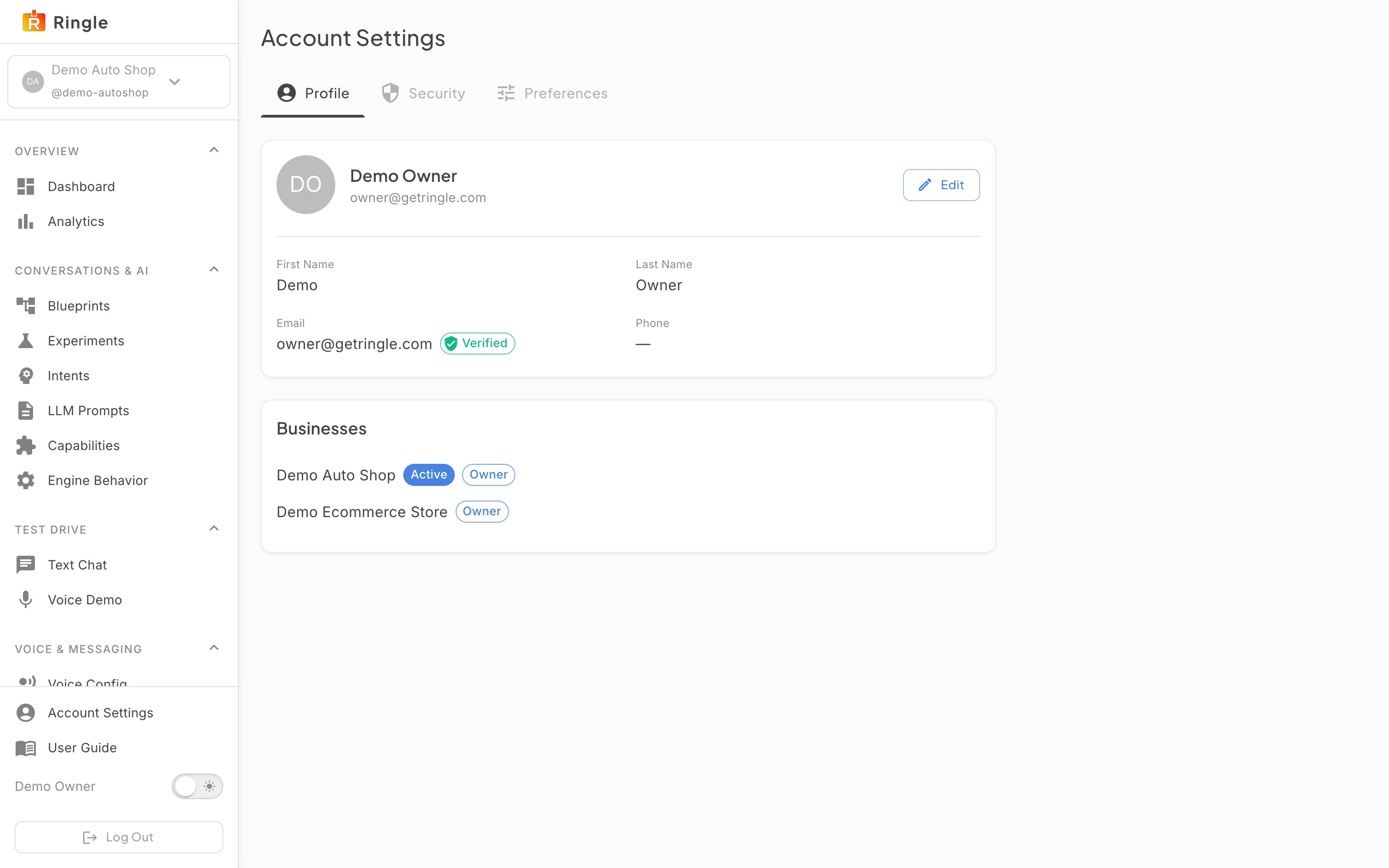
Action: Review the Profile tab.
What you should see: The top card shows your avatar initials, display name, and email, with an Edit button at its top right. It is followed by First Name, Last Name, Email, and Phone. Email carries a Verified badge when the address is confirmed. Phone shows a dash when no number is on file. The Businesses card lists every workspace your account belongs to, with your role in each (for example Owner). The workspace you are currently using carries an Active badge.
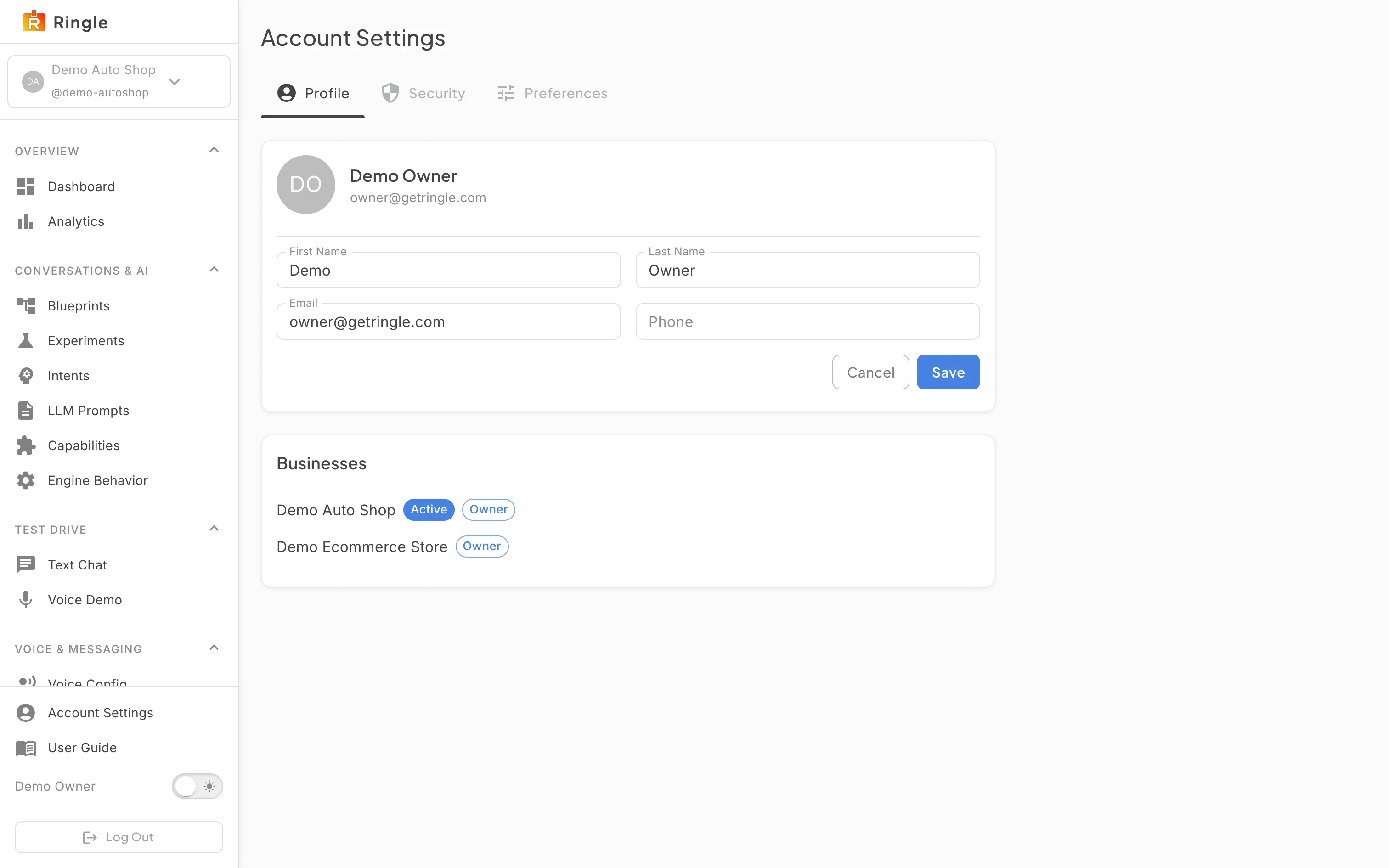
Action: Click Edit on the profile card to change your details. Update the fields you want. Click Save. Cancel leaves everything unchanged.
What you should see: The card switches to editable First Name, Last Name, Email, and Phone fields with Cancel and Save buttons underneath. Save stays disabled while the Email field is empty. Saving shows a “Profile updated” message and returns the card to its read-only view. Your name in the sidebar updates right away. If nothing was changed, Save closes the edit view.
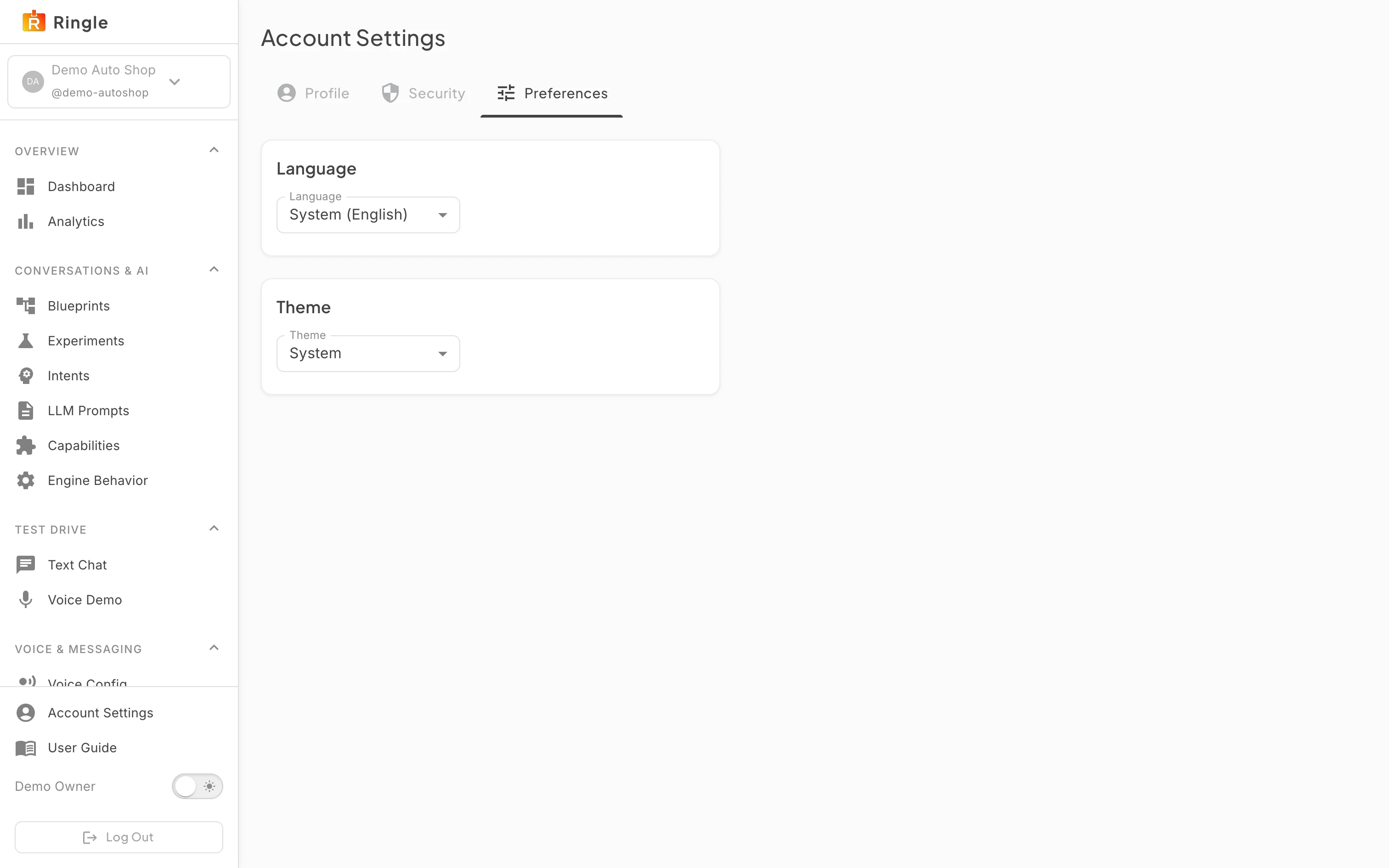
Action: Click the Preferences tab. Pick a language from the Language selector and a theme from the Theme selector.
What you should see: The Language card controls the portal display language. System (English) follows your browser language. The Theme card switches between light, dark, and System. The System theme follows your operating system setting. Choices apply to your account right away.
/account/profile and
/account/preferences.pages/account/AccountPage.jsx (tabs
implemented in AccountProfileTab.jsx and
AccountPreferencesTab.jsx) in the portal app.