Change your password from Account Settings, turn multi-factor authentication on or off, and review or revoke the devices signed in to your account.
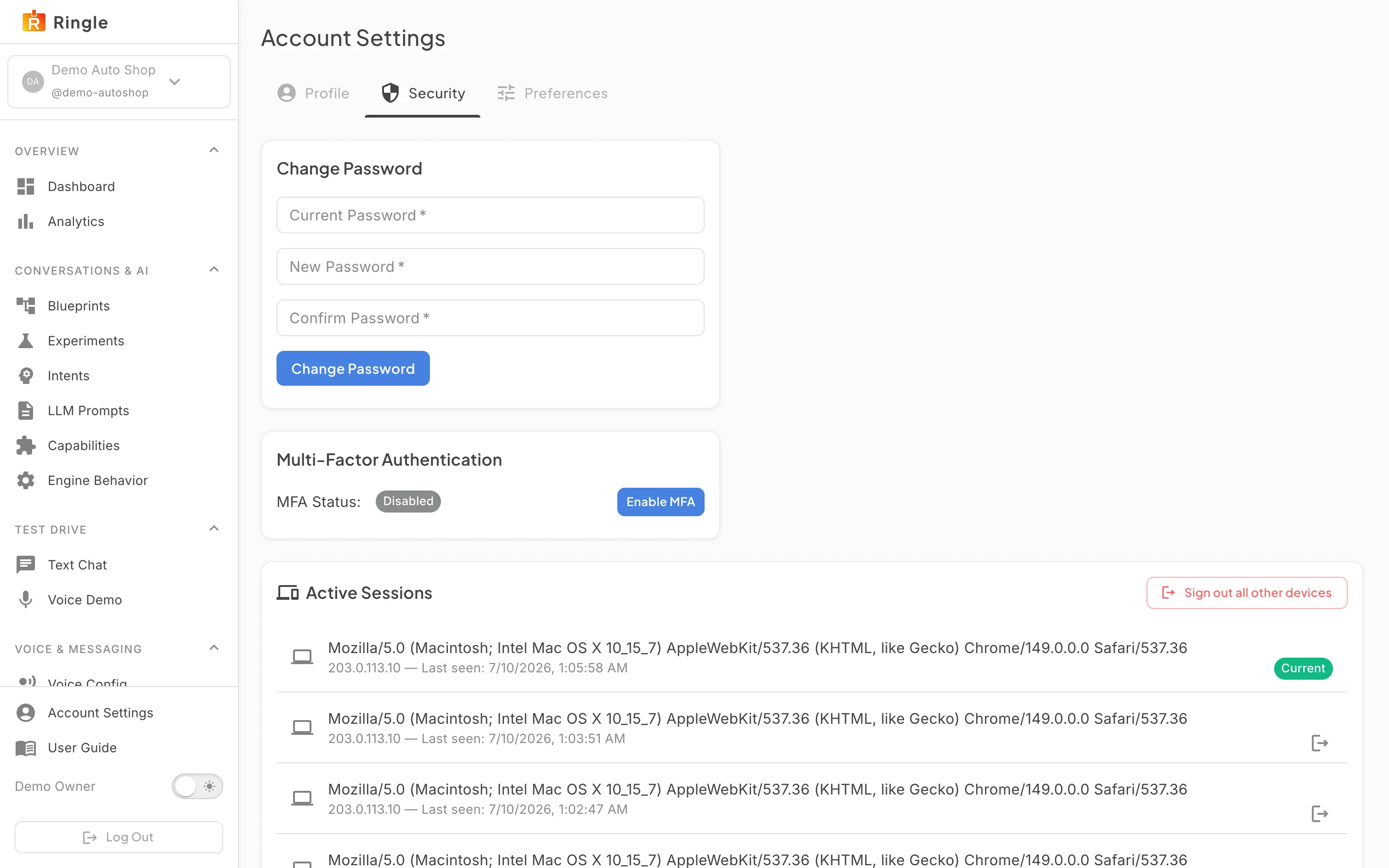
Action: Open Account Settings from the sidebar and click the Security tab.
What you should see: The tab shows three cards. Change Password has Current Password, New Password, and Confirm Password fields with a Change Password button. Multi-Factor Authentication has an MFA Status chip (Enabled or Disabled) and an Enable MFA or Disable MFA button. Active Sessions lists each signed-in device.
Action: To change your password, fill in your current password, the new password, and the confirmation. Then click Change Password.
What you should see: The fields clear and a confirmation message appears on success. The new password must meet the account password policy: at least 12 characters with uppercase, lowercase, a number, and a special character. The confirmation must match.
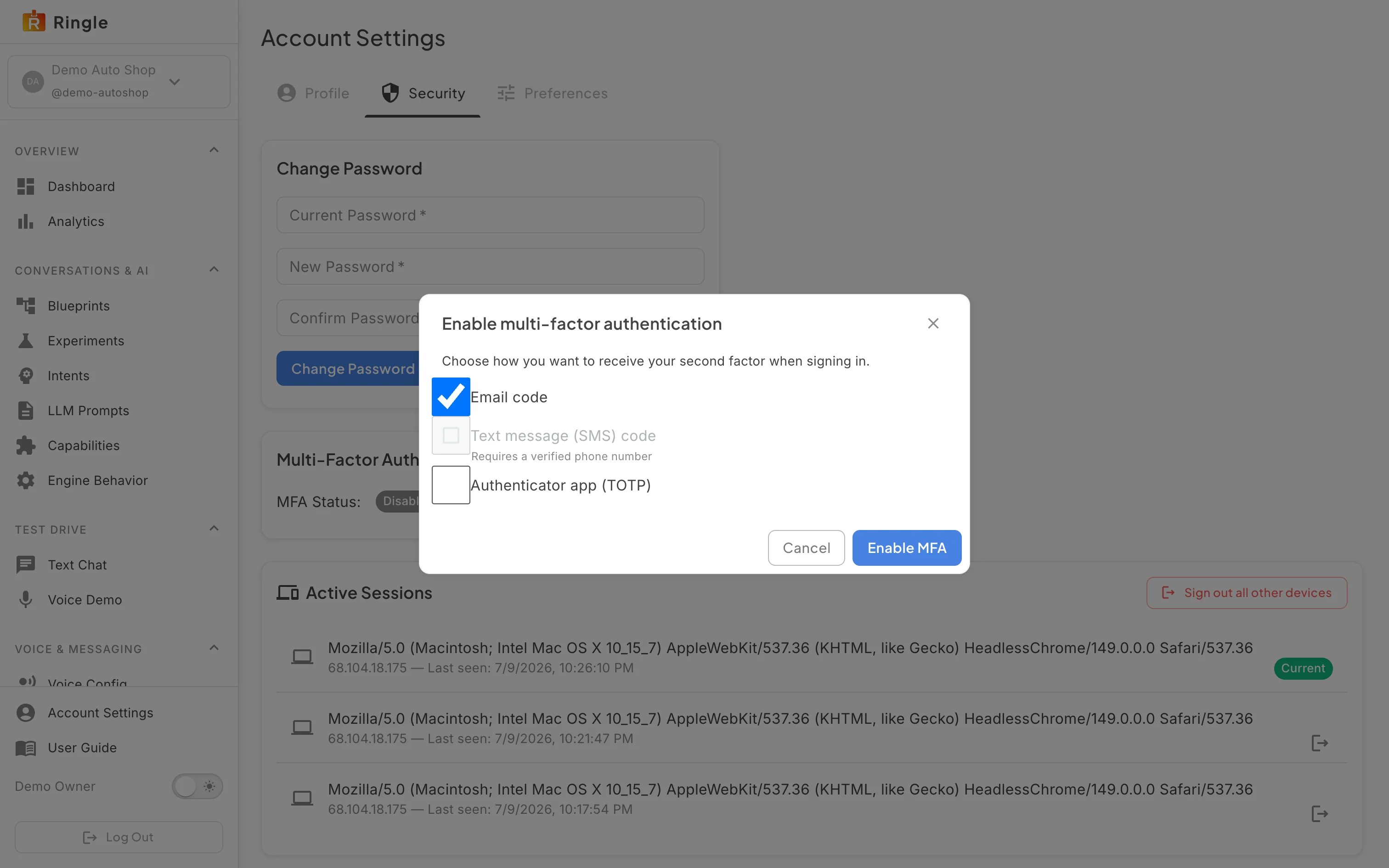
Action: To turn on MFA, click Enable MFA on the Multi-Factor Authentication card. Tick the method or methods you want. Click Enable MFA in the dialog.
What you should see: The “Enable multi-factor authentication” dialog offers three methods: Email code (needs a verified email address), Text message (SMS) code (needs a verified phone number), and Authenticator app (TOTP). The dialog’s Enable MFA button stays disabled until at least one method is ticked. On success, the MFA Status chip flips to Enabled and a confirmation message appears. If you picked the authenticator app, the dialog moves to a “Set up your authenticator app” step. It shows a one-time secret with a copy button. Add the secret to your authenticator app before clicking Done: it is shown only once.
Screenshot not available (the disable-MFA confirmation only appears once MFA is enabled)
Action: To turn MFA off again, click Disable MFA. Review the confirmation dialog. Then confirm.
What you should see: Once MFA is on, the card’s button reads Disable MFA. Clicking it opens a confirmation dialog that warns sign-in will no longer ask for a second factor. Confirming flips the MFA Status chip back to Disabled. Cancelling leaves MFA on.
Action: Review the Active Sessions card.
What you should see: Each entry shows the device’s browser description, its IP address, and when it was last seen. The session you are using now carries a green Current badge.
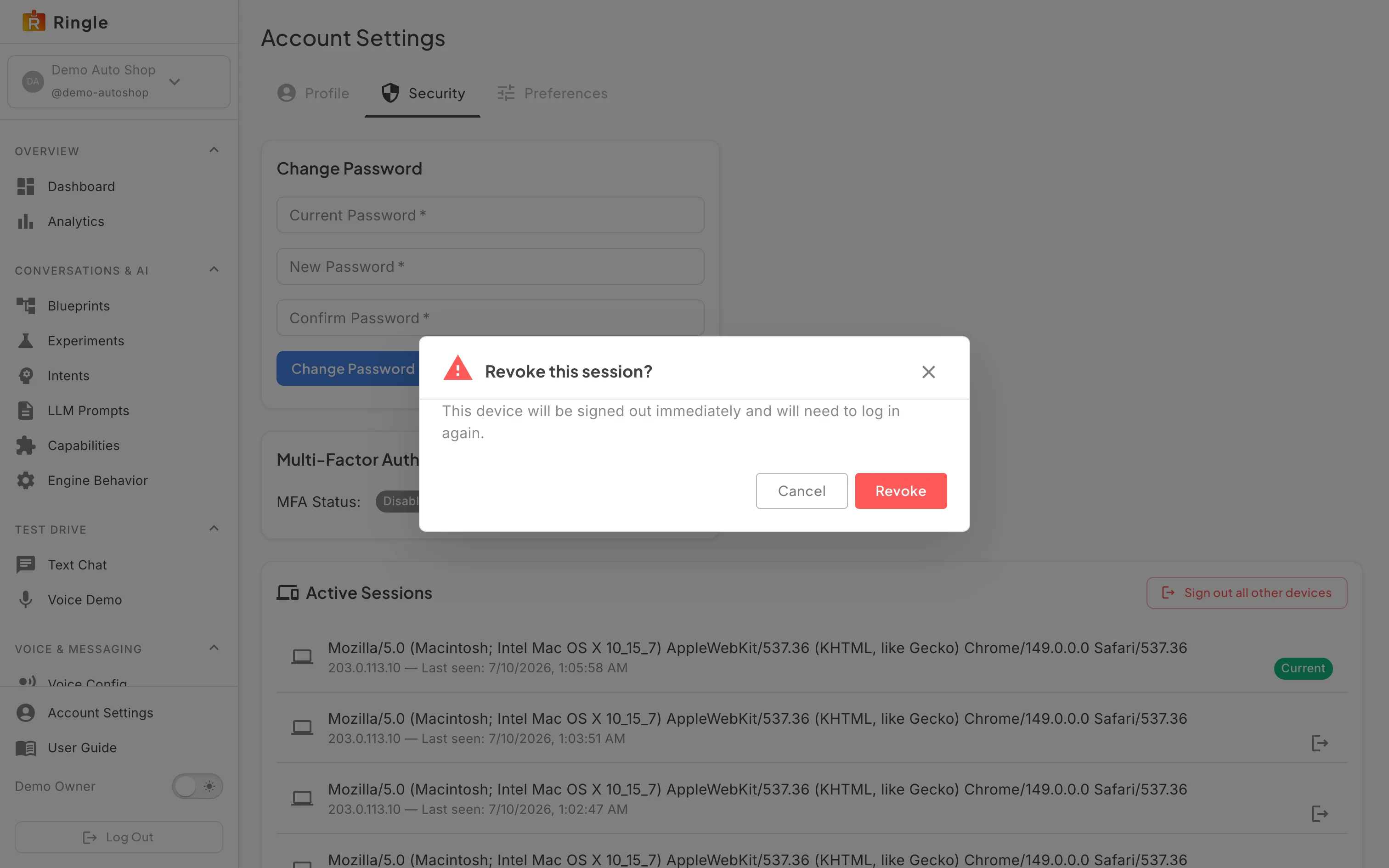
Action: To end another device’s session, click the sign-out icon next to that session. To end everything except the session you are using, click Sign out all other devices at the top of the card.
What you should see: A confirmation dialog opens. For a single device it reads “Revoke this session?” and warns the device will be signed out immediately and will need to log in again. For all devices it reads “Sign out all other devices?”. After you confirm, the revoked session ends immediately and disappears from the list. Anyone using that device is signed out and must log in again. The sign-out icons and the Sign out all other devices button only appear while another session exists.
/account/security.pages/account/AccountPage.jsx
(Security tab implemented in AccountSecurityTab.jsx) in the
portal app./change-password page covered in the “Password reset and
recovery” guide.