Sign in to the Ringle portal with an email or phone number, use a single sign-on provider, complete an MFA challenge when one is enabled, and sign out again.
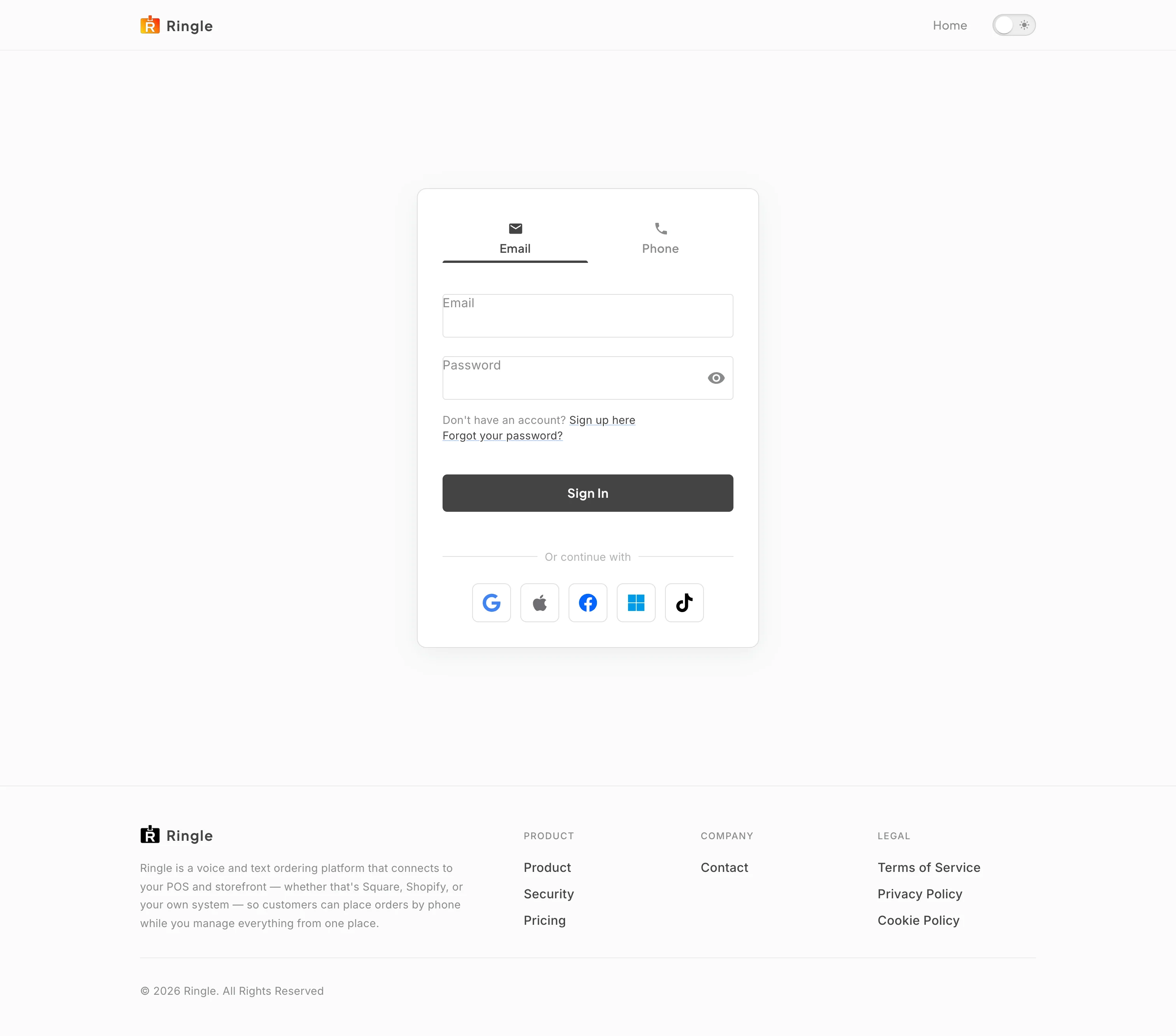
Action: Go to https://portal.getringle.com/login. The Email tab is selected by default.
What you should see: The login card shows Email and Phone tabs, an Email field, and a Password field with a show password toggle. It also has a “Sign up here” link, a “Forgot your password?” link, a Sign In button, and a row of single sign-on buttons under “Or continue with”.
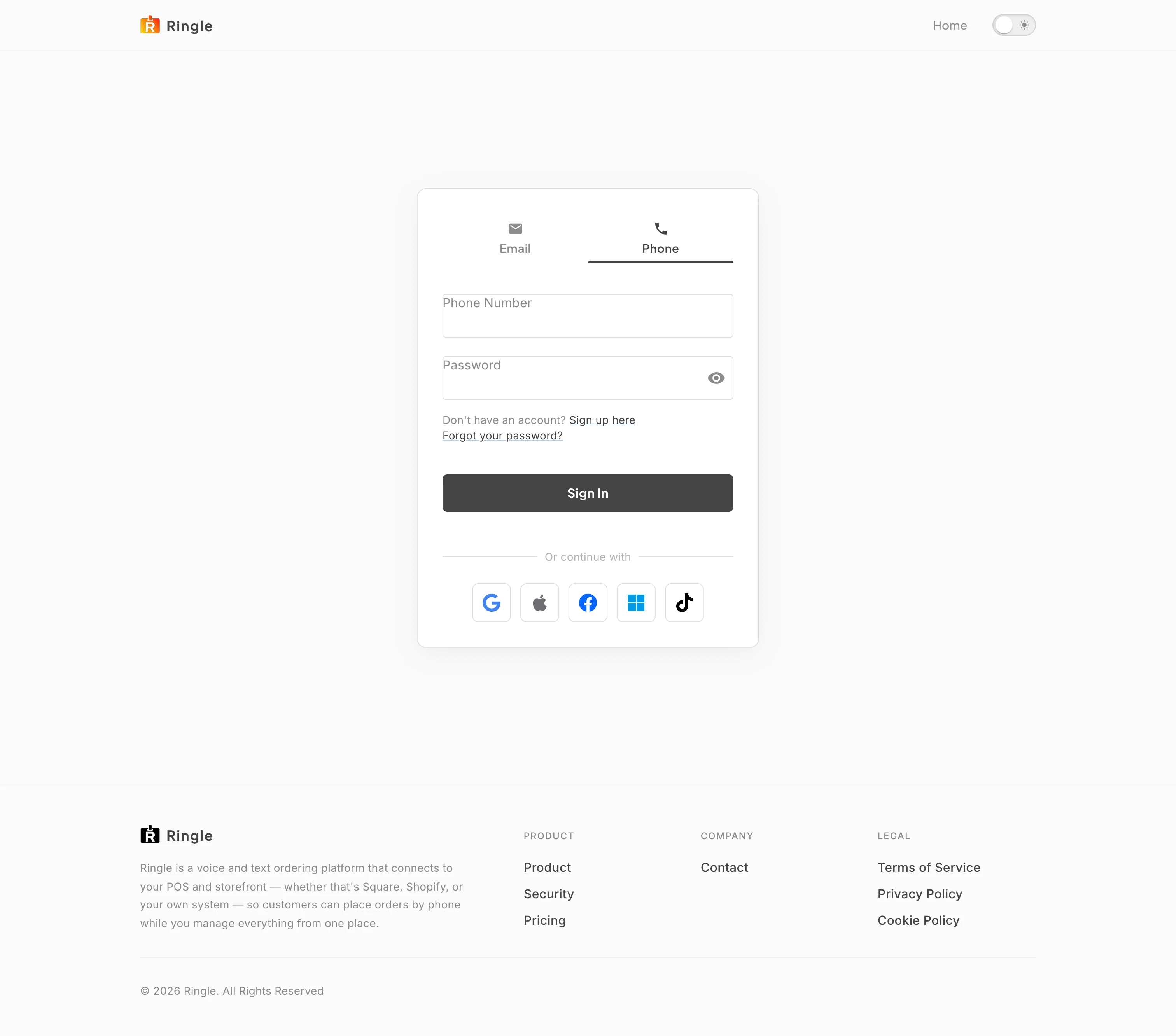
Action: Click the Phone tab to sign in with a phone number instead of an email address.
What you should see: A Phone Number field replaces the Email field. It expects the full number with country code, for example +12345678901. The password field and the rest of the form stay the same.
Action: Click a provider’s button under “Or continue with” to sign in with an existing Google, Apple, Facebook, Microsoft, or TikTok account. Follow the provider’s own sign-in prompts.
What you should see: The provider opens its consent screen. After you approve, you return to the portal signed in. Accounts are matched by the email address the provider shares.
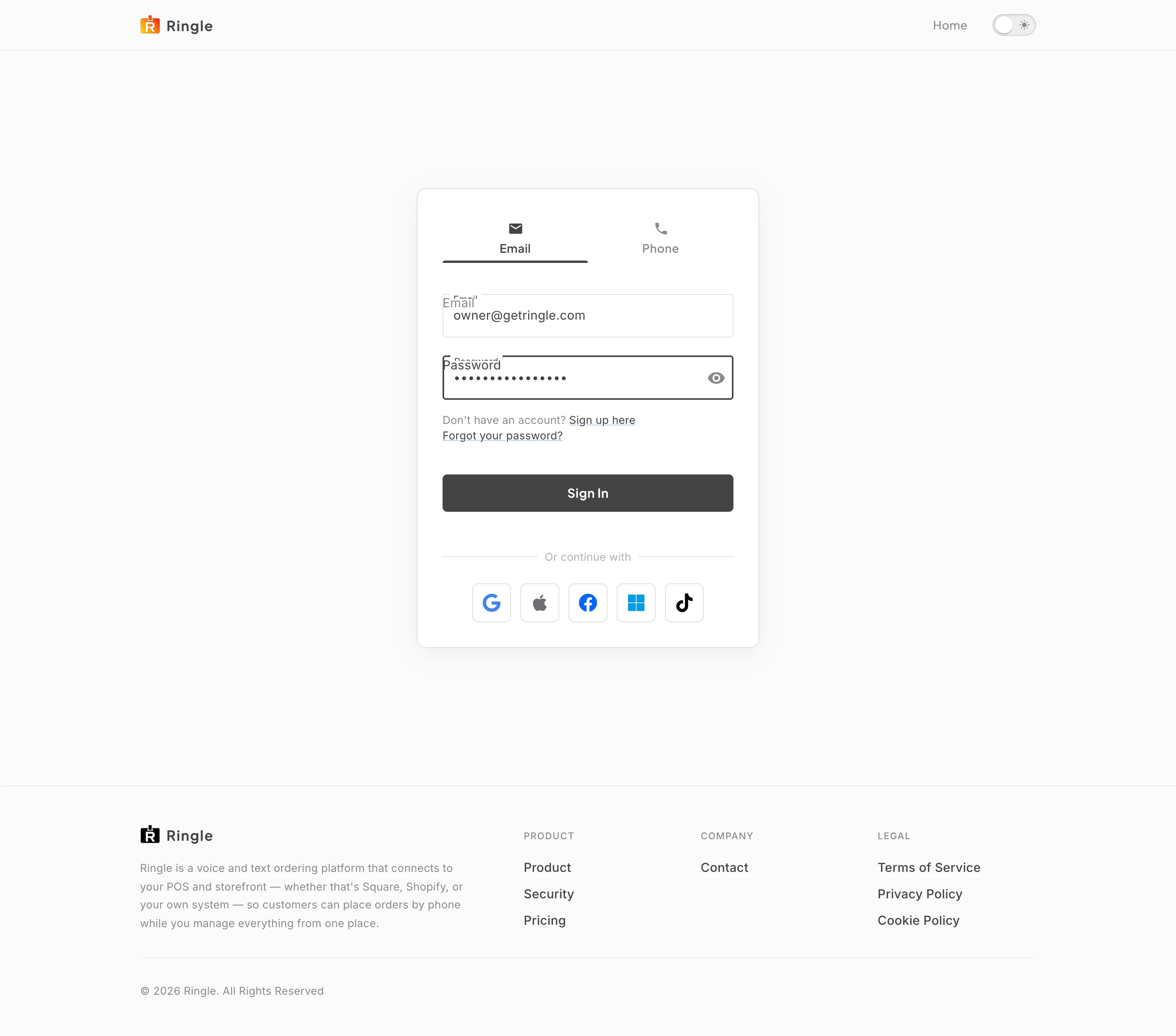
Action: On the Email tab, type your email address and password. Use the eye icon to check the password as you type.
What you should see: Both fields show your input, with the password masked. The Sign In button is ready to click.
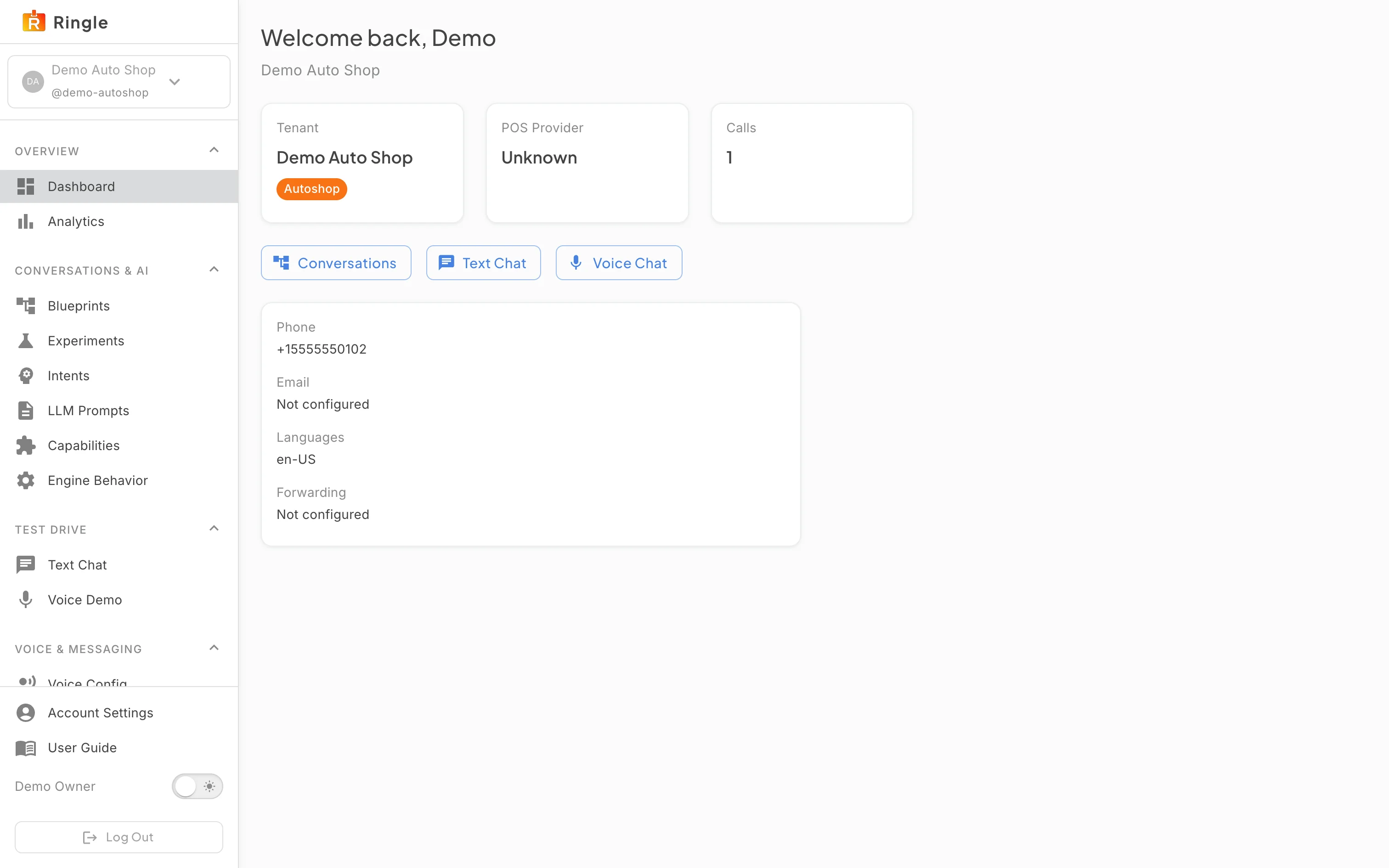
Action: Click Sign In.
What you should see: You land on the dashboard for your active workspace. The sidebar shows your navigation sections, your name at the bottom, and a Log Out button.
Screenshot not available (an MFA challenge could not be produced on a documentation account in this session)
Action: If your account has MFA enabled, enter the verification code when prompted after the password step. Then click Verify Code.
What you should see: The login card switches to a verification step with a Verification Code field, a Verify Code button, and a Back to Login link. A correct code completes the sign-in and the dashboard loads. A wrong or expired code shows an error, and you can try again.
Action: Click the Log Out button at the bottom of the sidebar to sign out. It sits below your name and the dark mode toggle.
What you should see: You are taken to the public landing page. Your session ends immediately.

Action: Confirm you are signed out.
What you should see: The landing page header shows Log In and Try the demo again. Opening a portal page such as the dashboard now asks you to sign in first.
/login.components/auth/Login.jsx in the
portal app.