Create a Ringle portal account with the signup wizard: fill in your details, verify your email address with a one-time code, and get signed in automatically.
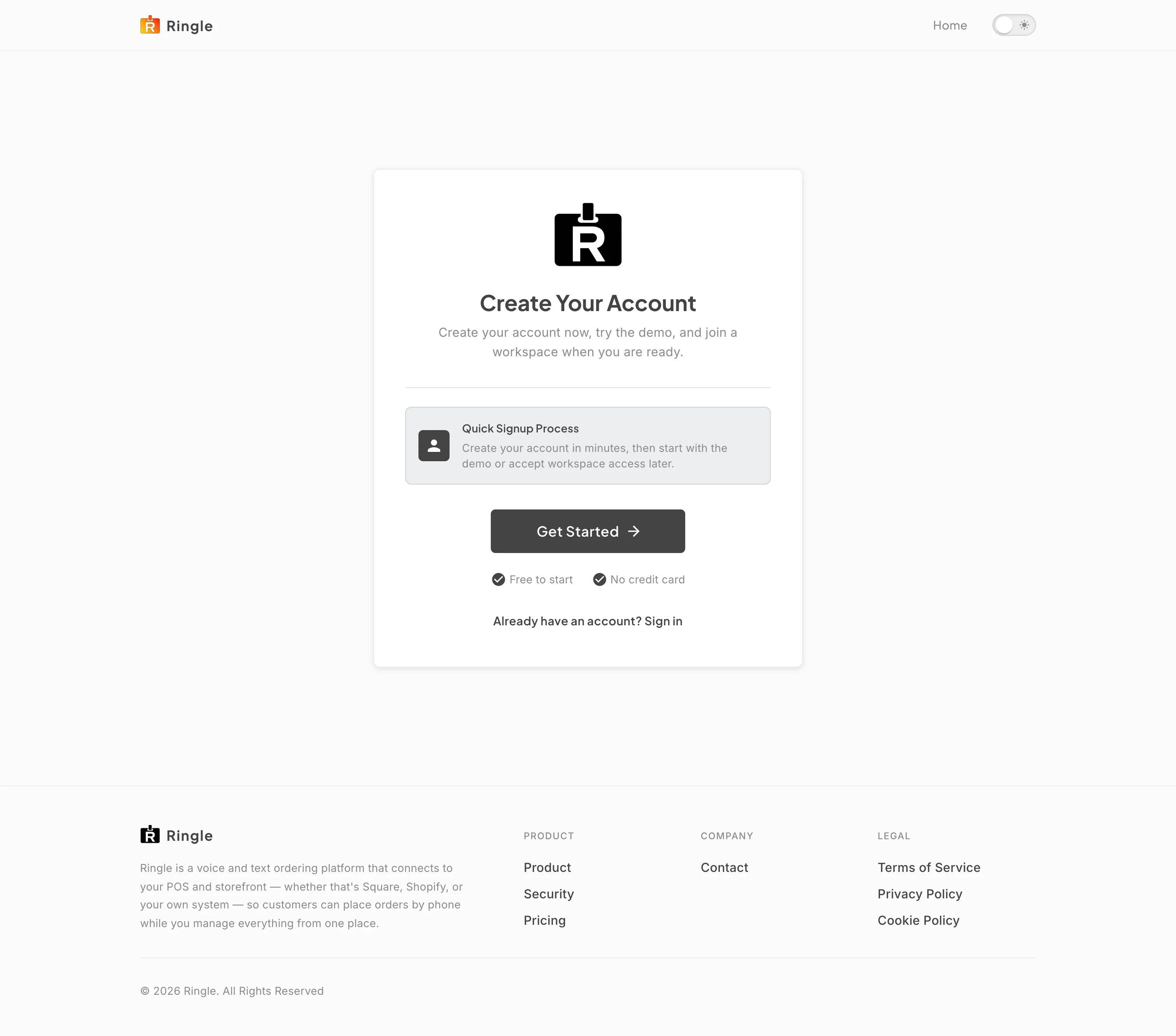
Action: Go to https://portal.getringle.com/signup, or click “Sign up here” on the login page.
What you should see: The signup page shows a “Create Your Account” card with a short description, a Get Started button, “Free to start” and “No credit card” badges, and a link back to the login page for existing accounts.
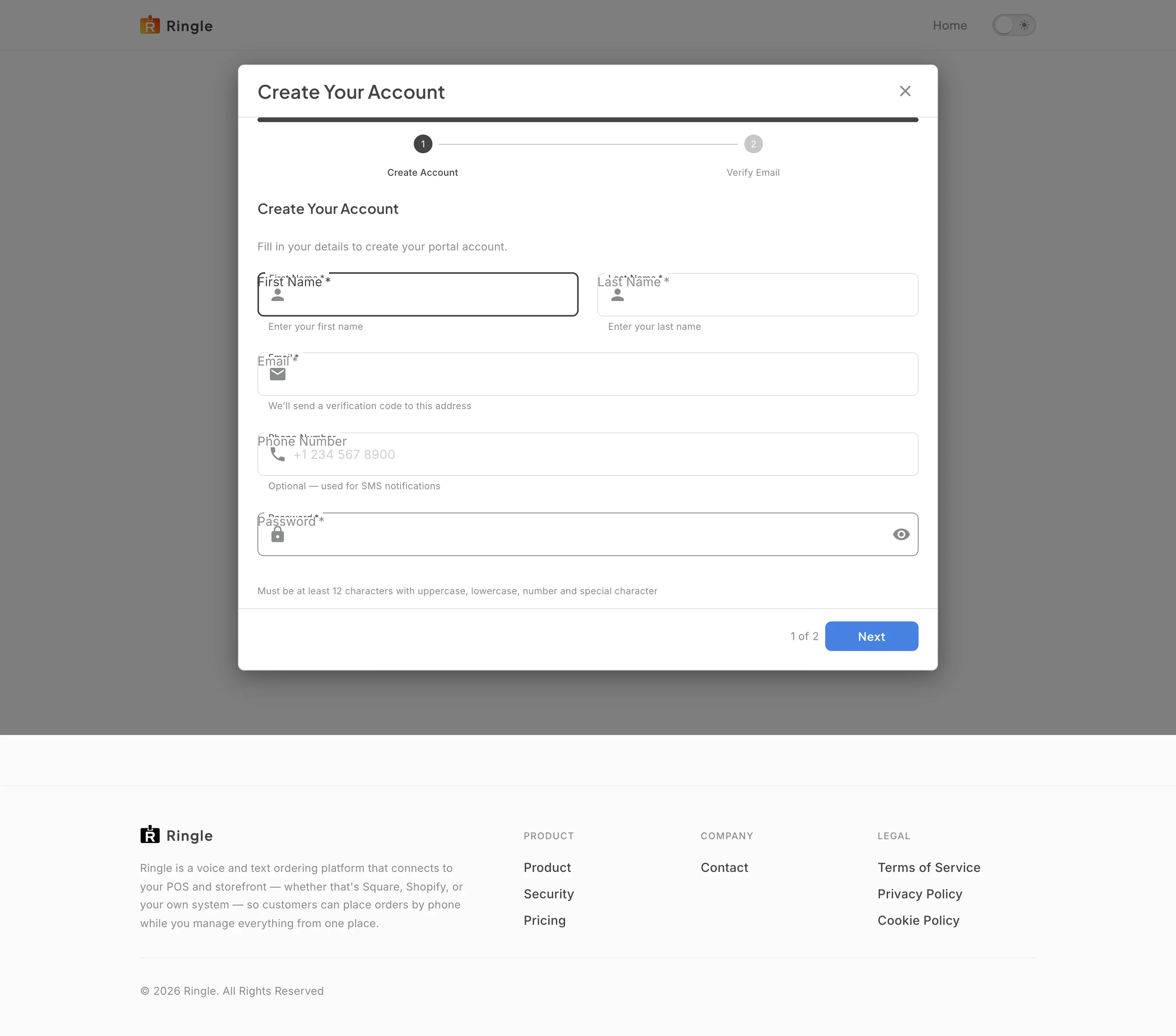
Action: Click Get Started.
What you should see: The signup wizard opens as a dialog titled “Create Your Account” with a two-step progress bar: Create Account, then Verify Email. The first step shows fields for First Name, Last Name, Email, Phone Number (optional), and Password with a show password toggle. The helper text explains the password rules.
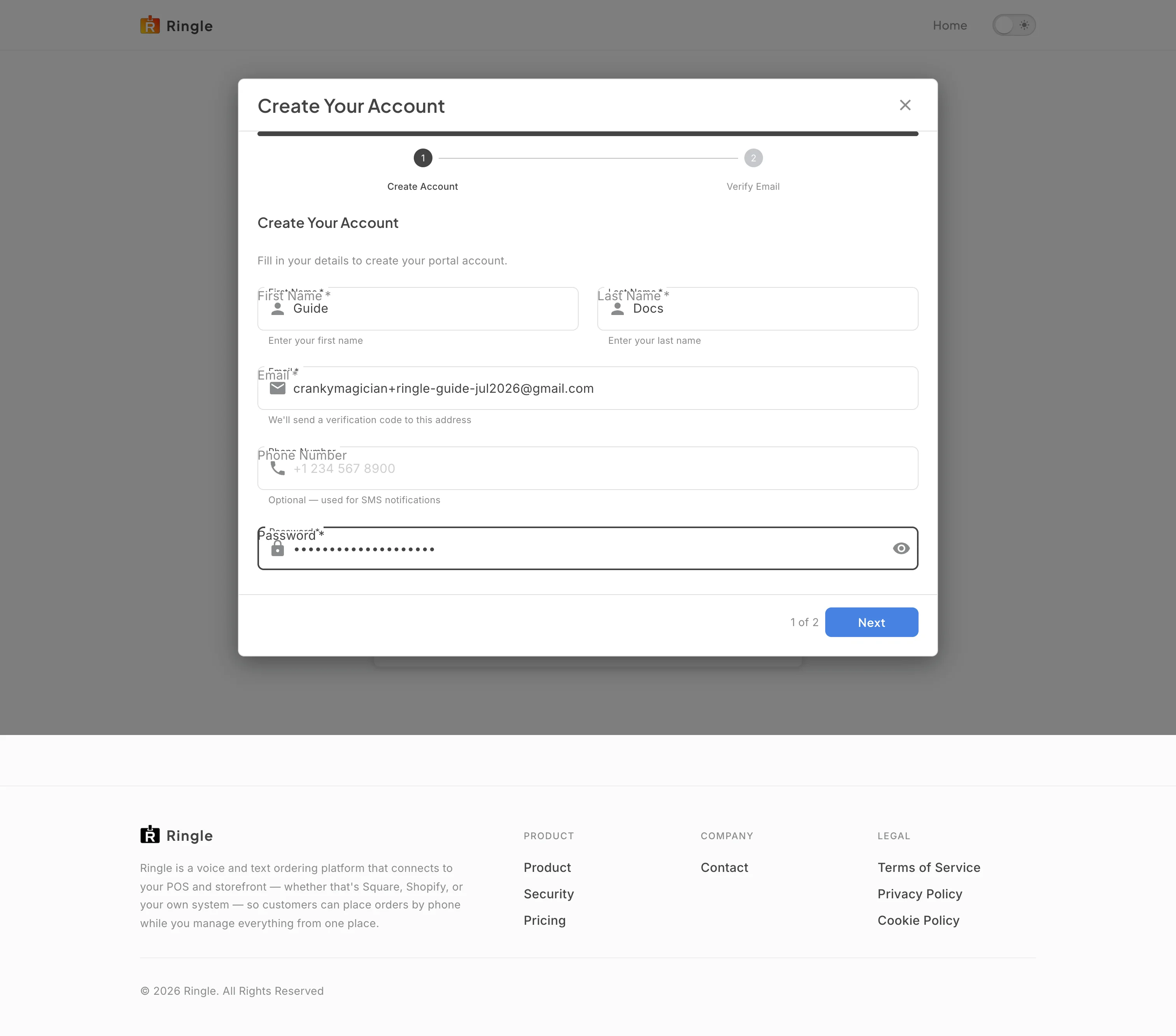
Action: Type your first name, last name, email address, and password. The phone number is optional; it only matters if you want SMS notifications later. Use the eye icon to check the password as you type.
What you should see: All required fields show your input, with the password masked. The Next button is ready at the bottom right, next to the “1 of 2” step counter.
Action: Click Next.
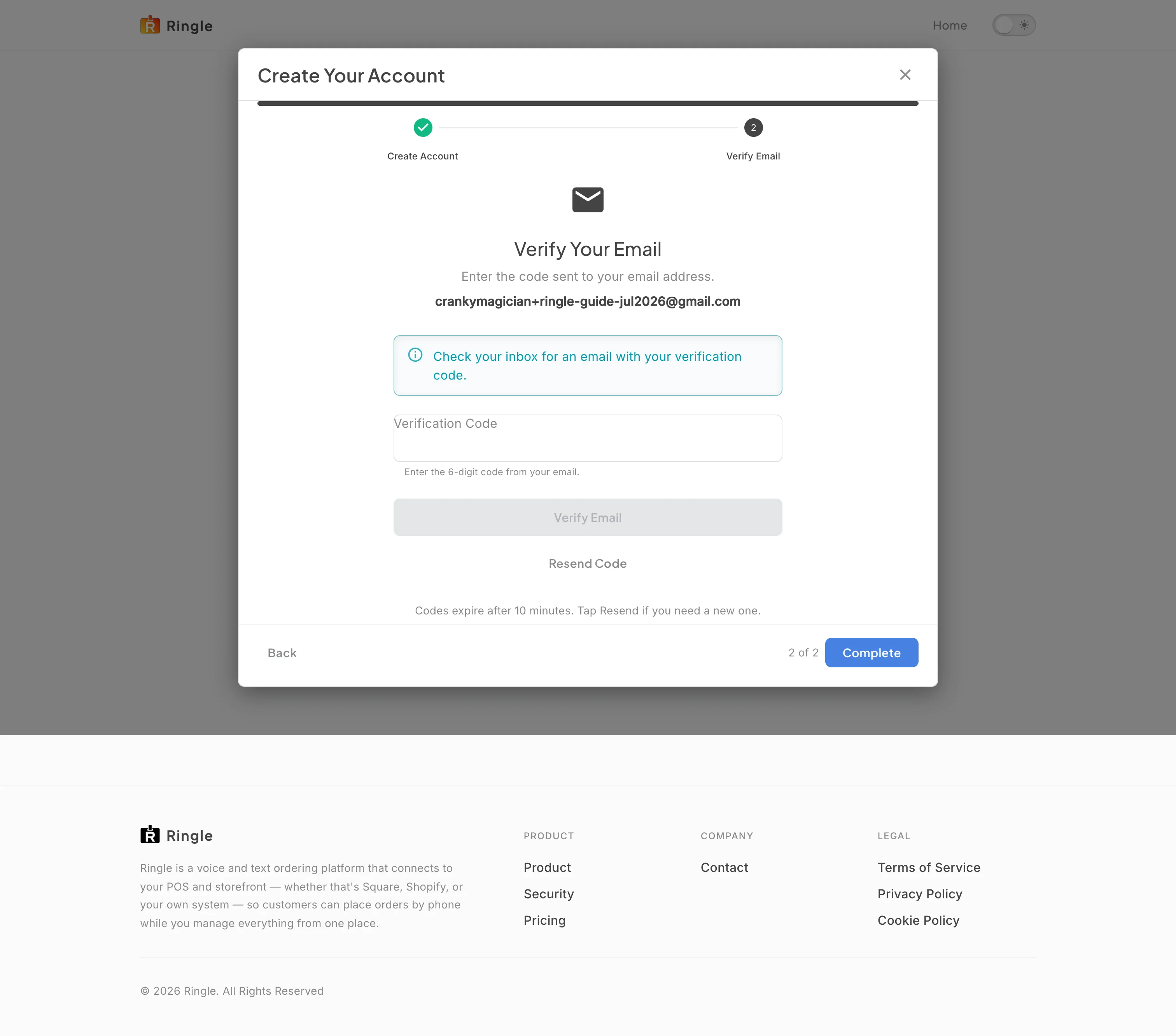
What you should see: The account is created and the wizard advances to “Verify Your Email” (step 2 of 2). It shows the address the code was sent to, a Verification Code field expecting 6 digits, a disabled Verify Email button that activates once the code is complete, and a Resend Code button. Codes expire after 10 minutes.
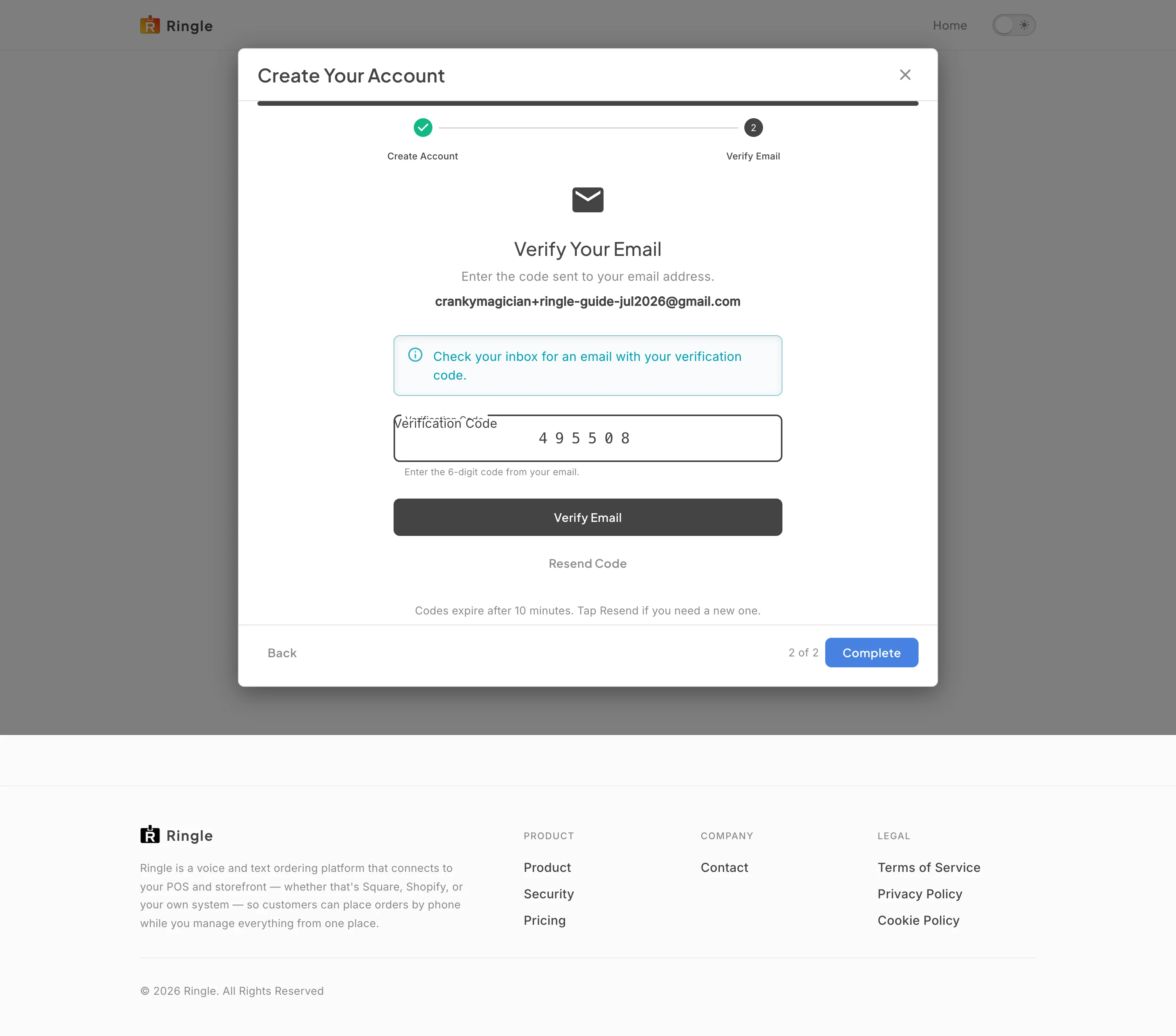
Action: Open the verification email in your inbox. Type the 6-digit code into the Verification Code field. If the email has not arrived after a minute or two, check your spam folder or click Resend Code.
What you should see: The code appears in the field and the Verify Email button becomes clickable.
Action: Click Verify Email.
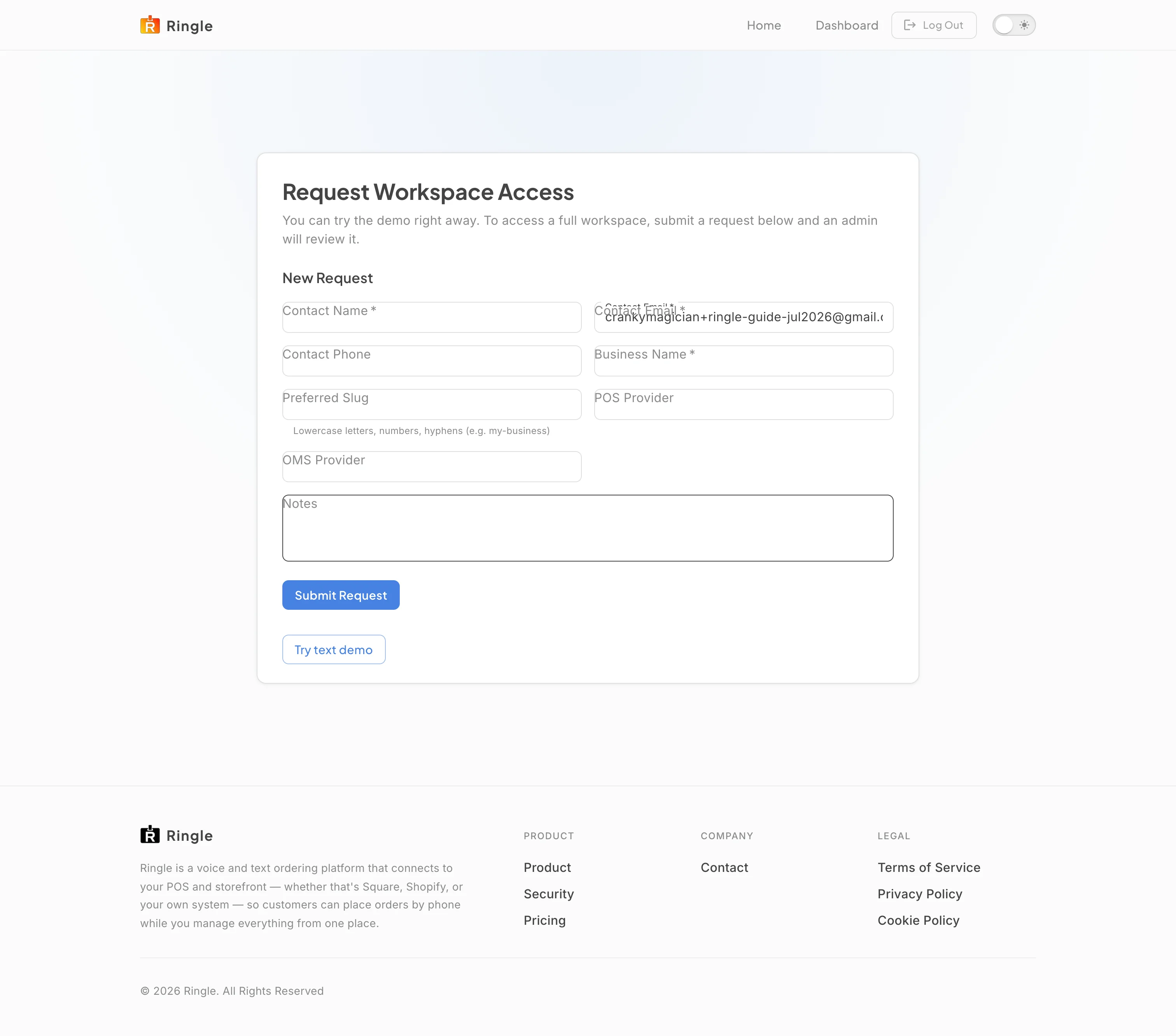
What you should see: Your email is verified and you are signed in automatically. A brand-new account with no workspace yet lands on the “Request Workspace Access” page, where you can submit a workspace request or jump straight into the demo. The header now shows Home, Dashboard, and Log Out. Accounts that already have workspace or demo access land on the matching dashboard instead.
/signup.components/auth/UserSignupWizard.jsx,
opened from pages/SignupPage.jsx in the portal app.