Manage the workspace basics on the Settings page: rename the workspace, change its sector, pick the assistant’s voice, request a real phone number for inbound calls and SMS, and (for owners) delete the workspace.
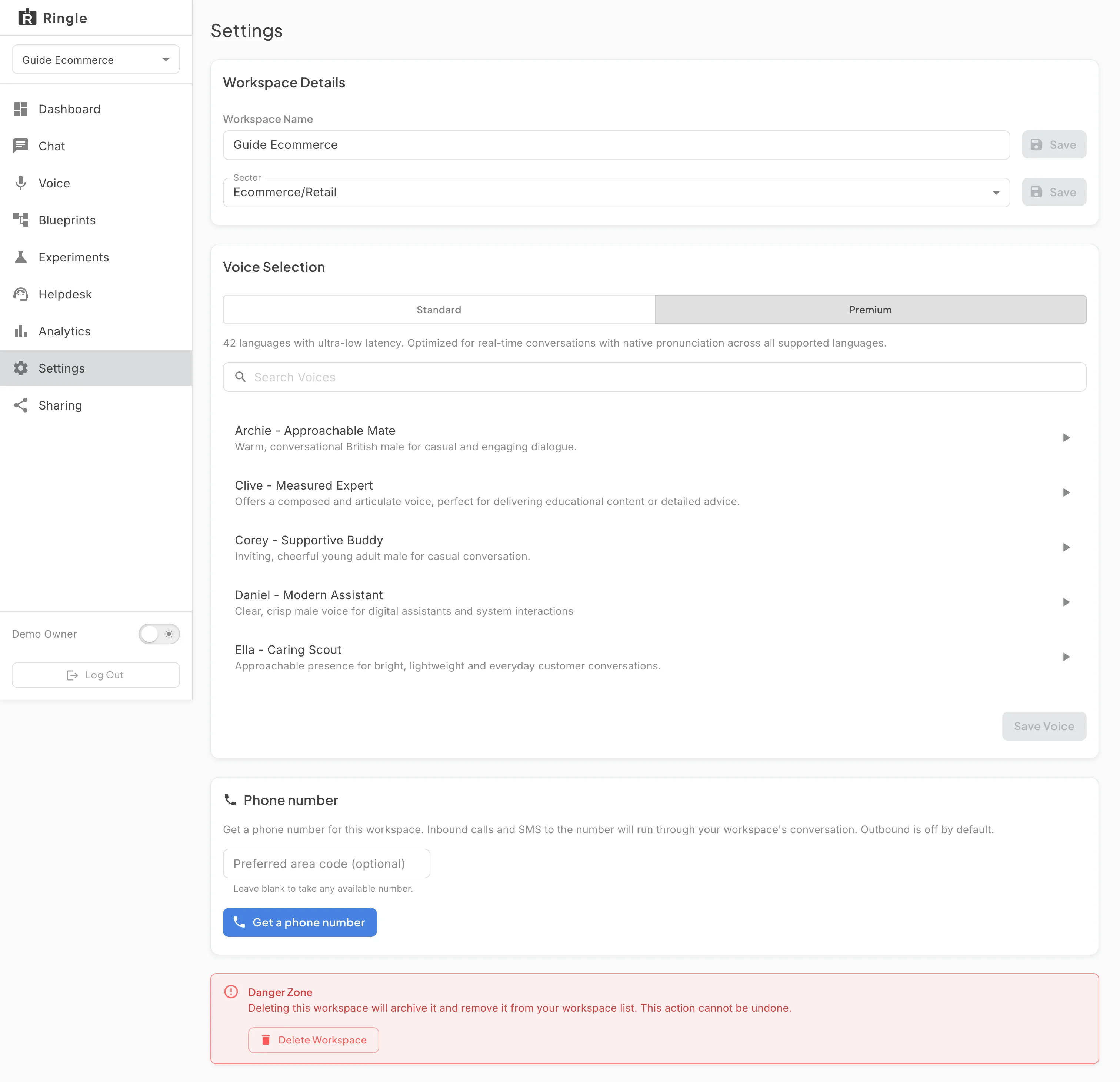
Action: Open Settings from the workspace sidebar.
What you should see: The Settings page has four cards. Workspace Details holds the Workspace Name field and the Sector select. Each has its own Save button that stays disabled until you change the value. Saving the sector shows “Sector saved. Chat and Voice are now available.” Voice Selection is the voice picker, with Standard and Premium tiers, a search box, and per-voice preview buttons; the demo voice guide covers it in detail. Below that are the Phone number card and the red Danger Zone. There is no language picker on this page; the workspace language follows the conversation setup.
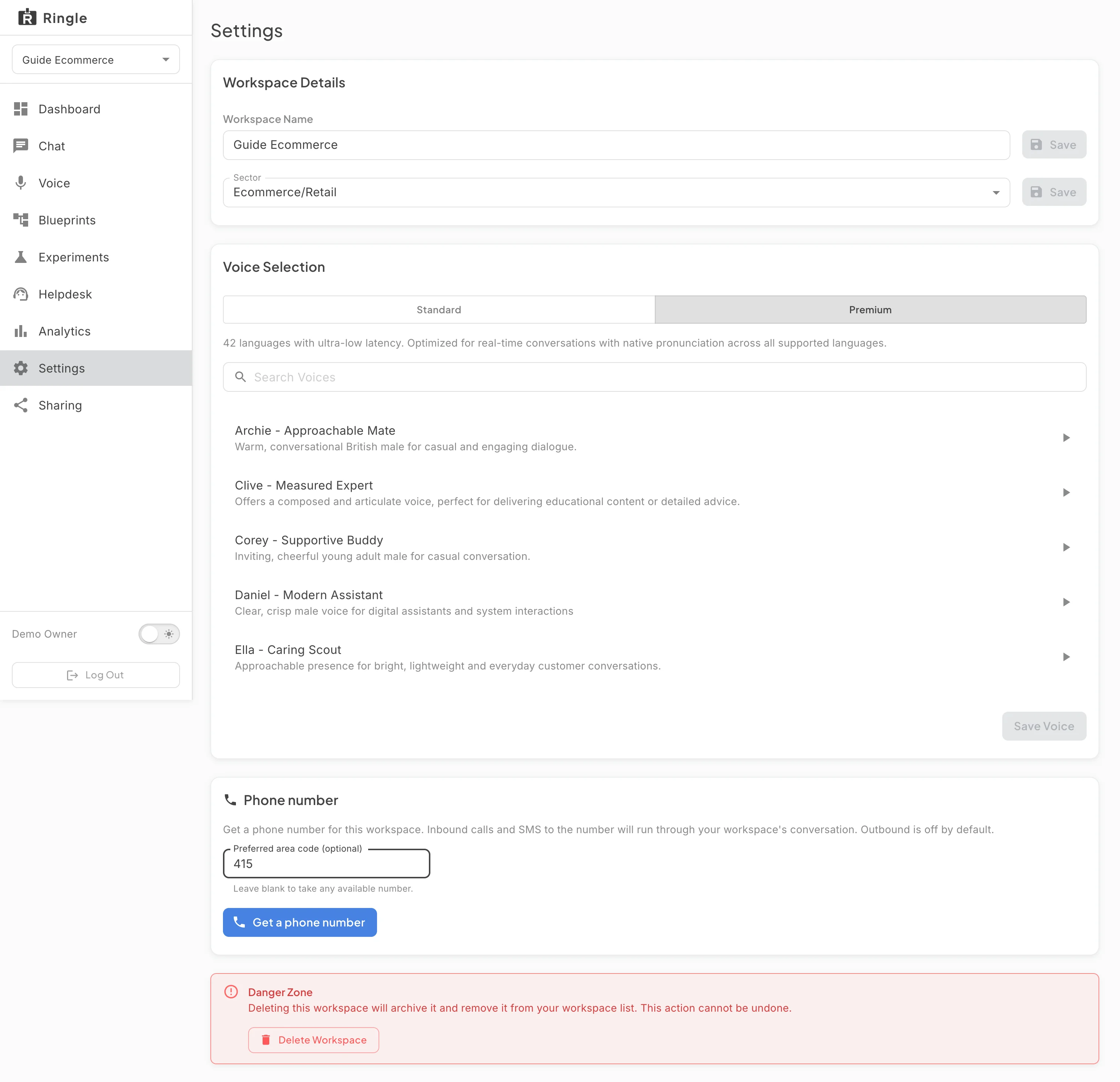
Action: Read the Phone number card. Optionally, type a preferred area code (for example 415). Do not click “Get a phone number” unless you want a real number now.
What you should see: With no number assigned, the card explains: “Get a phone number for this workspace. Inbound calls and SMS to the number will run through your workspace’s conversation. Outbound is off by default.” The area code field is optional (“Leave blank to take any available number.”). Clicking the button starts provisioning immediately, with no confirmation dialog. The card switches to a “Provisioning …” spinner for a few seconds, then shows the active number. That view has the number’s status chip, its expiry, voice-minutes and SMS-segment usage meters, a “Real outbound” toggle, and a “Release number” button. The toggle is off by default; switching it on asks “Enable real outbound?” before any real SMS or calls leave the workspace. The Release number button returns the number to the pool after its own confirmation.
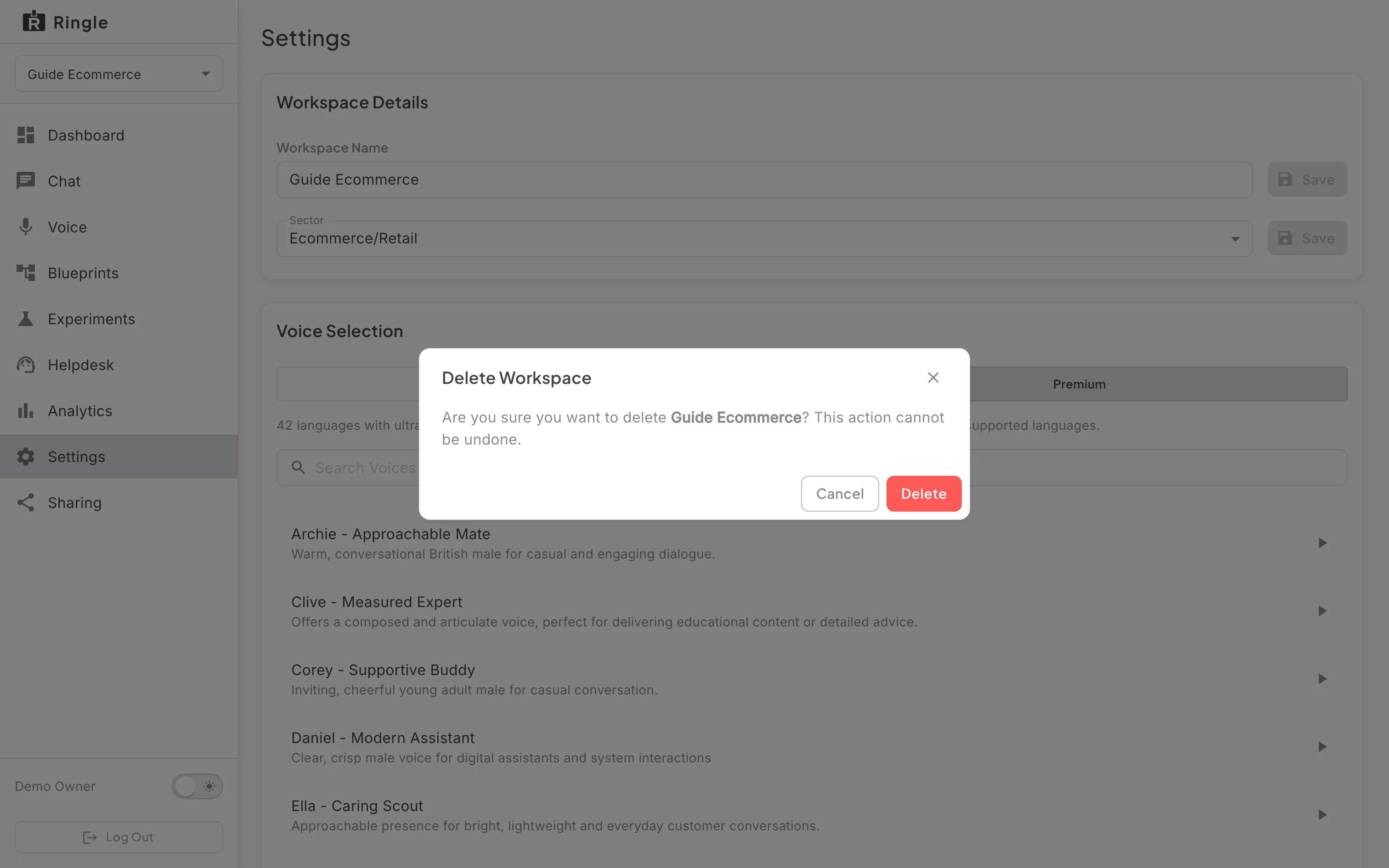
Action: In the Danger Zone, click Delete Workspace to see the confirmation. Then click Cancel.
What you should see: A “Delete Workspace” dialog opens. It asks “Are you sure you want to delete Guide Ecommerce? This action cannot be undone.” and has Cancel and Delete buttons. Deleting archives the workspace and removes it from your list. Cancel closes the dialog with no changes; that is what this walkthrough does.
/demos/:demoWorkspaceId/settings.pages/demo-workspace/DemoWorkspaceSettings.jsx and
components/demo-workspace/WorkspacePhoneNumberCard.jsx; the
voice picker is the shared VoicePicker documented in the
demo voice guide.