Review every conversation your demo workspace has run. Filter the session history by date, outcome, channel, or language, and open any session to read its full transcript.
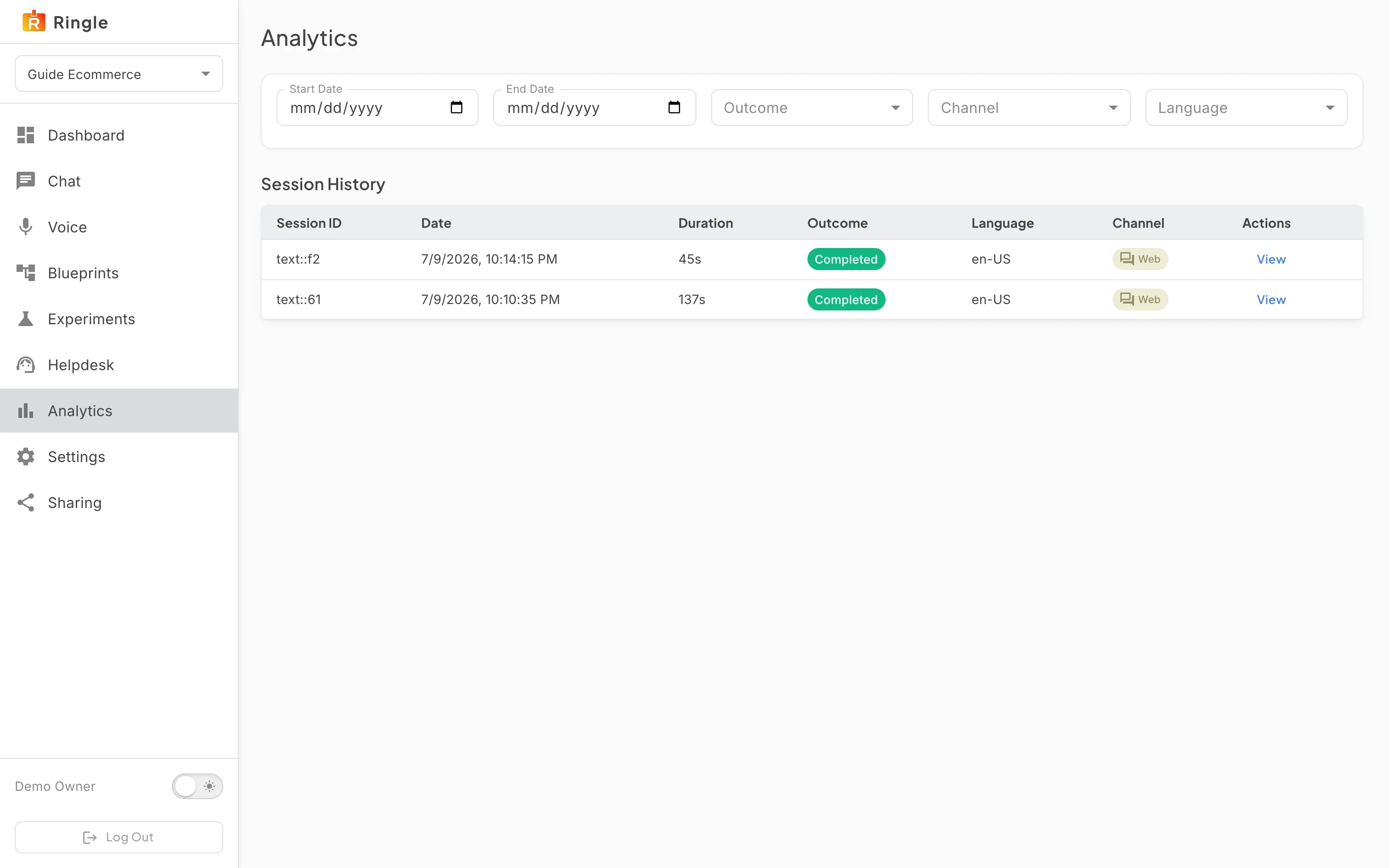
Action: Click Analytics in the workspace sidebar.
What you should see: The Analytics page opens. A filter bar (Start Date, End Date, Outcome, Channel, Language) sits above a Session History table. Each session row shows a short Session ID (text chat ids start with “text::”), the start date and time, and the duration in seconds. It also has a colored Outcome chip (Completed, Abandoned, or Failed), the language, a Channel chip, and a View button.
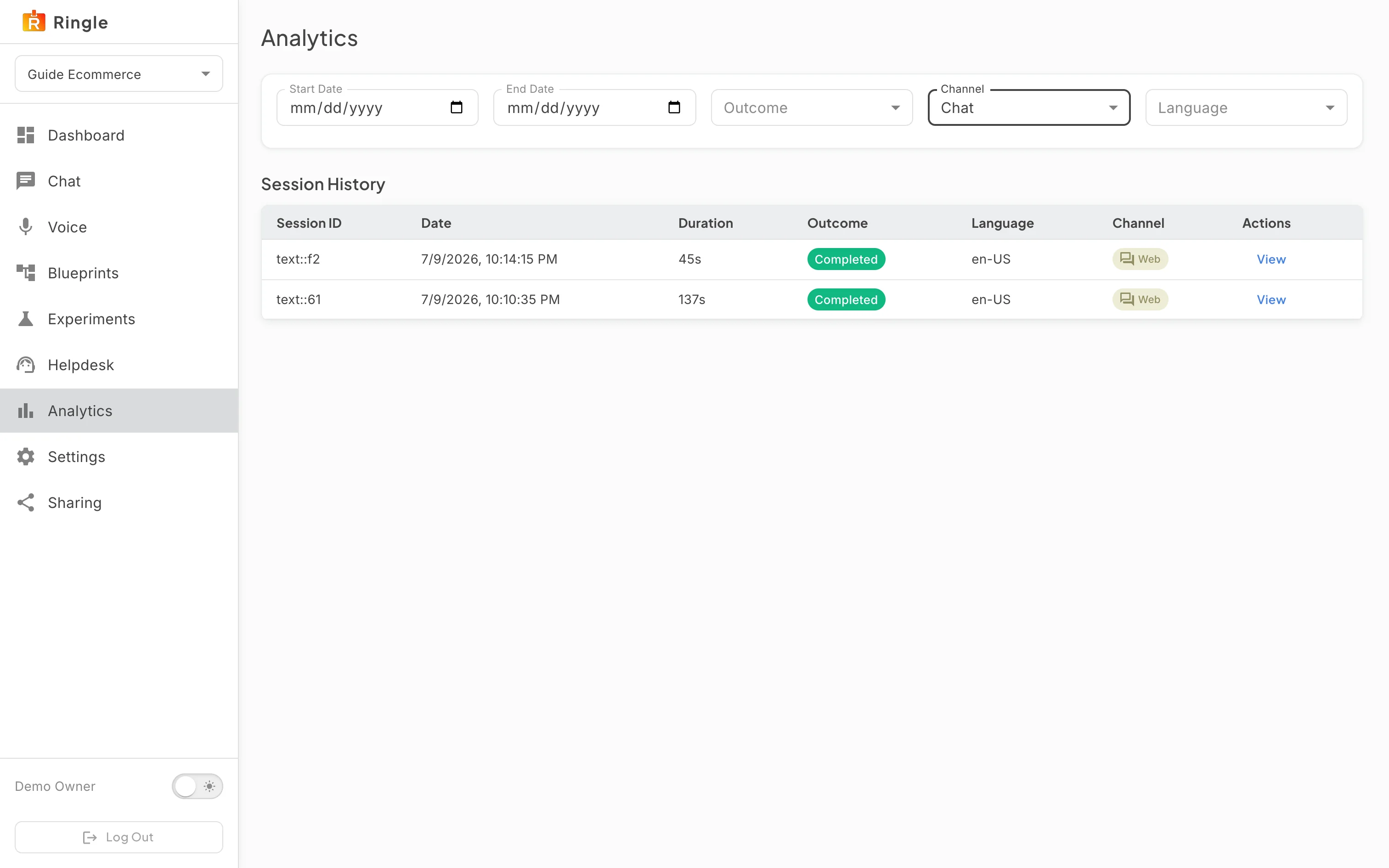
Action: Open the Channel filter. Pick Chat. Combine it with the date pickers or the Outcome and Language filters to narrow the list further.
What you should see: The dropdown offers All, Voice, Chat, and Email. The table narrows to matching sessions as soon as you pick one. Web chat sessions display a “Web” channel chip. Clearing a filter back to All restores the full history.
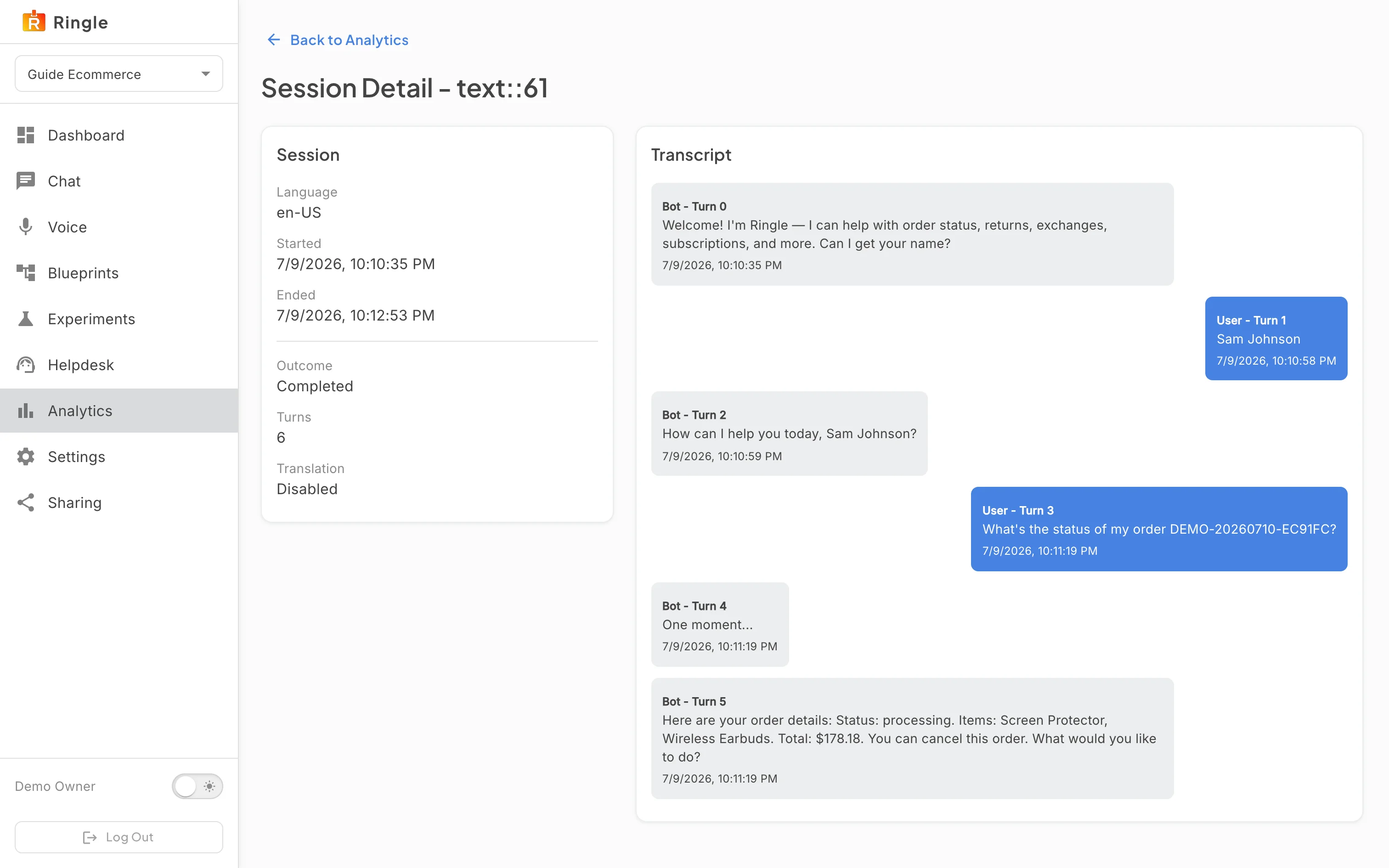
Action: Click View on a session.
What you should see: The Session Detail page opens with a Back to Analytics button. The Session card summarizes the metadata: language, start and end time, outcome, turn count, and whether translation was enabled. The Transcript card replays the whole conversation as chat bubbles: bot turns on the left, user turns on the right. Each bubble is labeled with its turn number and timestamp.
/demos/:demoWorkspaceId/analytics (list) and
/demos/:demoWorkspaceId/analytics/:callId (session
detail).pages/demo-workspace/DemoWorkspaceAnalytics.jsx and
pages/demo-workspace/DemoWorkspaceSessionDetail.jsx in the
portal app.